
On this page
Before you start
- CiteFlow 1.2.2 or later and a project containing readable PDFs.
- A word you can see in one of the papers. Image-only scans need OCR before their words can be searched.
Follow these steps
Open a small project
Open your project, or use New Project and Add PDF to add your papers. Wait for their text preparation to finish.
Type a known word
Use Search in project above the library. Start with a distinctive word that appears in one of the papers, rather than a broad subject description.
Read the results
Look at the source and passage shown for each match. Project search can also find saved notes, so check which kind of result you are opening.
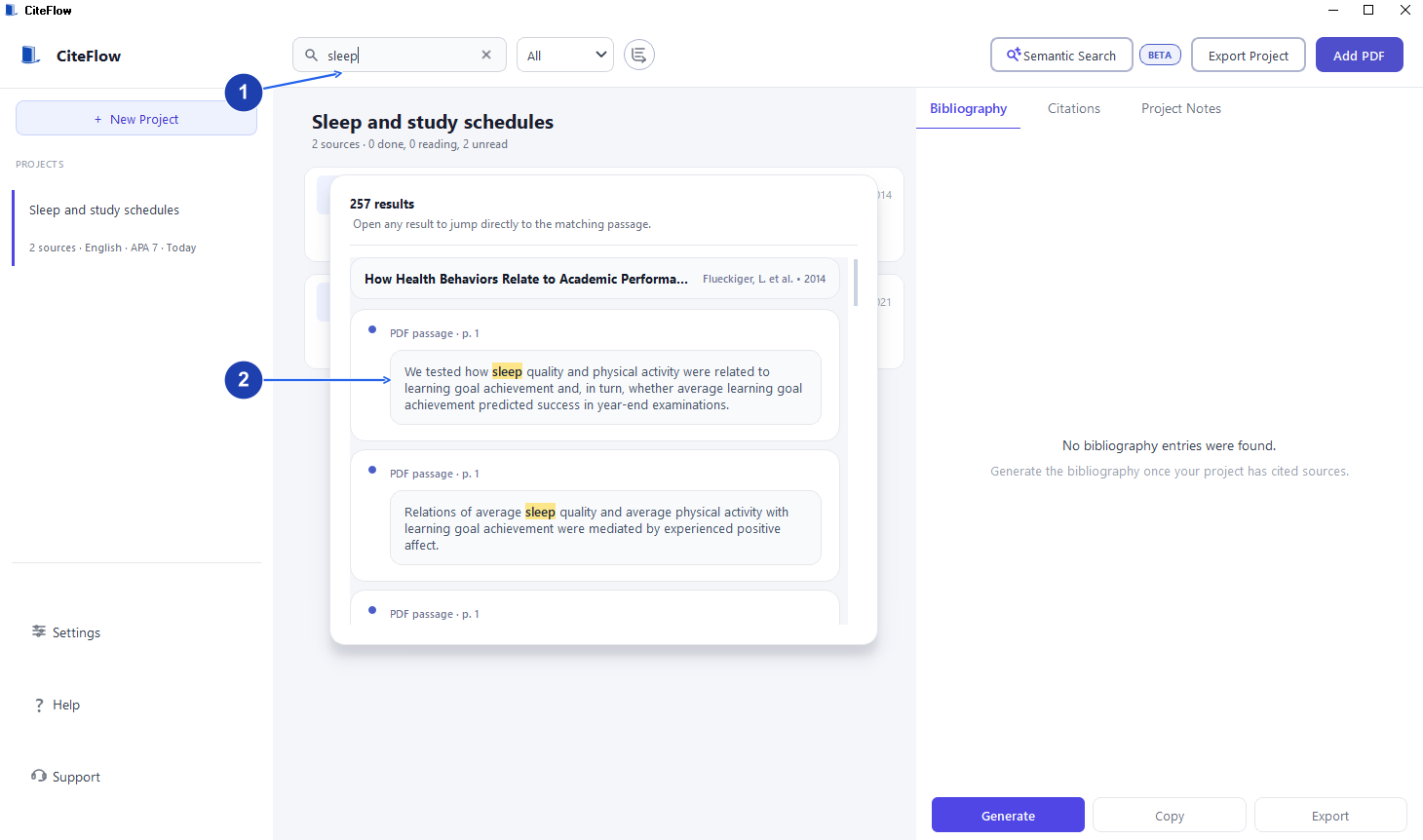
Open a matching passage to read it in the paper. Enlarge image. - Type a word in Search in project.
- Open a matching passage to read its source page.
Open the source passage
Open a PDF result to jump to its matching passage. Read the surrounding sentences and confirm that this is the information you wanted.
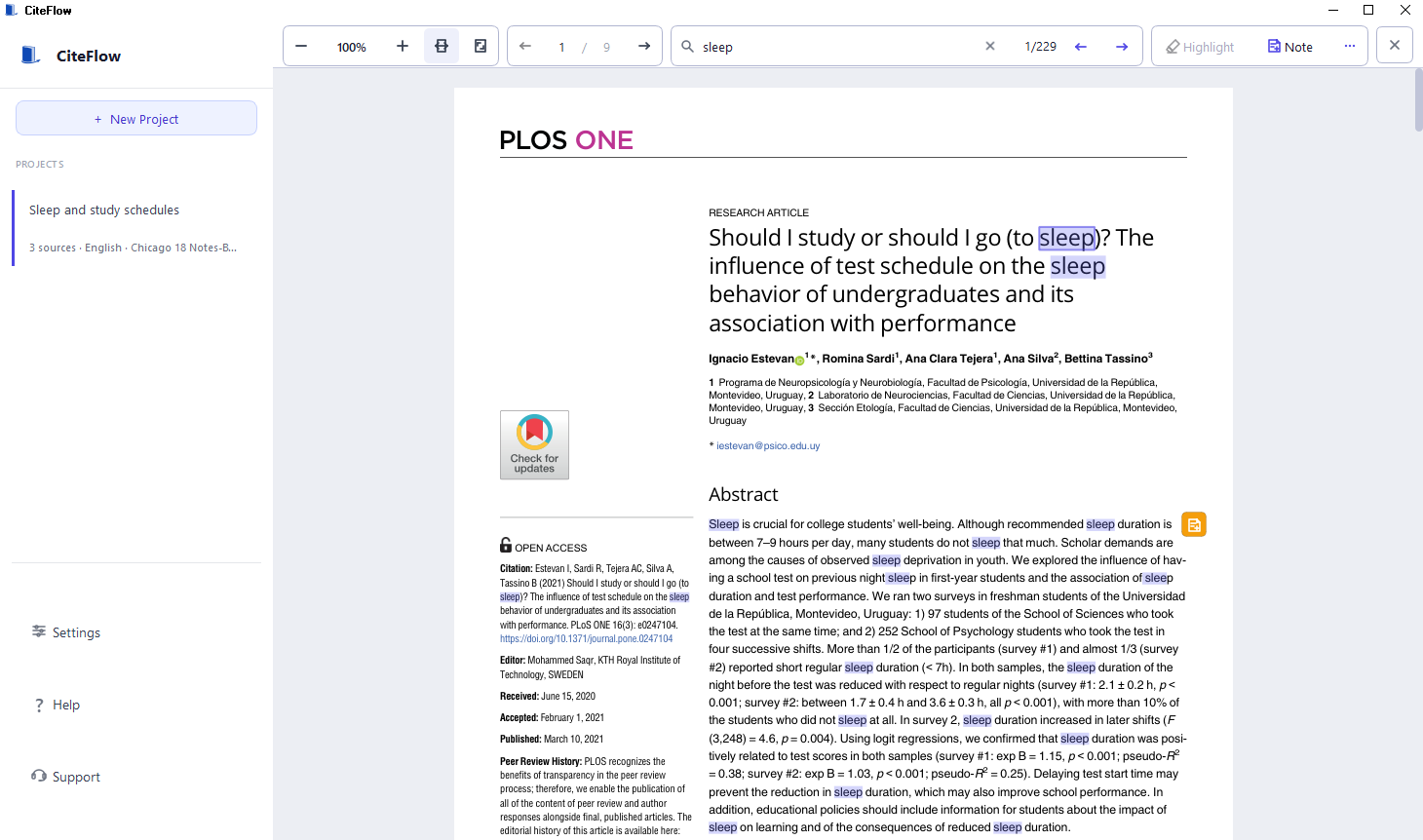
Read the matching words in their source page. Enlarge image. Narrow or change the search
Try a longer phrase for too many matches, or a shorter word for none. Clear the search when you want to return to the full project library.
Check your result
- A known word returns the expected source, and the result opens the correct passage.
- You checked the passage itself before quoting it. A search match does not establish what the author meant.
If you need more help
If a word is missing
Open the page and try selecting its text. If it is only a picture, use OCR and check the recognized words. An incomplete preparation or a missing local source can also prevent a result.
Version 1.2.2 recognizes common joined letters, such as a typographic fi, when you search with ordinary letters or copied PDF text. Unusual text encoding or incorrect OCR can still cause misses.
If you remember the idea, not the wording
Use the separate local semantic-search guide for related ideas expressed in different words. That optional workflow needs a downloaded model and its own index. Always open and read the returned passage.
What is searched
This searches material in the selected CiteFlow project. It does not search every file on your PC or discover papers on the internet. Add the source to the project if it belongs in this search.
Need the app?
CiteFlow. Check requirements and download options.