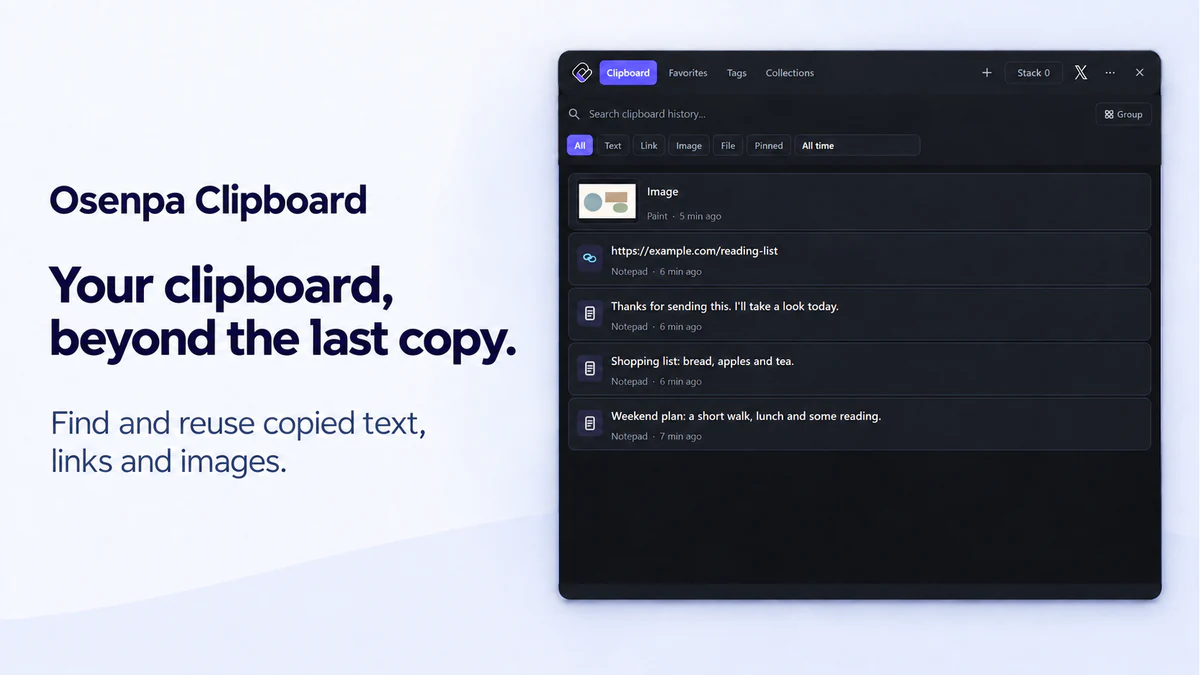
Clipboard workspace

Version 2.0.0 · Windows 10/11 · x64

Osenpa Clipboard Manager

Search and organize local clipboard history, protect reusable items from routine cleanup and keep encrypted notes in a separate locked area.

No account required

Good fit for: Windows users who have outgrown recent Win+V history and need search, local organization or a repeatable paste sequence.

Clipboard history in Osenpa Clipboard Manager

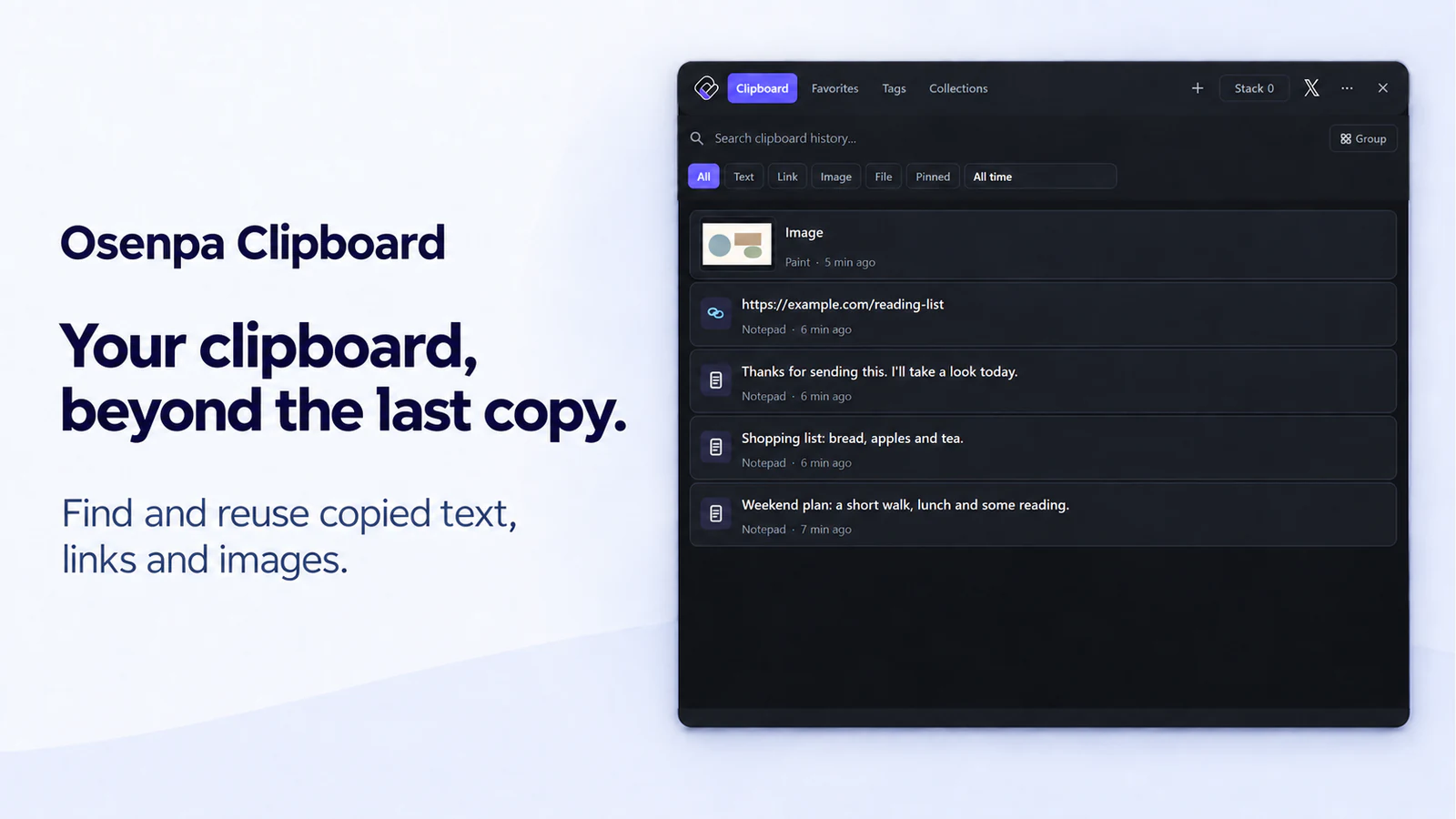
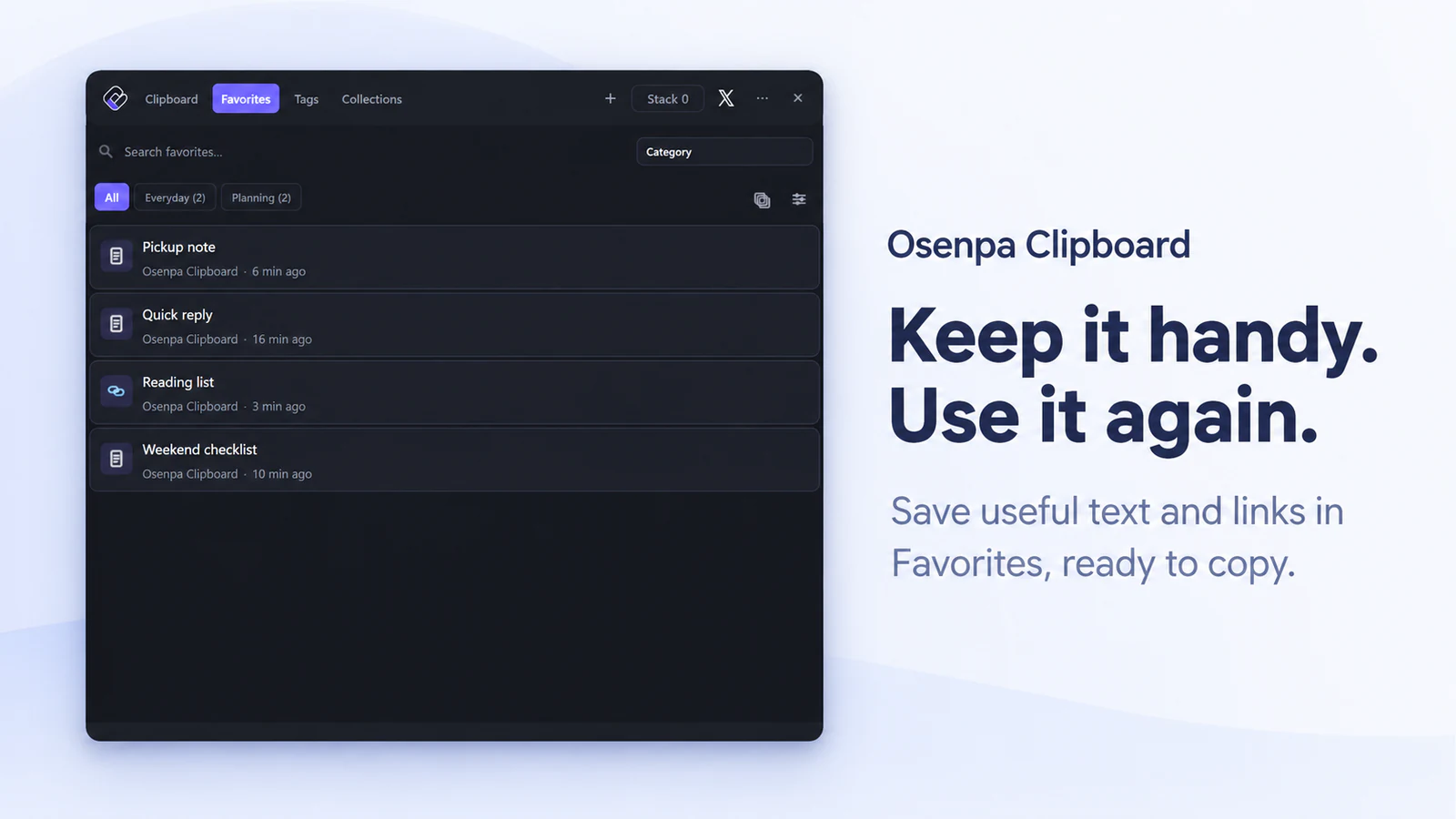
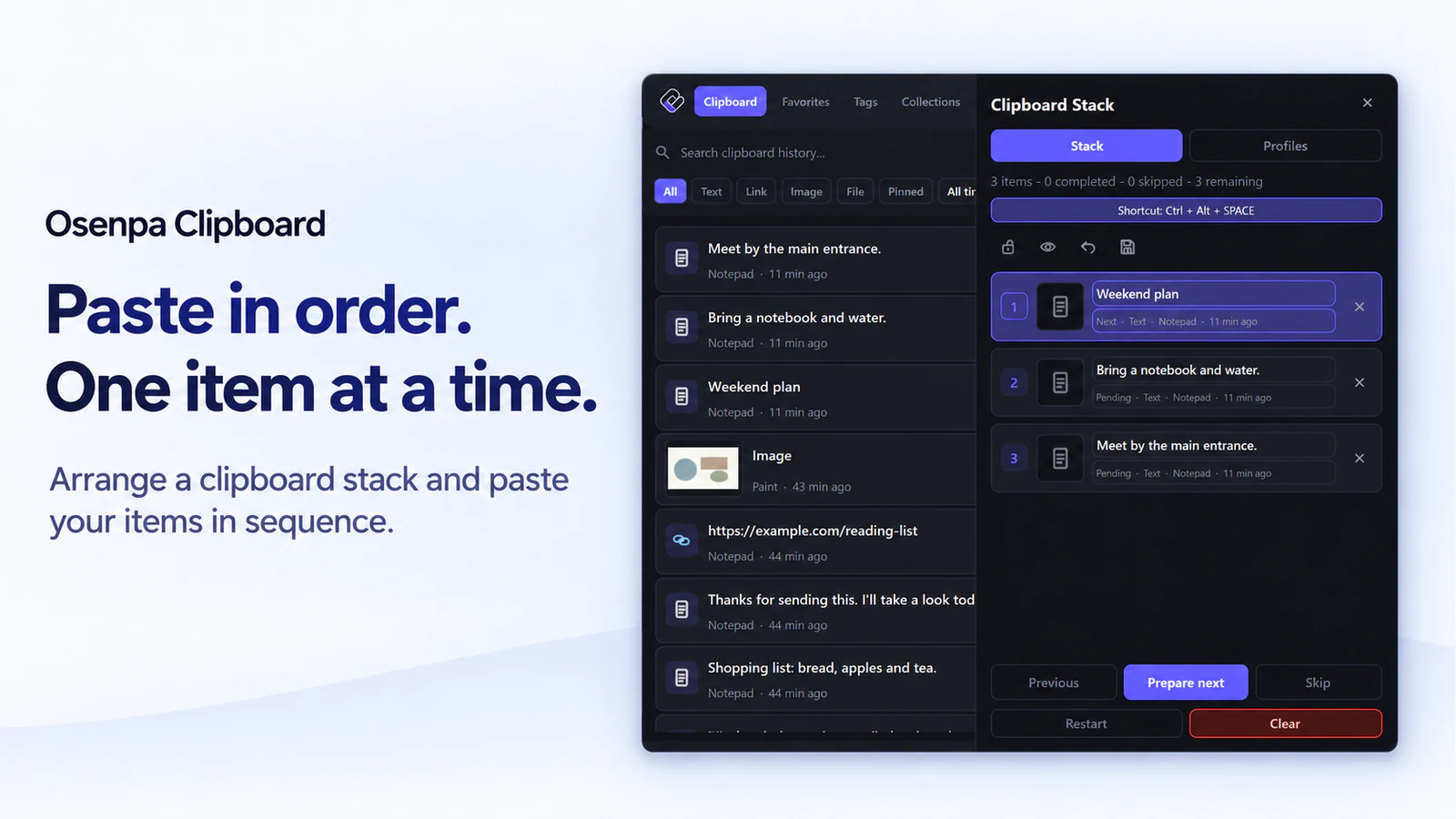
Product visualThese previews show the main clipboard tools. Storage, privacy, and encryption details are explained below.

Decision summary

Keep searchable clipboard history under a clear local policy

Osenpa Clipboard Manager saves supported clipboard items in a local searchable history. Regular history is not encrypted, so set the retention and privacy rules before you begin. Use Pause when a copying session should not be recorded, and use Locked Notes only for selected text that needs encrypted storage.

Search local history

Search text, links, images, file selections and other supported items by words, exact phrases, exclusions, source application, type, domain, tag, size or date.

Protect reusable clips

Pin items, keep lasting copies in Favorites, add tags and build Smart Collections without turning every old clip into permanent clutter.

Organize and paste in sequence

Put text, links, images and files into Clipboard Stack, arrange their order and prepare or paste each item without losing your place.

Separate encrypted notes

Store selected text in Locked Notes, a separate encrypted area protected by a PIN or passphrase. Regular history remains outside that area.

Before you choose

Who this app fits

Good fit when

Choose it for your own searchable clipboard history, copied-file tracking, and repeatable paste sequences on one Windows PC.

Choose another tool when

Choose a team, cloud-sync, data loss prevention (DLP) or password-management product when policy enforcement, cross-device access or shared administration is required.

Important limits

  • Auto-delete is on by default at 24 hours. You can turn it off or choose from 1 to 360 hours for regular history.
  • The history cap defaults to 1,000 and can be set from 100 to 100,000 regular unpinned items. Pins and Favorites are protected, so the total stored count can be higher than the chosen cap.
  • Non-file clipboard content larger than 15 MiB is not retained. For file snapshots, choose Off, 10, 25, 70 or 150 MiB; 70 MiB is the default.
  • The local storage quota can be turned off or set from 100 to 102,400 MiB. It is a setting you control, not a fixed storage limit.
  • Regular SQLite history is not encrypted. Locked Notes is encrypted, and a forgotten PIN cannot be recovered.
  • File-path references can break after a source is moved or deleted; snapshots use local disk space.
  • Privacy filters are off by default. You can exclude selected applications, skip detectable private browser windows, enable built-in sensitive-text patterns or add a custom regular expression.

System requirements

  • Windows 10 build 19041 or later, or Windows 11.
  • x64 processor.
  • Enough local storage for retained history and any file snapshots.
Choose by need

Choose a clipboard history approach

Scroll the table horizontally on a narrow screen.

Need Windows Win+V Osenpa Clipboard
Recent clips Built-in starting point Stored under the configured local policy
Search and organization Pinning is supported; search is not documented in the cited Windows workflow Search, details, pins, Favorites, tags and Smart Collections
Paste in sequence Manual selection Clipboard Stack and reusable Stack Profiles
Encrypted storage Not described as a separate notes area in the linked Microsoft guide Locked Notes only
Cloud, team or DLP controls Depends on separate Windows services and policy Not provided by Osenpa
Workflow and data behavior

What happens from input to result

What is current in 2.0.0Version 2.0.0 brings searchable organization, repeatable Clipboard Stack workflows, privacy controls, file snapshots, and recovery tools.
  • Find items with field search, tags, favorite categories, and rule-based Smart Collections.
  • Keep a persistent Clipboard Stack and save named Stack Profiles for repeatable paste sequences.
  • Work with supported text, links, images, files, colors, HTML, and RTF, including image editing and a file path or bounded snapshot.
  • Pause capture, apply privacy filters, create verified backups, recover the database, and keep only Locked Notes encrypted.

Product facts and standalone file verified August 27, 2026.

Set up a useful local historyChoose retention and privacy controls before organizing clips.

Set the retention policy

Choose how long regular clips should remain and how many unpinned history items are useful. The time rule can be disabled, and both controls can be changed later.

Configure privacy controls

Test application exclusions, private-window detection, built-in sensitive patterns or a custom regular expression with harmless sample text. Use Pause for copying sessions that should not enter history at all.

Organize only what is reusable

Pin short-lived important items, save lasting copies in Favorites, add tags or Smart Collections, and place a known sequence in Clipboard Stack.

Search, inspect and create itemsFind an item by content or metadata, then verify it before reuse.
  • Search accepts regular words, quoted phrases, minus exclusions and the app:, type:, domain:, tag:, size: and date: fields.
  • Filters can narrow by content type or date. History can be grouped by source application or date and shown at three item densities.
  • Item details show the complete stored content, exact local time, source application, size, tags and file or snapshot status.
  • Ctrl+N creates text or a safe web link directly in History or Favorites. Re-copy, plain-text copy, text editing and dragging to another program are also available where the item type allows them.
Use Clipboard Stack and Stack ProfilesKeep a sequence in order, with a safe manual preparation option.
  • Add supported history items individually, from multi-select or by dropping a card on the Stack badge, then reorder them in the drawer.
  • Prepare Next changes the Windows clipboard but does not type or paste. The optional direct-paste hotkey sends Ctrl+V to the foreground application.
  • A blocked or failed direct paste does not advance the queue. Previous, Skip, Restart and Undo help recover without rebuilding it.
  • The current Stack is restored when the app opens again. Save a Stack Profile when you need a named reusable copy, optional file snapshots, a 0 to 5,000 ms paste delay or load-time locking.
  • Locked Notes cannot be added to Clipboard Stack or a Stack Profile.
Work with copied files and imagesChoose between a path to the original file and a saved local copy. You can also edit a copy of an image.
  • A file-path reference points to the original item and can break after it is moved, renamed or deleted. A snapshot keeps a local copy and uses additional disk space.
  • Snapshot choices are Off, 10, 25, 70 or 150 MiB. Availability and snapshot details are visible on the file card.
  • Windows Share supports compatible content in an installed build. For files it handles one existing file at a time, not a folder or a multi-file selection as one share item.
  • The image editor can crop, annotate, blur, pixelate, rotate, flip and resize a copied image, then copy, share or save the result. The original history item is not changed.
Clipboard work runs without internetHistory, search, organization and Clipboard Stack run locally; metadata checks and selected links are separate.

Stays on your PC

  • Regular clipboard history, indexes, pins and collections are stored on the PC.
  • Locked Notes is encrypted inside the local database and remains encrypted in backups.
  • File snapshots remain on local storage and consume disk space.

Network actions and external links

  • A small update-metadata check starts when the app opens and repeats every 12 hours while it remains running.
  • The public supporter list is requested when the app opens. Neither request includes clipboard content.
  • The app does not provide cloud sync or team sharing.
  • Store, download and support links leave the local workspace when selected.
  • History, search and Clipboard Stack never upload clipboard content.

See the portfolio-level explanation in Network & data.

Product tour

Osenpa Clipboard workflows

The gallery covers history, search, Locked Notes, reusable items, image handling and local settings.

6 product visualsSwipe, scroll or use the arrow keys.

1/6
  1. Clipboard history in Osenpa Clipboard Manager
    Product visualSearch a persistent local history of copied text, links, images and file paths.
  2. Clipboard search, filters and tags in Osenpa Clipboard Manager
    Product visualNarrow a busy clipboard history with search, type and source filters.
  3. Smart Collections in Osenpa Clipboard Manager
    Product visualKeep selected notes in the separate encrypted Locked Notes area.
  4. Clipboard Stack profiles in Osenpa Clipboard Manager
    Product visualPin, favorite and categorize useful clips for deliberate reuse.
  5. Privacy filters in Osenpa Clipboard Manager
    Product visualPause capture, exclude selected apps and protect chosen content with privacy controls.
  6. Clipboard image editor in Osenpa Clipboard Manager
    Product visualReview local storage, language, hotkey, backup and privacy settings.
Official downloads

Download Osenpa Clipboard

For Osenpa Clipboard, use Microsoft Store for the recommended install and update path. The standalone EXE and verification guidance remain below.

System: Osenpa Clipboard runs on x64 Windows 10 version 2004 (build 19041) or later, including Windows 11

Latest: 2.0.0Product facts and standalone file verified August 27, 2026
Standalone EXEAdvanced install, checksum and backup sources

Alternative install

Standalone EXE

Direct download for Windows

Download EXE

Windows SmartScreen checks publisher and reputation information for downloaded EXE files. If Windows shows a notice, confirm that you used the download link on this page before continuing. Understand Windows download notices.

Verify the exact file

Verified setup file

File: Osenpa-Clipboard-Manager-Setup-2.0.0.exe

Size: 37,106,221 bytes (35.39 MiB)

Authenticode: Not signed

SHA-256
2ef61c452fc185b7da65c556c612bef65c52c5bffe94fad907078b3f209e8ebd

Verified August 27, 2026 with two local hashing tools. A match confirms identical bytes; it does not add a publisher signature or guarantee that a file is safe.

View this SHA-256 on VirusTotal

Download the file from an official link, then compare its name, size, and SHA-256 with the values above. The illustrated SHA-256 guide shows every step.

Backup links

Use the primary link above first. These sources provide the same verified release file.

Straight answers

Frequently asked questions

Is all clipboard history encrypted?

No. Regular clipboard history is stored in a local SQLite database and is not encrypted. Locked Notes is the separate encrypted area.

What is the default retention policy?

By default, regular unpinned history is removed after 24 hours or when the list reaches 1,000 items. In Settings, you can turn time-based deletion off or choose 1 to 360 hours, and set the cap anywhere from 100 to 100,000. Pins and Favorites are excluded from routine cleanup, so the total stored count can be higher than the history cap.

Does the app save very large clipboard items?

Non-file content larger than 15 MiB is not retained. File snapshots use a separate setting with Off, 10, 25, 70 and 150 MiB choices; 70 MiB is the default.

Can a forgotten Locked Notes PIN be recovered?

No. The encrypted Locked Notes PIN cannot be recovered if it is forgotten.

Does Osenpa Clipboard Manager sync between devices?

No. The app does not provide cloud sync, cross-device history or team sharing.

How can I stop sensitive clips from entering history?

Privacy filters can exclude selected applications, skip a private browser window when its title can be detected, match built-in sensitive-text patterns or apply a custom regular expression. Filters are off by default. Pause is the safer choice for a whole session that should not be recorded.

What happens when a copied file moves?

A saved path reference can break when the source is moved or deleted. A file snapshot remains available only if it was created and still exists on local storage.

Does Clipboard Stack paste automatically?

Prepare Next only places the current item on the Windows clipboard. The optional direct-paste hotkey sends Ctrl+V to the foreground application. If that paste is blocked or fails, the queue does not advance.

Is Clipboard Stack lost when the app closes?

No. The current Stack session is restored when the app opens again. A Stack Profile creates a named reusable copy and can replace or append to the current queue when loaded.

How do local backups work?

Automatic backup stays off until you choose a folder. You can set an interval from 1 to 168 hours and retain 1 to 30 backup copies. Locked Notes remains encrypted in a backup, and a restore is checked before it replaces current data.