
Make Smaller
Create smaller copies in the same format, with your originals kept in place.
€2.99 one-time purchase
Windows 11 24H2 or later · x64
Start in File Explorer
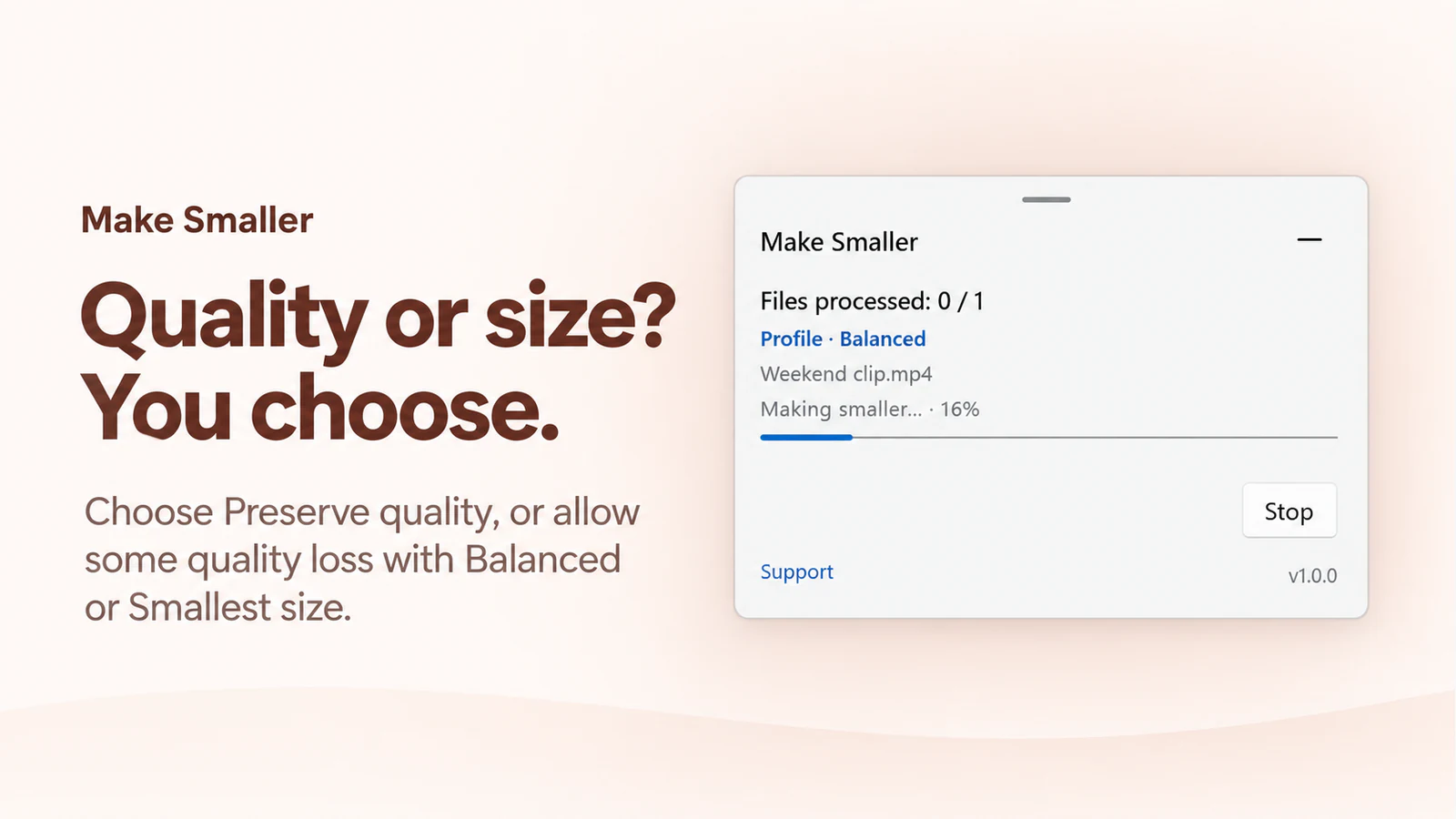
Select supported files or folders, right-click and open Make Smaller. Choose Preserve quality, Balanced or Smallest size.
Keep your originals
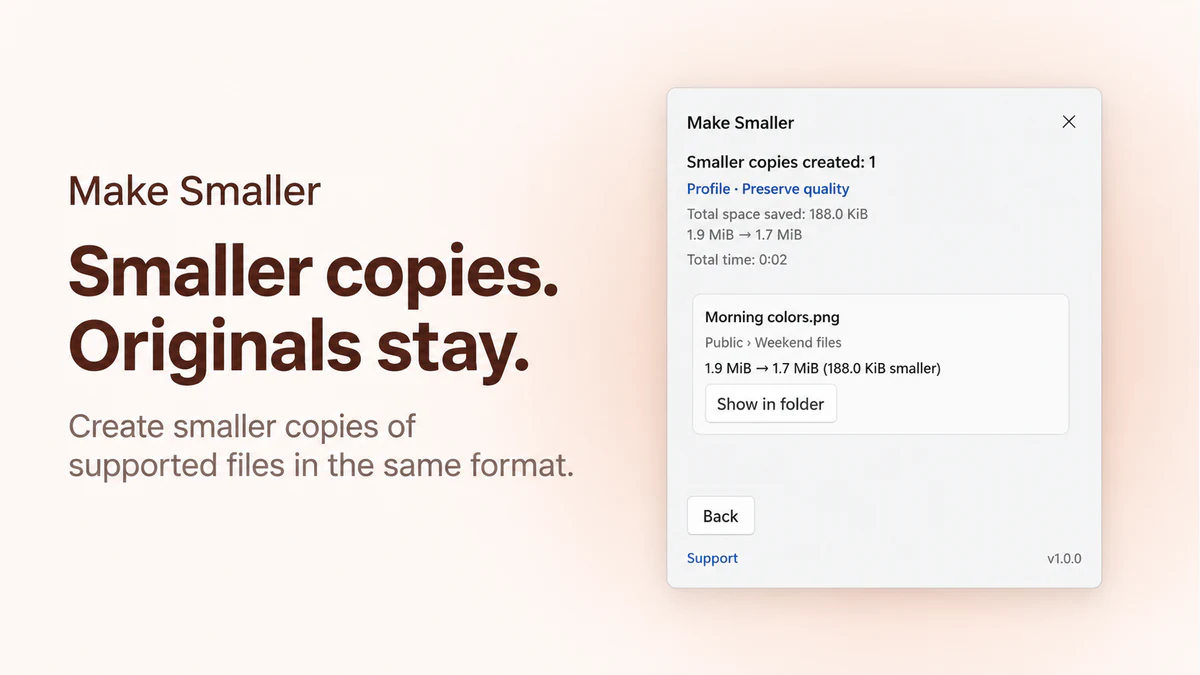
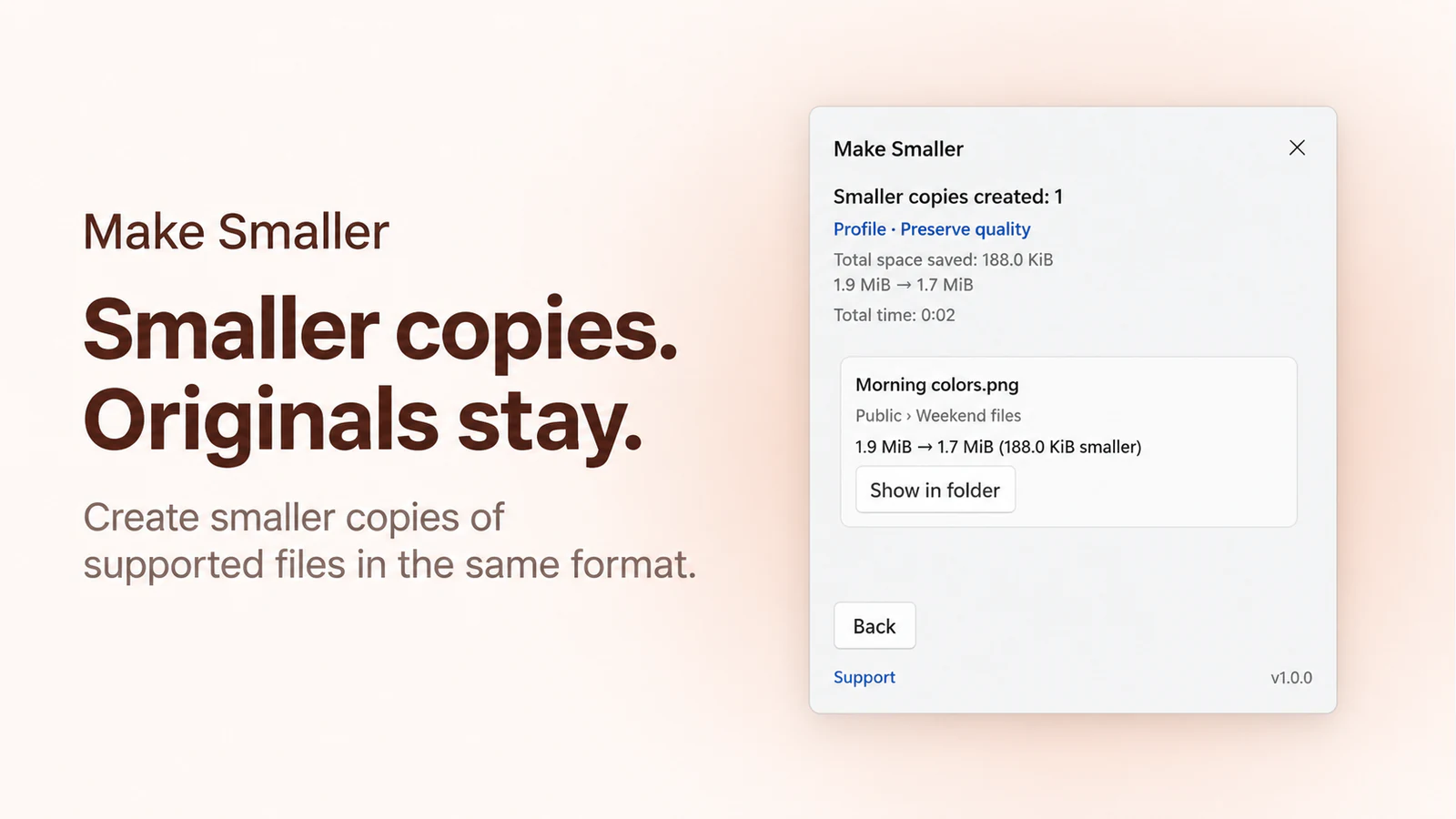
Successful results are separate copies in the same format. The app checks each candidate before saving it; files that cannot be reduced enough receive an explanation.
Process a folder at once
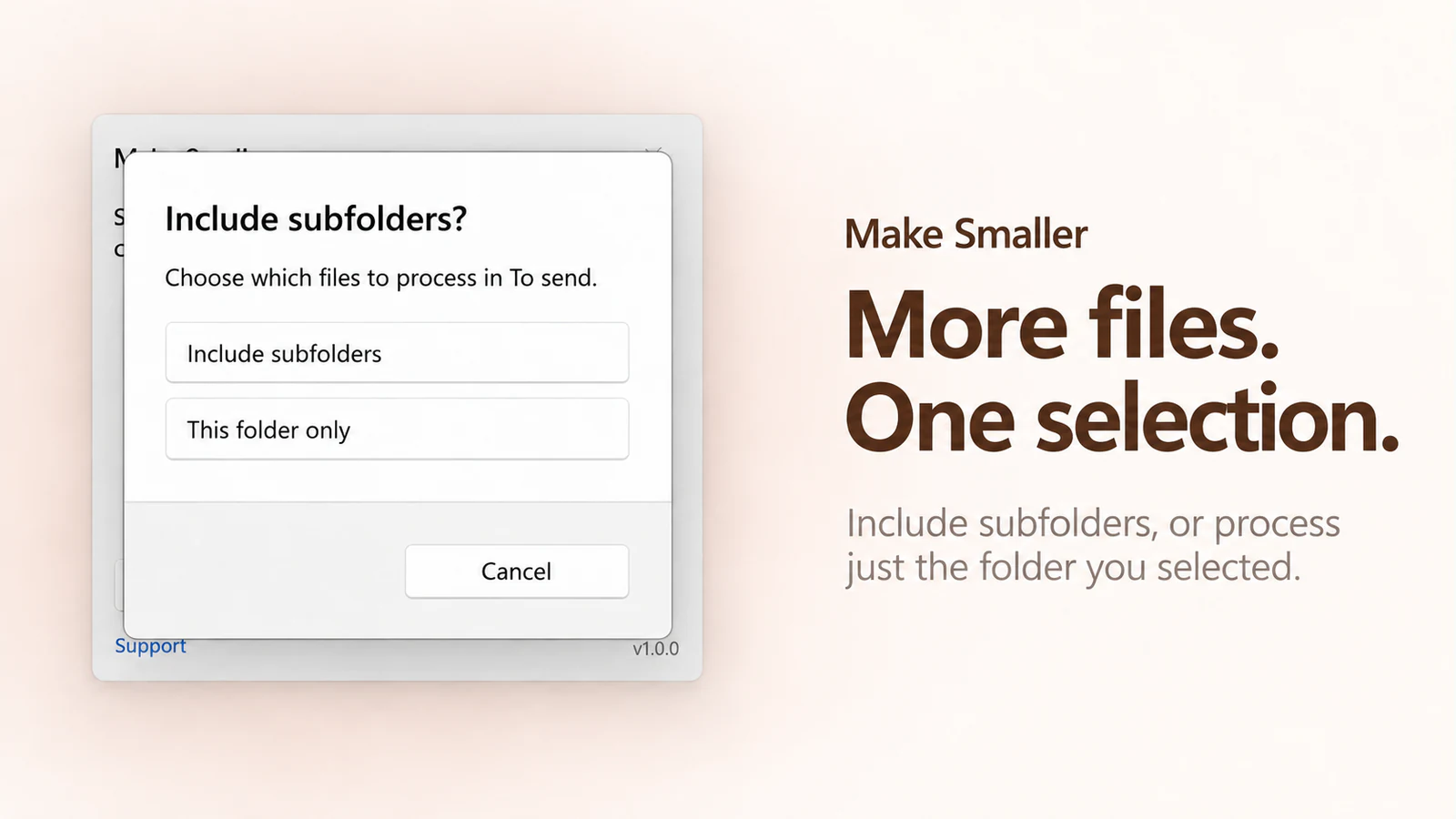
If asked, choose Include subfolders or This folder only. Review each result and use Show in folder to locate a smaller copy.
Before you choose
- A supported extension does not guarantee that every file structure or codec can be processed. Some files are already efficiently compressed; no smaller copy may be created.
- Balanced and Smallest size may reduce quality or resolution in supported content. They do not guarantee a smaller result than Preserve quality for every file. Review the actual method and changes before sharing.
- There is no target-MB setting. Originals remain, so creating smaller copies uses additional disk space; it does not automatically free space on your PC.
Choose a quality profile
Preserve quality
Start here when keeping the existing quality matters. The app uses methods that do not add quality loss; some files have little or no room to shrink.
Balanced
For everyday sharing when some quality loss is acceptable. Supported images, audio or video may be recompressed or resized within the profile limits.
Smallest size
Allows stronger quality or resolution reductions in supported content. Check the copy carefully, especially small text, image detail and sound.
The selected profile is a preference, not a promised output size. A file can use the verified lossless method when the quality-reducing method is not suitable. The result explains what was applied.
Compare the three profiles →Supported file families
Support depends on the file contents as well as its extension. Review the applied method and any skipped items in the result.
Images
JPEG (.jpg, .jpeg, .jpe, .jfif), PNG/APNG, WebP, GIF, BMP, TIFF (.tif, .tiff), AVIF and HEIC/HEIF.
PDF and Office
PDF; Word (.docx, .dotx, .docm, .dotm, .doc, .dot); Excel (.xlsx, .xltx, .xlsm, .xltm, .xlsb, .xlam, .xls, .xlt, .xla); PowerPoint (.pptx, .potx, .ppsx, .pptm, .potm, .ppsm, .ppam, .ppt, .pot, .pps, .ppa).
OpenDocument
Text, spreadsheet, presentation, drawing and related packages: .odt, .ott, .ods, .ots, .odp, .otp, .odg, .otg, .odm, .odf and .odb.
Audio
MP3, FLAC, WAV/W64, WavPack (.wv) and supported M4A content. The available method depends on the encoding inside the file.
Video
Supported MP4, MOV, MKV and WebM content. A container extension alone does not establish codec support.
Archives
ZIP and 7z. Supported archives are rebuilt and verified; packed content is not converted into another file format.
Need to edit PDF pages instead? See PDF Tools. To change a file format, see Just Converter. For metadata cleanup before sharing, see Clean Metadata.
See Make Smaller
 Make Smaller
Create smaller copies in the same format, with your originals kept in place.
€2.99 one-time purchase Your Store region determines the final price.
Version 1.0.0
There is no standalone EXE for this app.
Your first smaller copy
- In File Explorer, select a few supported sample files. Right-click, open Make Smaller and choose Preserve quality for your first test.
- If a folder-scope prompt appears, choose This folder only for a small first run, or Include subfolders for the wider selection.
- Review the result and use Show in folder to open the output location. Open the smaller copies and check their content before sharing.
More about Make Smaller
Features and working limits
- Start in File Explorer: Select supported files or folders, right-click and open Make Smaller. Choose Preserve quality, Balanced or Smallest size.
- Keep your originals: Successful results are separate copies in the same format. The app checks each candidate before saving it; files that cannot be reduced enough receive an explanation.
- Process a folder at once: If asked, choose Include subfolders or This folder only. Review each result and use Show in folder to locate a smaller copy.
- A supported extension does not guarantee that every file structure or codec can be processed. Some files are already efficiently compressed; no smaller copy may be created.
- Balanced and Smallest size may reduce quality or resolution in supported content. They do not guarantee a smaller result than Preserve quality for every file. Review the actual method and changes before sharing.
- There is no target-MB setting. Originals remain, so creating smaller copies uses additional disk space; it does not automatically free space on your PC.
Local data and network use
- File reading, compression and output verification run on your PC. Selected files are not uploaded for processing.
- Original files remain unchanged. Smaller copies are separate files; stopping a run does not delete copies already created.
- Recent results history keeps up to 10 completed runs from the last 30 days, including file names, paths, sizes, methods and outcomes. Clear history removes the displayed result records, not originals, smaller copies or recovery records.
- A separate local PDF decision cache stores content-derived hashes, sizes and processing decisions for up to 30 days, with a limit of 256 entries. It does not store source names, paths or file contents and is separate from visible history.
- Local processing can create temporary files and recovery records. Startup diagnostics can contain error messages and technical details, including paths mentioned in an error. Review any information before sending it to Support.
- Microsoft Store services check app entitlement and provide Store updates.
- Support opens the Osenpa website. Store actions use Microsoft Store; compression itself does not upload the selected files.
System requirements
Windows 11 version 24H2 (build 26100) or later; x64; Microsoft Store installation; readable source files and enough space for processing and a separate output.