
Clean Metadata
Remove supported metadata from photos, documents and audio before sharing a clean copy.
€1.99 one-time purchase
Windows 11 24H2 or later · x64
Start in File Explorer
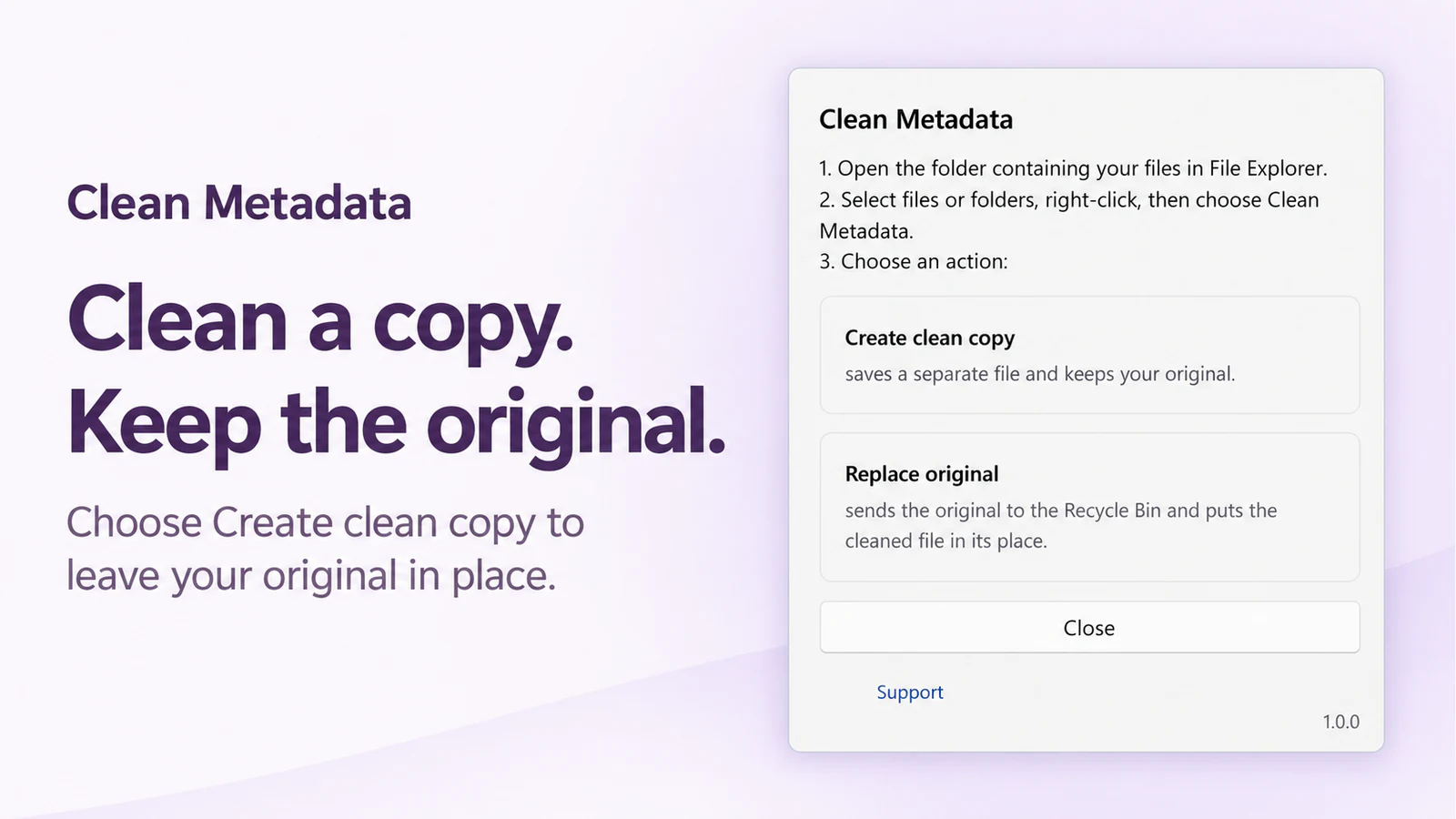
Select files or folders, right-click and open Clean Metadata. Choose Create clean copy to leave your originals in place.
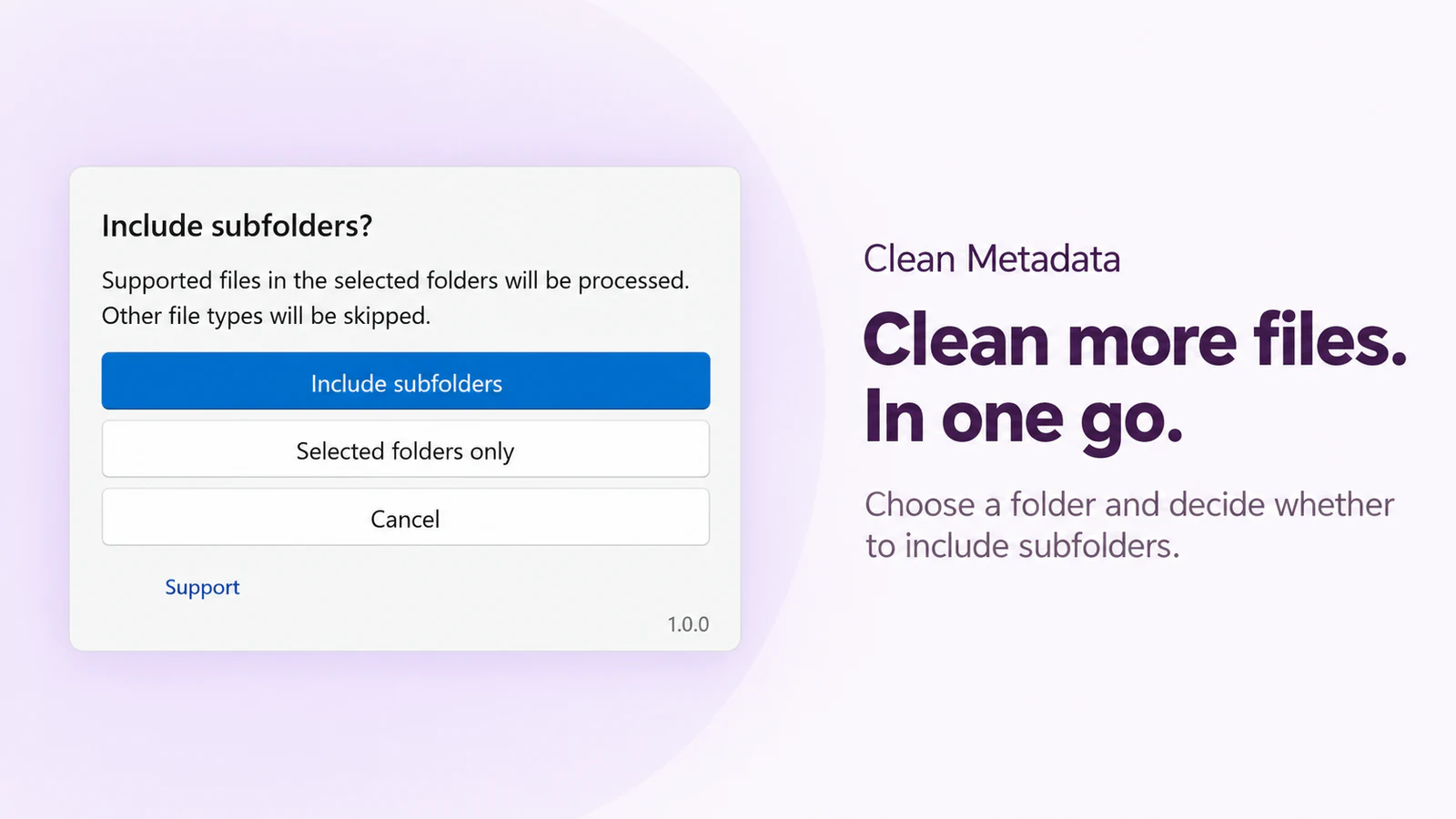
Choose the folder scope
If asked about selected folders, choose Include subfolders or Selected folders only. Unsupported files are skipped.
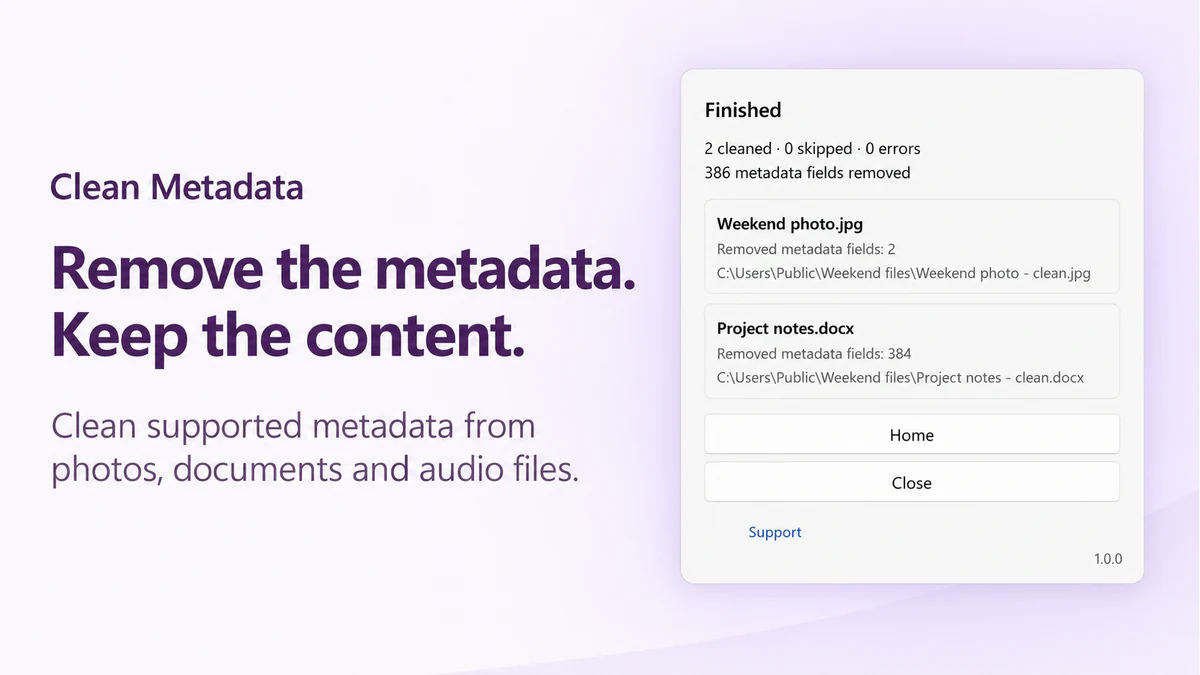
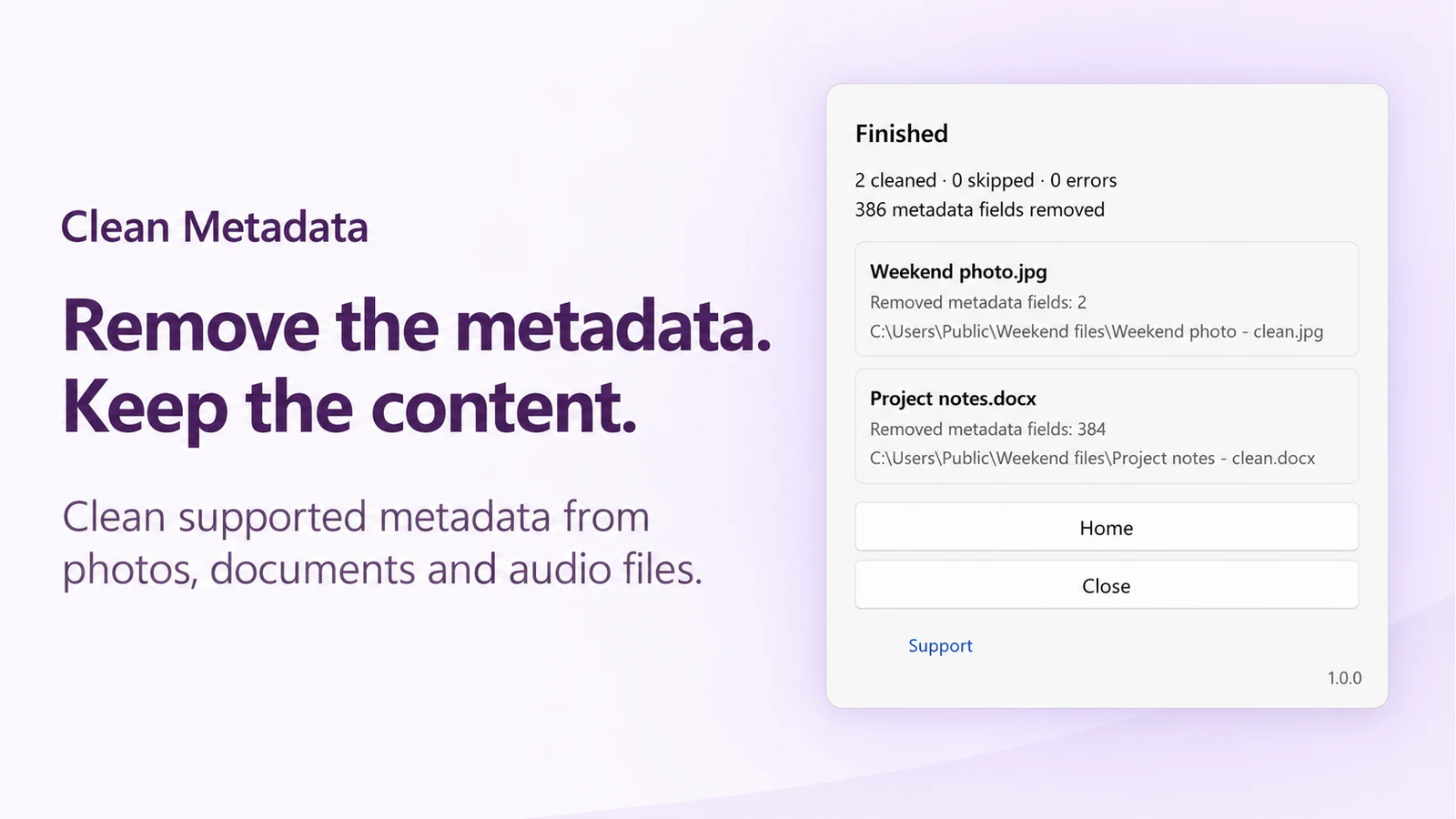
Check each result
Review cleaned, skipped and error results, removed metadata fields and any retained information. Open the output before sharing it.
Before you choose
- A supported extension is not a promise that every file or embedded object can be cleaned. Unsupported, damaged or unverifiable content can be skipped or retained; read the result.
- Metadata cleanup does not redact visible text, remove identifying content from a photo or recording, securely erase data, or guarantee anonymity.
- Replace original is a separate action that can begin processing directly; do not expect another confirmation prompt. Files needing cleaning are replaced after verification, with originals sent to the Recycle Bin when that operation completes. Keep any recovery files if the app reports an interrupted or incomplete operation.
Supported file families
Support depends on the file contents as well as its extension. Review skipped items and retained fields in the result.
Images
JPEG (.jpg, .jpeg, .jpe, .jfif, .jif, .jfi), PNG, WebP, GIF, BMP, AVIF and HEIC/HEIF.
Documents
PDF, Word (.docx), PowerPoint (.pptx, .ppsx), Excel (.xlsx) and OpenDocument (.odt, .ods, .odp). Legacy .doc, .xls and .ppt are not listed formats.
Audio
MP3, FLAC, WAV and M4A. This is metadata cleanup, not audio conversion or editing.
Need to edit PDF pages instead? See PDF Tools. To change a file format, see Just Converter.
See Clean Metadata
 Clean Metadata
Remove supported metadata from photos, documents and audio before sharing a clean copy.
€1.99 one-time purchase Your Store region determines the final price.
Version 1.0.0
There is no standalone EXE for this app.
Your first clean copy
- In File Explorer, select a few expendable supported sample files. Right-click, open Clean Metadata and choose Create clean copy.
- If asked about subfolders, choose Selected folders only for a small first test, or Include subfolders when you want the wider scope.
- Review Finished and each file result. Open the clean copies and check retained information before sharing them.
More about Clean Metadata
Features and working limits
- Start in File Explorer: Select files or folders, right-click and open Clean Metadata. Choose Create clean copy to leave your originals in place.
- Choose the folder scope: If asked about selected folders, choose Include subfolders or Selected folders only. Unsupported files are skipped.
- Check each result: Review cleaned, skipped and error results, removed metadata fields and any retained information. Open the output before sharing it.
- A supported extension is not a promise that every file or embedded object can be cleaned. Unsupported, damaged or unverifiable content can be skipped or retained; read the result.
- Metadata cleanup does not redact visible text, remove identifying content from a photo or recording, securely erase data, or guarantee anonymity.
- Replace original is a separate action that can begin processing directly; do not expect another confirmation prompt. Files needing cleaning are replaced after verification, with originals sent to the Recycle Bin when that operation completes. Keep any recovery files if the app reports an interrupted or incomplete operation.
Local data and network use
- File reading, metadata processing and output verification run locally. Files are not uploaded for cleaning.
- Create clean copy keeps the original; an individually selected file with no removable metadata may need no new copy. Replace original is not secure deletion or a backup service.
- Local recovery records and protected temporary files can remain after an interrupted operation. Keep recovery data at the location shown until the issue is resolved.
- Fields needed to preserve content or behavior may remain, including image mapping coordinates or audio timing information in applicable files. Review retained information before sharing.
- Local History stores file names and paths, actions, outcomes and timings for up to five runs within seven days. Clear history removes those history entries, not output or recovery files. Diagnostic records exclude document contents.
- Microsoft Store services handle app entitlement and Store updates.
- Support opens the Osenpa website. Opening a Store link uses Microsoft Store; neither action uploads selected files for metadata cleaning.
System requirements
Windows 11 version 24H2 (build 26100) or later; x64; Microsoft Store installation; supported local NTFS storage.