File management

Osenpa Disk Analyzer

See what is taking up disk space before deciding what to remove.

Free

Windows 10 2004+ or Windows 11 · x64
Osenpa Disk Analyzer main workflow

Scan one drive or all drives

Run one coordinated, cancelable operation and review item-level access or protection cues before acting.

Use the available scan method

Read supported NTFS volumes through the MFT path and fall back to folder traversal when needed.

Narrow large result sets

Use the Large/old, Videos, Games, Archives or Safely cleanable views, or run a name search with a 2,000-result display limit.

Before you choose

  • MFT scanning requires a supported NTFS volume and access; the compatible folder path can be slower.
  • Access restrictions, disconnected volumes, and locked or protected locations can leave a scan incomplete.
  • Name searches can count every match, but the results view is capped at 2,000 items.
Product tour

See the storage workflow

Select an image for a closer look.
6 product visualsSwipe, scroll or use the arrow keys.

1/6
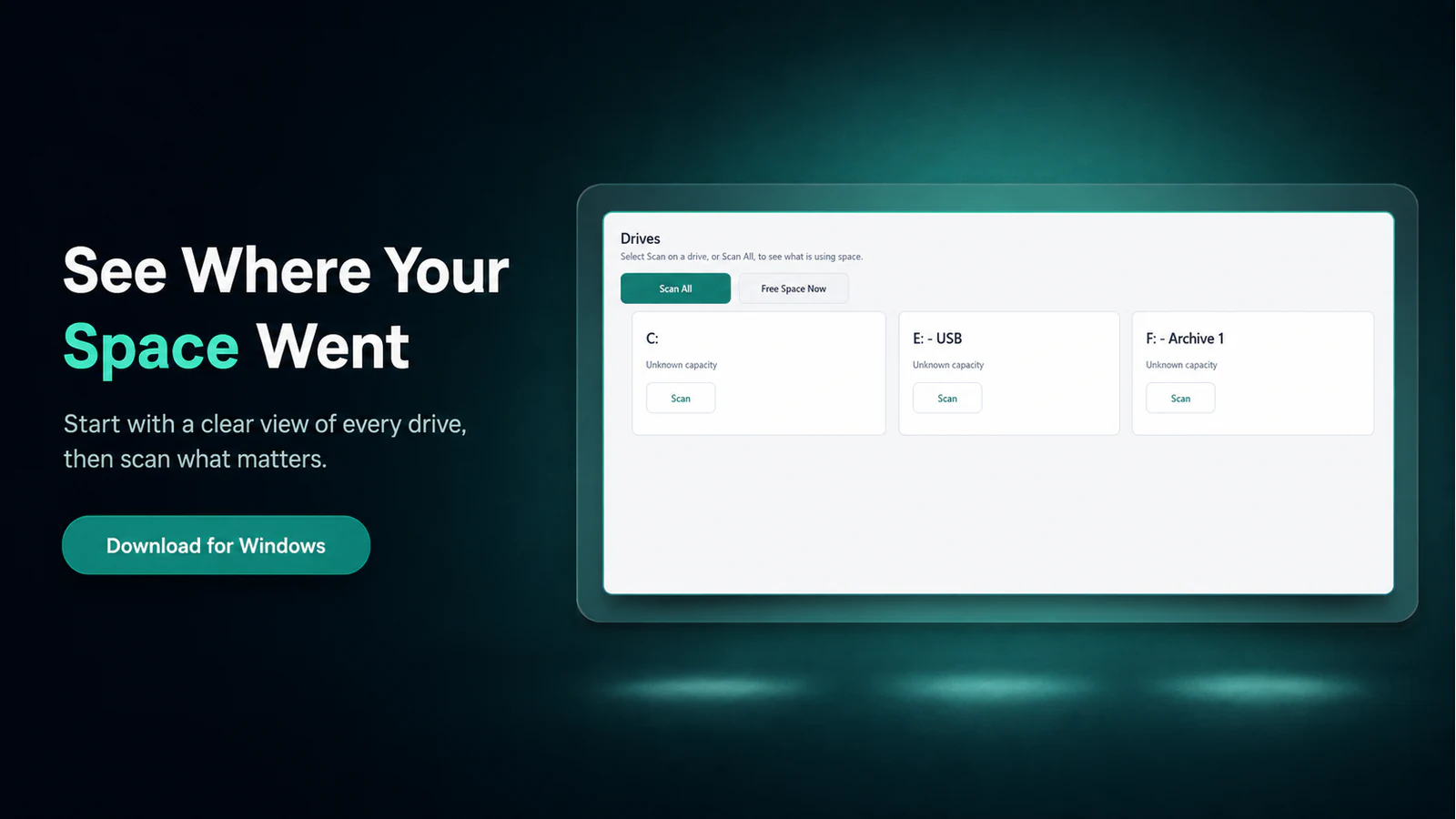
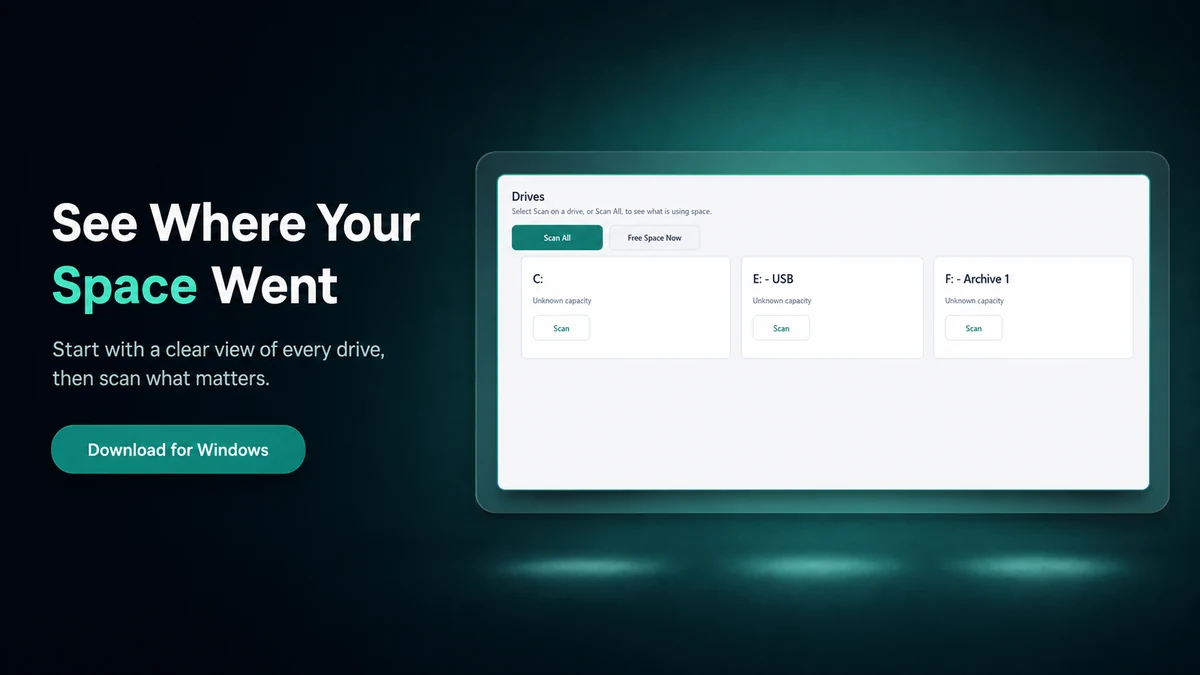
  1. Drive overview in Osenpa Disk Analyzer
    Start with one drive or all connected drives and review the available storage.
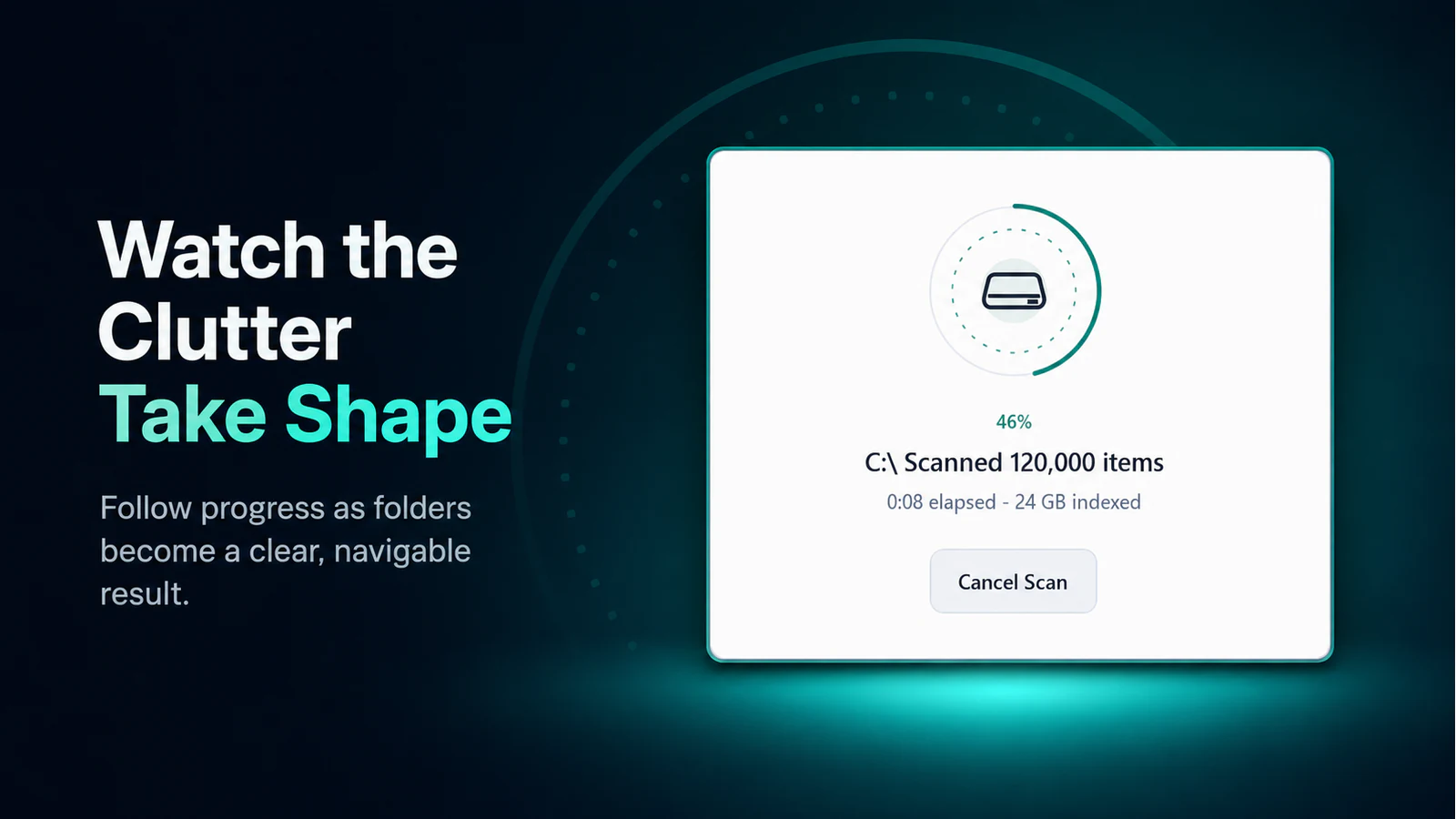
  2. Disk scan progress in Osenpa Disk Analyzer
    Follow scan progress and wait for the inventory to finish before reviewing results.
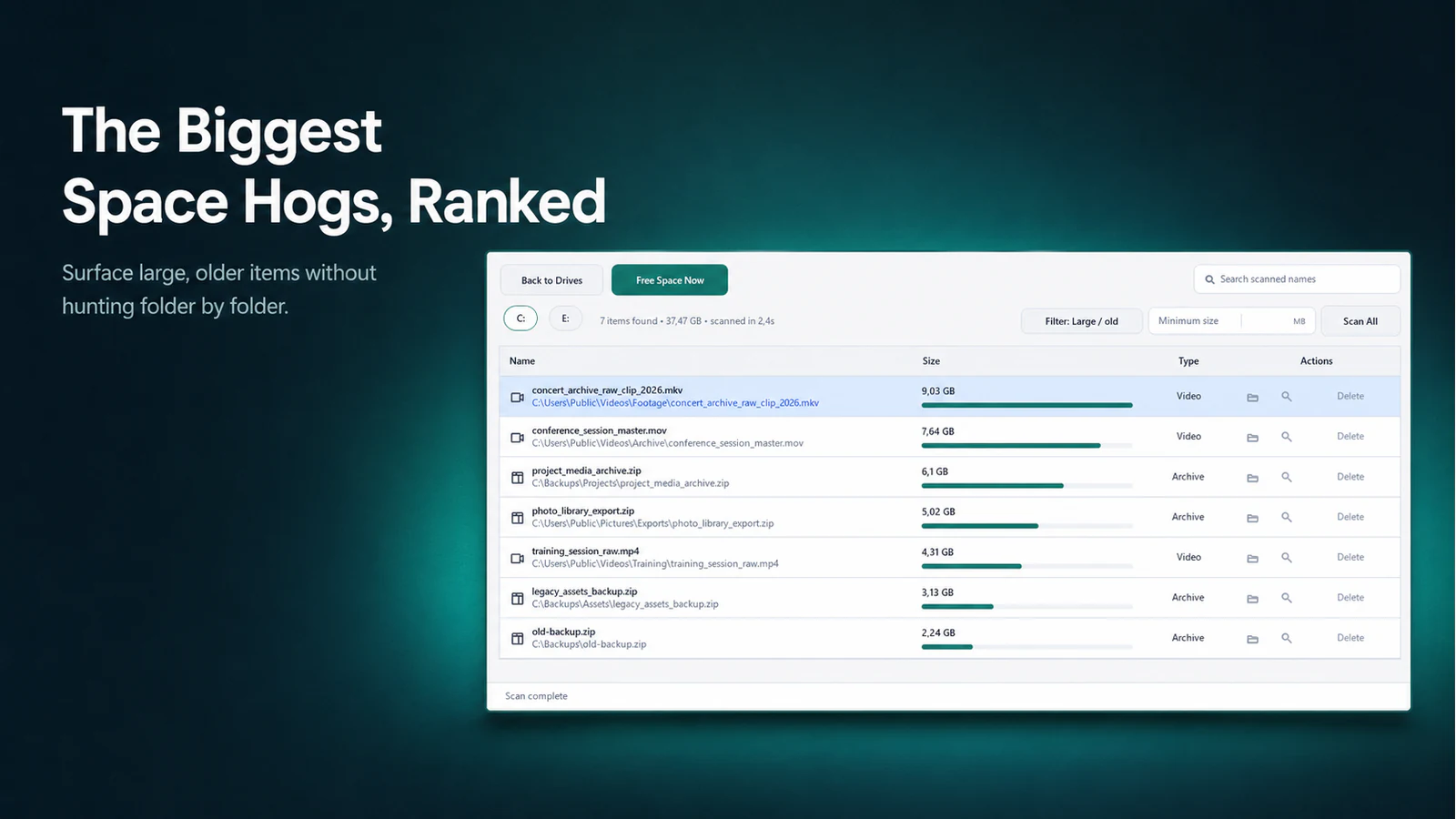
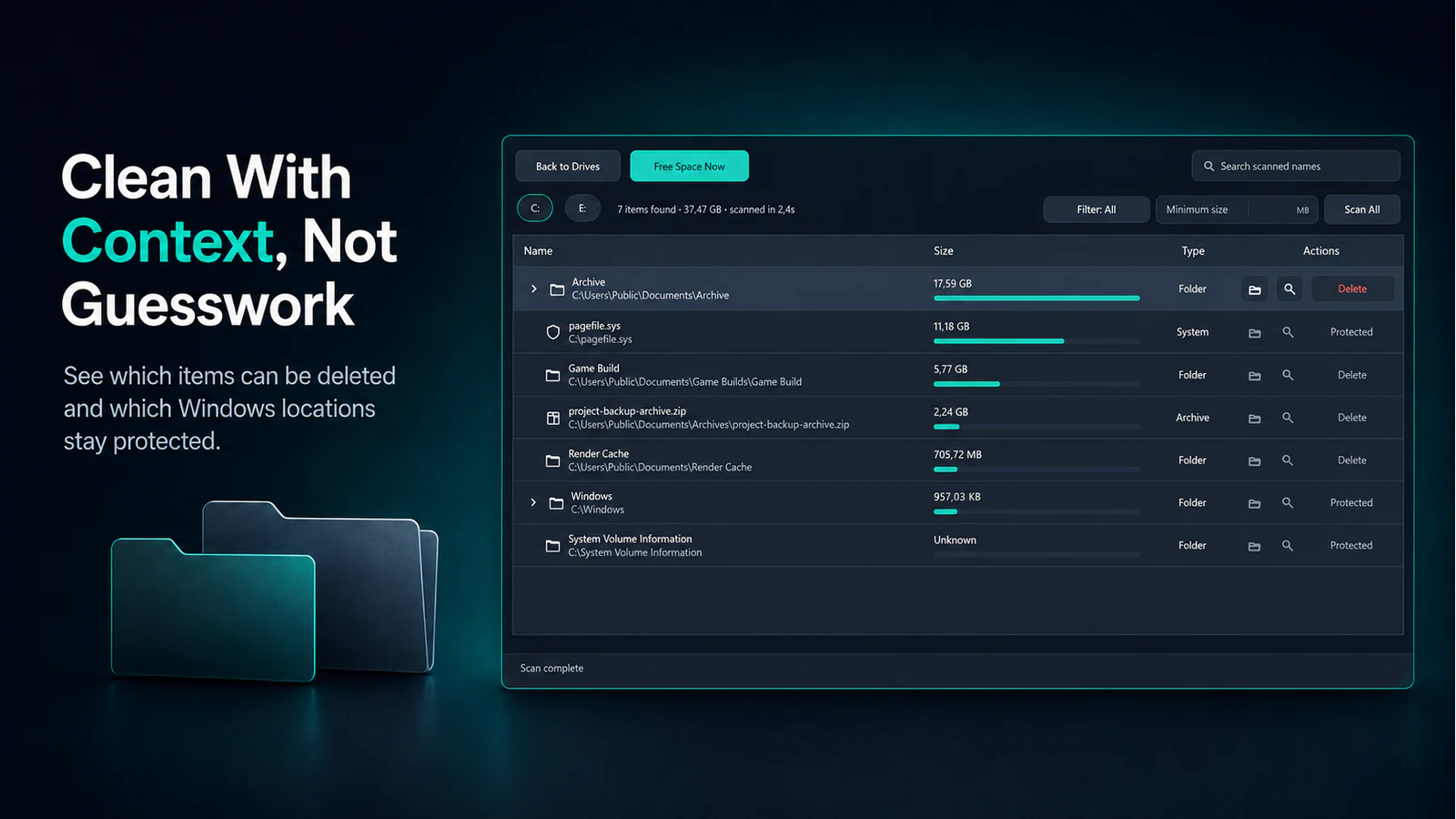
  3. Largest files list in Osenpa Disk Analyzer
    Rank large files and folders, then inspect their location before taking action.
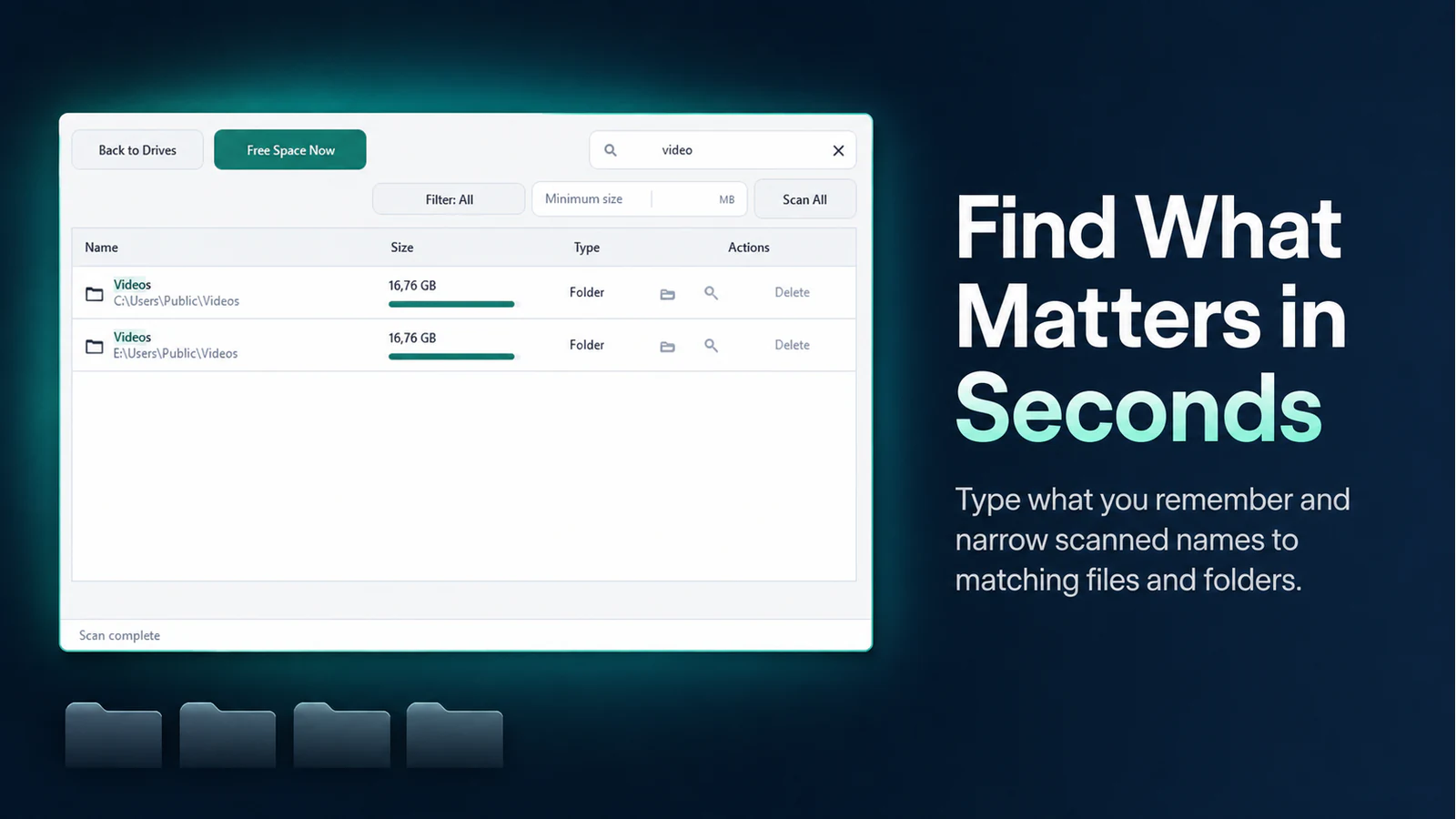
  4. File and folder search in Osenpa Disk Analyzer
    Narrow results by name, size, date or category.
  5. Safe cleanup review in Osenpa Disk Analyzer
    Review allowlisted cleanup categories and protected locations before deleting anything.
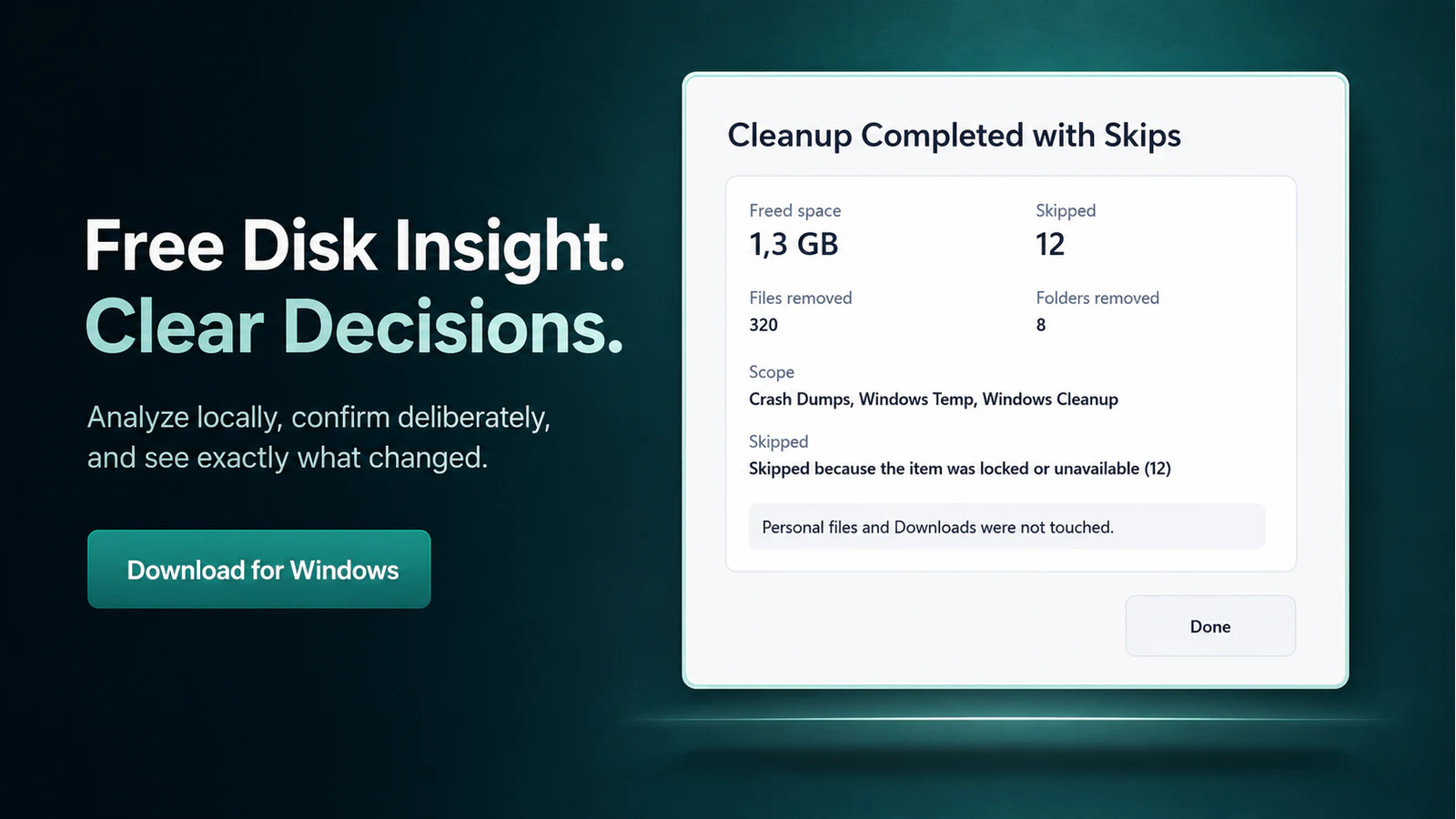
  6. Cleanup summary in Osenpa Disk Analyzer
    Read the cleanup receipt to see what was removed, skipped or protected.

Osenpa Disk Analyzer

See what is taking up disk space before deciding what to remove.

Free

Version 1.1.0

Download portable EXE
Verify the exact file and view mirrors
Filename
Osenpa-Disk-Analyzer-1.1.0.exe
Size
163,495,485 bytes (155.92 MiB)
SHA-256
dd7c7a47fb7bbd00e41d562d7045da76c19c41000db5cf43fae9d81ea4ef6e59
Authenticode
Not signed

Archive.org saves this release as Osenpa Disk Analyzer 1.1.0.exe. The size and SHA-256 above apply to this filename too.

A matching checksum confirms the file matches this release record. It does not prove that software is safe or digitally signed.

View the VirusTotal report · How to check a SHA-256 value

More about Disk Analyzer

Features and working limits
Decision summary

Find what uses space before you delete anything

Use the scan method and completion state together. A size, age or category filter narrows the investigation but does not determine whether an item is safe to remove.

Scan one drive or all drives

Scan one drive or use Scan All for every connected drive. A folder scan can still be complete. Follow up only when the result reports access, protection, skipped-item, or partial-coverage warnings.

Use the available scan method

Read supported NTFS volumes through the NTFS master file table (MFT) path and fall back to folder traversal when needed.

Narrow large result sets

Use category filters or search by name. The results view shows up to 2,000 matches and reports the full count. Large/old marks items at least 1 GiB and 90 days old as review candidates, not deletion verdicts.

Choose a safer cleanup action

Open the item location first. Prefer the owning app's uninstaller or an action you can undo. For cache cleanup, use only the locations listed by the app.

Before you choose

Who this app fits

Good fit when

Choose it to scan local drives, filter the results, and inspect a large item or routine cache before taking action.

Choose another tool when

Choose another specialist when the task is duplicate detection, treemap visualization, registry cleaning or general PC optimization.

Important limits

  • MFT scanning requires a supported NTFS volume and access; the compatible folder path can be slower.
  • Access restrictions, disconnected volumes, and locked or protected locations can leave a scan incomplete.
  • Name searches can count every match, but the results view is capped at 2,000 items.
  • Large/old means at least 1 GiB and at least 90 days old; it is only a review filter.
  • The portable EXE requests administrator privileges at launch. The Store build runs with standard packaged permissions, so the two channels can access different paths.
  • Permanent deletion is irreversible; cleanup excludes personal libraries such as Downloads.

System requirements

  • Windows 10 build 19041 or later, or Windows 11.
  • x64 processor.
  • Access to the scanned volume; administrator privileges only when the chosen operation requires them.
Choose by need

Choose a safe starting point

Scroll the table horizontally on a narrow screen.

GoalStart hereWhat to expect
One drive is nearly fullScan that driveThe compatible MFT or folder path and a final completion state
The source is unclearScan AllOne coordinated, cancelable operation
Find large, old, video, game or archive itemsUse the matching filterLarge/old uses 1 GiB and 90 days; every result still needs review
Find a known nameSearch by nameFirst 2,000 displayed with the real total reported
Reclaim routine cache spaceFree Space NowAn explicit allowlist that excludes personal libraries
Move or remove personal contentOpen location and inspectOwnership, backup and dependency review first
Workflow and data behavior

What happens from input to result

What is current in 1.1.0Version 1.1.0 makes multi-drive scans more dependable, improves filtering and removable-drive handling, and keeps cleanup behind explicit safety checks.
  • Run more dependable multi-drive scans and use clearer filters and removable-drive handling.
  • Use MFT scanning on supported NTFS volumes and compatible folder scanning when MFT access is unavailable.
  • Keep the last complete result when newer work is canceled, fails, becomes stale, or finishes late.
  • Review clearer item messages and use allowlist-based cache cleanup with fail-closed checks and a cleanup receipt. The byte total adds the reported lengths of successfully deleted files; it is not a before-and-after measurement of available disk space.

Product facts and portable file verified August 27, 2026.

Find the storage problem before removing anythingInspect candidates, use reversible actions and rescan.

Choose the storage scope

Scan the low-space drive or use Scan All when the source is unclear.

Narrow and inspect

Use the tree, category or name search with a 2,000-result display limit, then open the candidate location.

Act and confirm

Move the item to a reversible location, use the application uninstaller or send it to the Recycle Bin when appropriate, then rescan to confirm the change.

Disk scans run without internetScanning, filtering and cleanup stay local. Each launch checks update metadata and the public Supporters list; selecting Search online sends a separate Google query.

Stays on your PC

  • File and folder inventory, indexes, filters and cleanup eligibility checks run on the PC.
  • Disk scanning never uploads the file list.
  • Access failures produce item-level messages for partial, skipped, protected, or inaccessible results.

Network actions and external links

  • Each launch automatically sends one update-information request and refreshes the public Supporters list.
  • Optional Google search is user-triggered and can include the selected full path.
  • Do not use this command for a private path. Search manually with a shortened file name instead.

See the portfolio-level explanation in Network & data.

Local data and network use
  • Scanning, filtering and cleanup work without an internet connection.
  • File and folder inventory, indexes, filters and cleanup eligibility checks run on the PC.
  • Disk scanning never uploads the file list.
  • Protected or inaccessible items carry item-level reasons that disable deletion.
  • One update-metadata request and one public Supporters-list refresh start automatically on each launch.
  • Selecting Google Search sends the selected full path as the query.
  • Sanitize a private filename or path before choosing an online search.

Network and data details · App privacy

System requirements

Windows 10 version 2004 (build 19041) or later, or Windows 11; x64 architecture

Straight answers

Frequently asked questions

What is an MFT scan?

On a supported NTFS volume with native access, Disk Analyzer can read file-system metadata for a fast broad inventory. Other or inaccessible targets use the compatible folder scan.

Is every scan a complete inventory?

No. Locked, protected, disconnected or inaccessible locations can omit items. A switch from MFT to folder scanning does not make the result partial by itself. Follow up only when the result reports access, protection, skipped-item, or partial-coverage warnings.

How many search results are displayed?

A broad name search displays the first 2,000 matches while reporting the real total separately.

Does Disk Analyzer find duplicate files?

No. Version 1.1.0 is not a duplicate finder, treemap visualizer, registry cleaner or general PC optimizer.

Does Free Space Now delete personal files?

Its automatic cleanup uses an explicit allowlist and excludes personal libraries such as Downloads. Review the target summary before cleanup.

Can permanent deletion be undone?

No. Permanent deletion is irreversible. Prefer an application uninstaller, verified move or Recycle Bin when appropriate.

Can online search share a private path?

Yes. The optional user-triggered Google search can include the selected full path. Sanitize private names or inspect the item locally first.