
Fix photographed documents
Correct perspective, page curve, rotation, shadows and uneven lighting, then save a separate A4 PDF or lossless PNG pages. PDF output also adds searchable text using installed OCR language data; PNG output stays an image.
Merge PDFs, make scans searchable and clean up photographed pages.
Free
Windows 10 2004+ or Windows 11 · x64
Correct perspective, page curve, rotation, shadows and uneven lighting, then save a separate A4 PDF or lossless PNG pages. This feature is Beta.
Merge, split, rotate, reorder, remove or extract selected PDF pages into a separate result.
Compress toward a practical limit, export pages to JPG or PNG, or create a PDF from supported images.
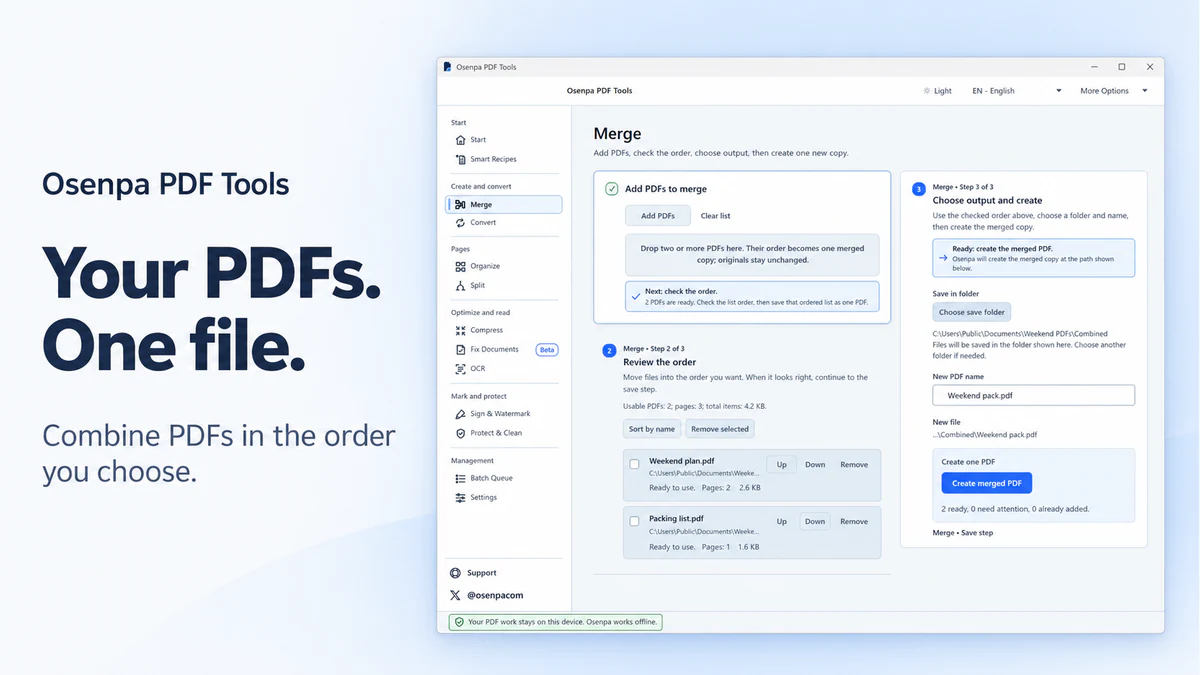
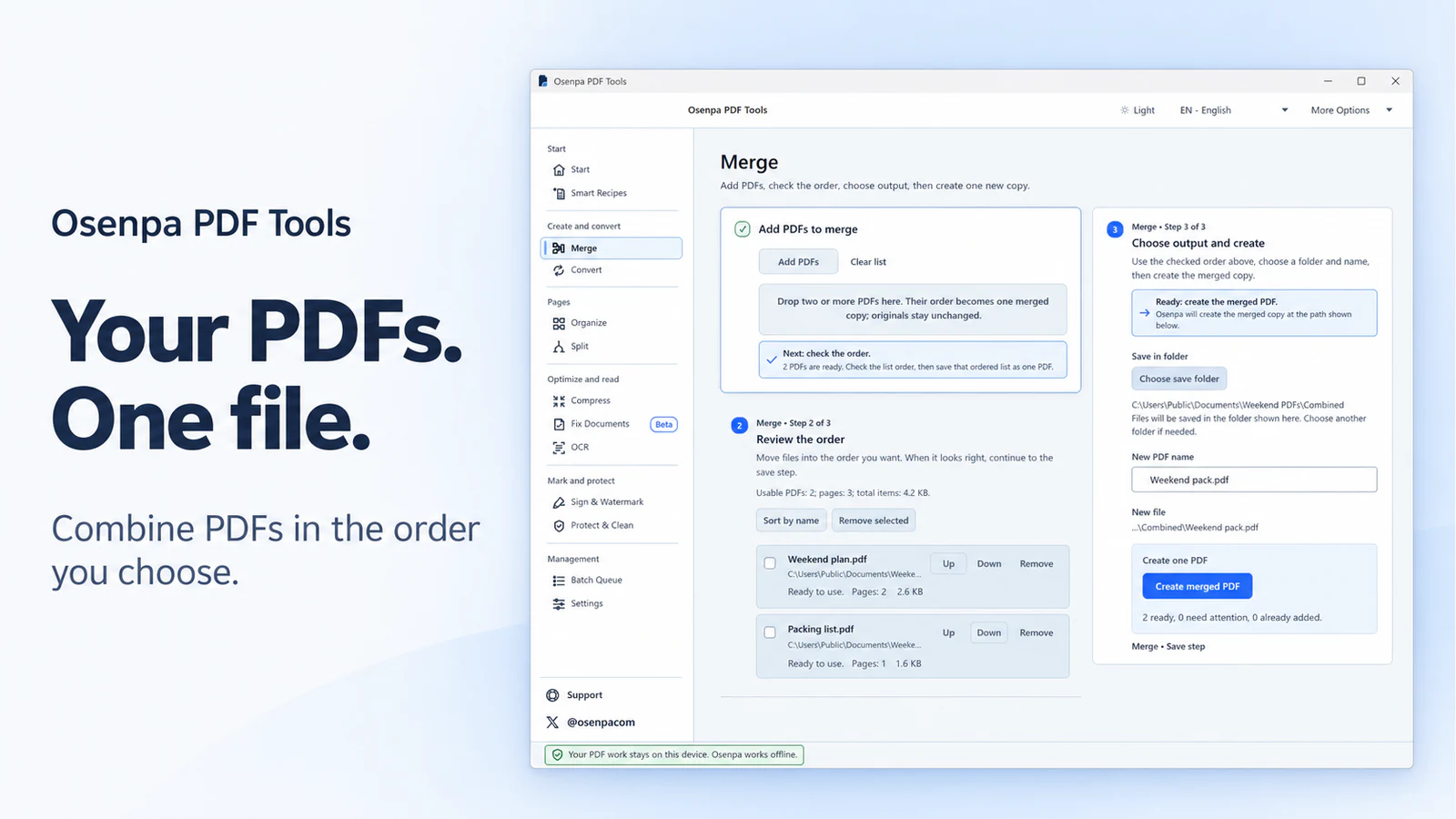
Use two non-sensitive PDFs that open normally without a password. Note their page counts and keep the originals.
Expected result: one new PDF with both sources in the chosen order. Its page count should equal their combined count. If a source is rejected or a page is missing, keep the originals and read the result before trying again.
Follow the PDF merge guide for source order, known passwords and bookmark limits.
Select an image for a closer look.
 Osenpa PDF Tools
Merge PDFs, make scans searchable and clean up photographed pages.
Free
Version 1.0.5
90e707f350944e81bae1fe69a5a7327aad0620b69a92ca334e6427bb8469673d A matching checksum confirms the file matches this release record. It does not prove that software is safe or digitally signed.
Choose one task at a time and keep the original. Check the pages, text, links, forms, and protection settings in the new file.
Correct perspective, page curve, rotation, shadows and uneven lighting, then save a separate A4 PDF or lossless PNG pages. PDF output also adds searchable text using installed OCR language data; PNG output stays an image.
Merge files or split by ranges, every page, every N pages or selected preview pages. Rotate, reorder, remove and extract pages into a separate result.
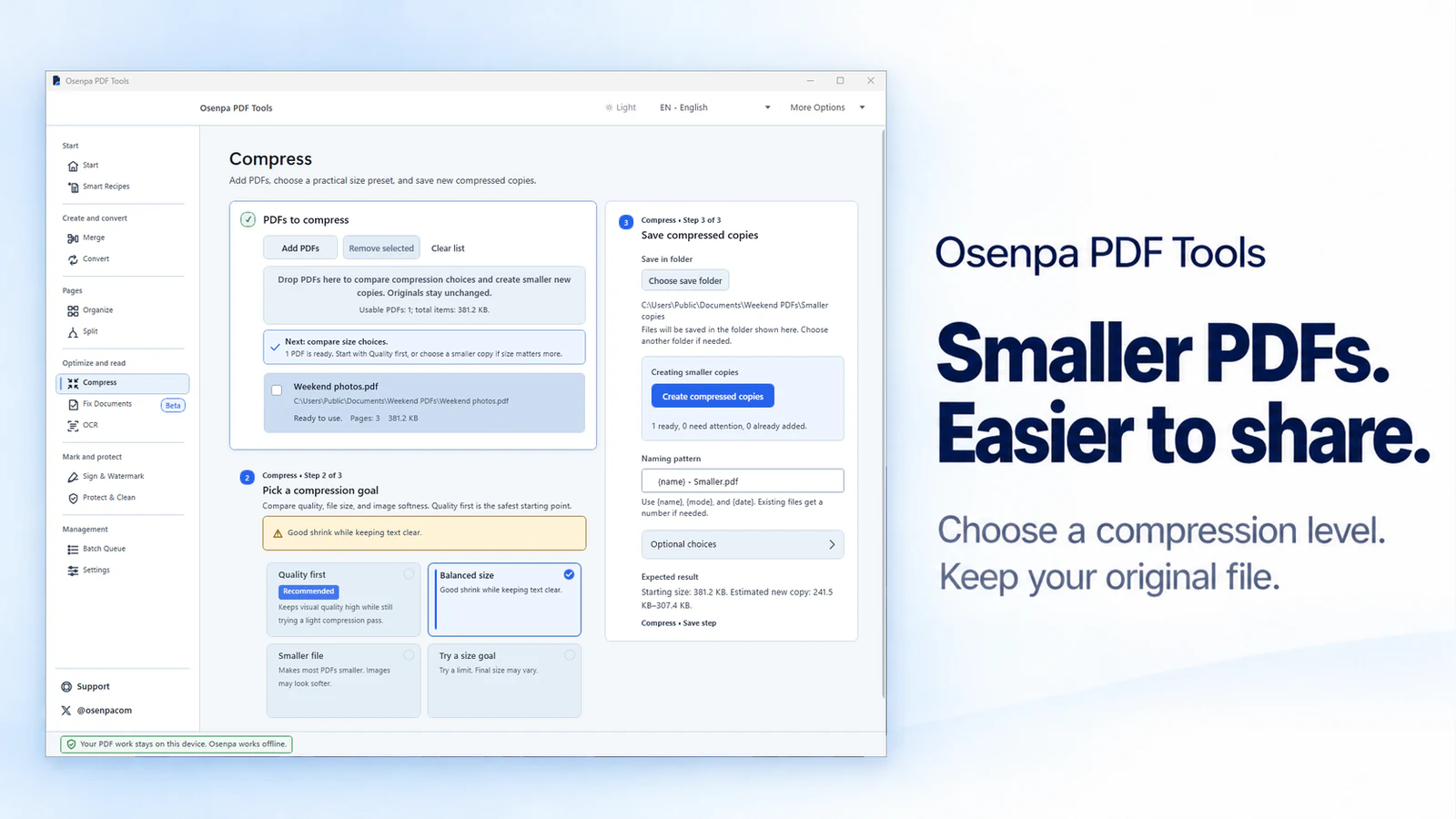
Compress toward a practical limit, export pages to JPG or PNG, or create a PDF from supported images.
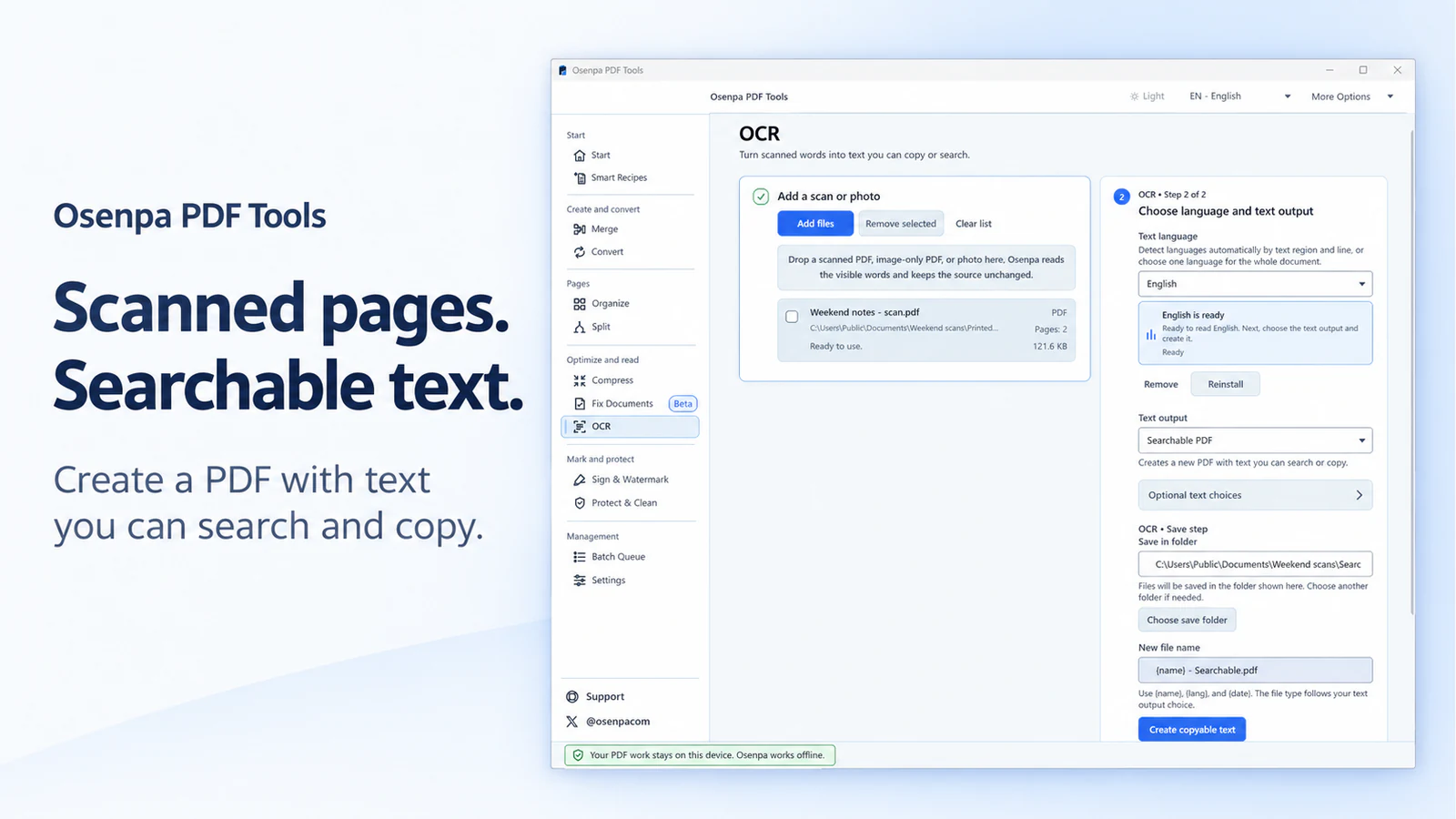
Use All languages after all 16 selectable packs are installed and verified, or choose one language for the whole document. Create a searchable PDF, UTF-8 text, or an in-app preview.
Add a visible signature or watermark, add an open password, remove a password you know and review supported metadata fields.
Choose it for photographed-document cleanup, page changes, conversion, OCR, compression and protection tasks.
Choose a full PDF editor, a certificate-signing service, or a tool designed for permanent redaction when the job needs those features.
Scroll the table horizontally on a narrow screen.
| Need | Start with | Verify afterward |
|---|---|---|
| Straighten a photographed page | Fix Documents (Beta) | Crop, page edges, orientation, lighting and readable detail |
| Combine or rearrange pages | Merge or Organize | Page count, order, links and forms |
| Make a scan searchable | OCR with the matching language pack | Names, numbers, columns and page alignment |
| Meet an upload limit | Compression toward a target | Reported bytes and visible quality |
| Create or export page images | Images to PDF or PDF to JPG/PNG | Order, resolution, text behavior and size |
| Add a signature mark | Visible signature | Recipient accepts a non-certificate mark |
| Protect or clean properties | Password and metadata controls | Known password, visible content and remaining properties |
Clearer photographed documents, more useful progress information and smoother page previews.
Keep all four page corners visible, hold the camera parallel to the page and avoid glare or motion blur. Correction cannot recreate detail that is missing from the photo.
A recipe chooses a starting workflow. Review its files, page choices, quality and output path before running it.
Confirm that it is readable and that any required password is known.
Select pages, settings and a separate output path before processing.
Check page structure, visible quality, searchable text, links, forms and security properties that matter.
See the portfolio-level explanation in Network & data.
Windows 10 version 2004 (build 19041) or later, or Windows 11; x64 architecture
No. It is a focused PDF toolkit for page, conversion, OCR, compression, signature, password, metadata, recipe and batch tasks, not a full text editor.
Yes. It can render selected PDF pages as JPG or PNG images. Selectable text, links and forms do not carry into page images.
The documented inputs are JPG, JPEG, PNG, BMP, single-frame TIFF and WebP.
No. Fix Documents is Beta. It can correct perspective, page curve, rotation, shadows and uneven lighting, but it cannot restore detail lost to blur, glare or a cropped edge. Keep the original and review every corrected page.
No. OCR output must be checked against the page image, especially for names, numbers, tables, columns and poor scans.
No. Password removal requires the known password and the app does not recover an unknown password.
No. A visible signature is a page mark and does not provide cryptographic identity or tamper evidence.
No. Compression is best effort and the achievable size depends on the source and acceptable quality.
No. Bookmark copying is not available, so inspect the merged document and rebuild required navigation with another tool before sharing it.
No. Cleanup covers supported properties such as title, author, subject, keywords, creator, producer and custom details. It does not erase visible text, images, comments or every hidden data type.
No. The queue belongs to the current app session. Finish or record important work before closing.
No. Your PDFs and images are not uploaded for processing. The app can check update metadata, download an OCR pack or the correction component you request, and load the public Supporters list when you open Support.