
On this page
Before you start
- Folder Rules on Windows 11 24H2 or later, x64. Automatic actions need an active trial or full license; Preview can be used during setup.
- A sample folder and a separate empty destination on a fixed local NTFS drive, outside cloud/sync and network folders.
- A copy of a real invoice PDF named invoice-example.pdf and an unrelated photo, such as Earth.jpg. Use copies for this first test.
Using the free trial? You can prepare rules and use Preview before its seven-day timer starts. Activating a valid, ready rule or resuming automation with one starts the shared period; Pause and closure do not stop the clock. How the free trial works.
Follow these steps
Choose the sample folder
In Folder Rules, select Choose folder and pick the folder containing the two samples. Select Add rule and name it Copy invoice PDFs. Set Item type to File and leave Include subfolders off.
Combine the two conditions
Enter pdf in File extensions (optional). Open More conditions and enter invoice* in Name pattern (* and ?). Leave Name contains and other optional conditions empty for this example.
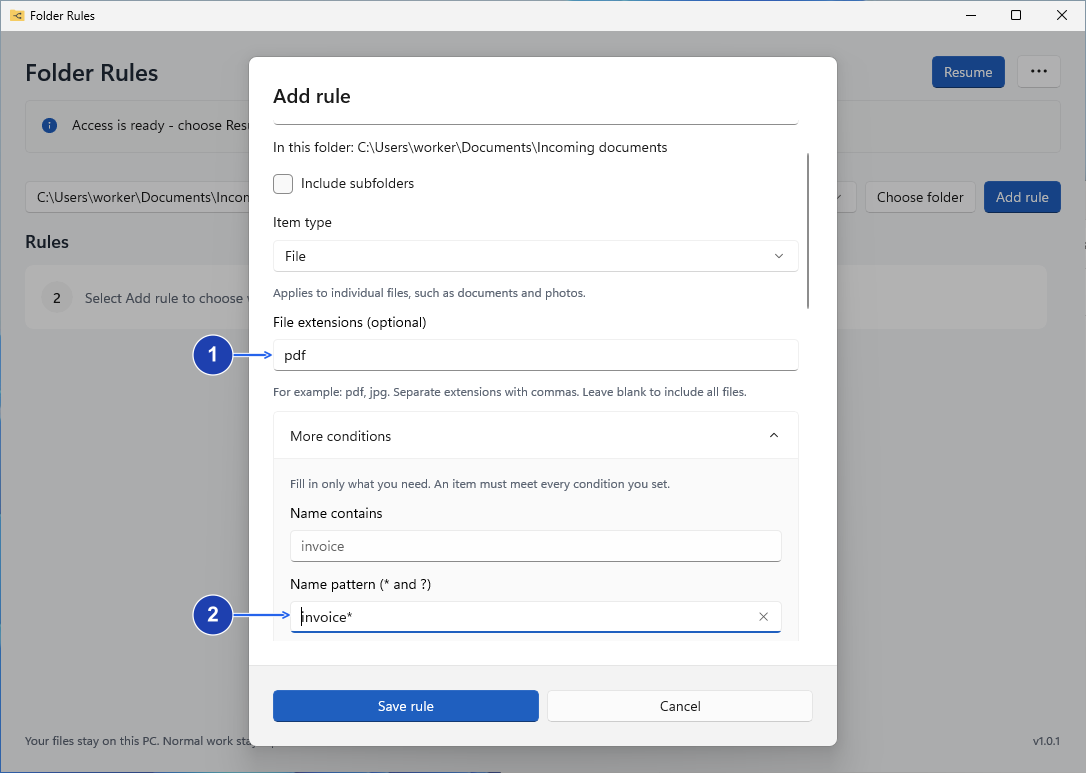
Combine the filename pattern with the PDF extension. Enlarge image. - Match the PDF extension.
- Match names beginning with invoice.
Choose Copy and a destination
Under Do this, choose Copy. Choose destination must point to the separate empty folder, outside the watched folder. Set If the name already exists to Keep both.
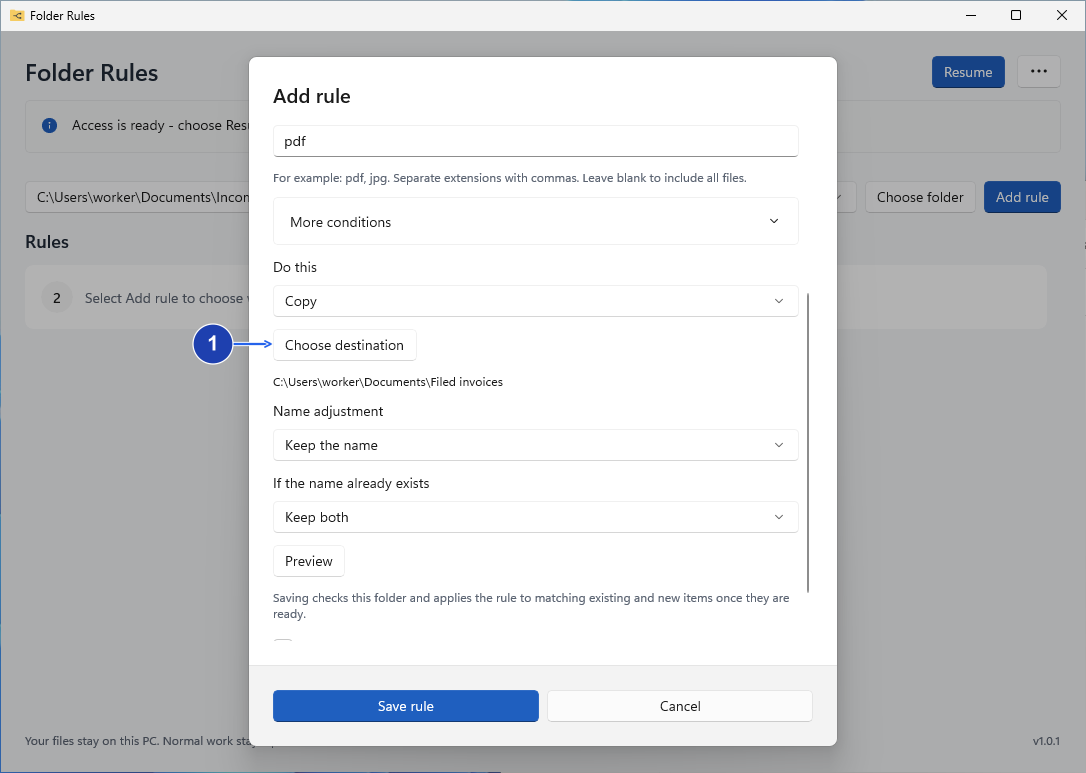
Choose Copy and a separate destination. Enlarge image. - Choose a destination outside the watched folder.
Check Preview
Select Preview. invoice-example.pdf should match; Earth.jpg should not. Check the destination before continuing. To test the filename condition too, add a PDF with another name and preview again. It should stay out of the result.
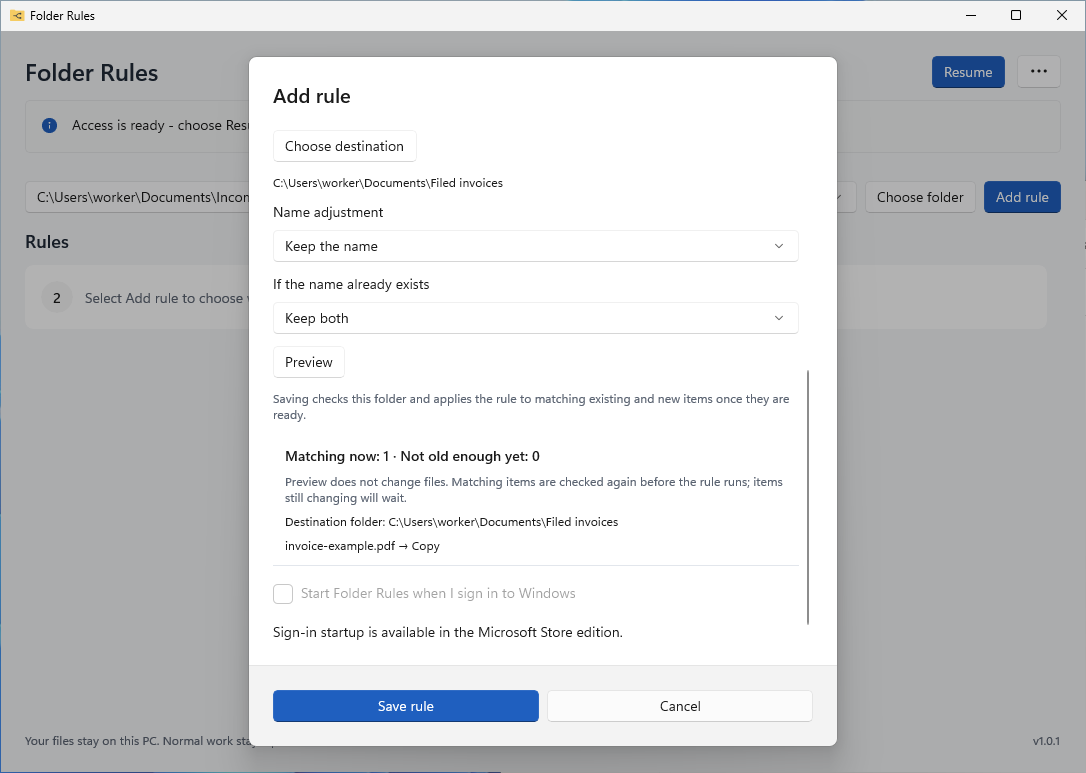
Preview lists the matching invoice and its planned destination. Enlarge image. Save and check the copies
Choose Save rule when ready. An enabled rule can process matching files already in the folder. If automation is paused, choose Resume. Check Activity and open the copied PDF. Both source files should remain because this rule uses Copy.
Adapt the pattern
Pause automation before changing the sample rule for your own files. Use a prefix your invoices actually share, preview the files already in that folder, and check the destination again before resuming.
Check your result
- Only invoice-example.pdf matched in the illustrated example.
- The copied PDF opens correctly and both source files remain.
If you need more help
Read the pattern
An asterisk (*) matches any text; a question mark (?) matches one character. In invoice*, the name must begin with invoice; the separate PDF condition checks the extension.
Every condition you set must match. Adding Name contains, a size limit or a date condition can exclude a file that already matches the pattern. Add one restriction at a time and check Preview.
If a broader rule gets there first
Rules run in order and the first matching rule controls the action. Put this specific invoice rule above a broader PDF rule using Move up or Move down, then preview again.
If the file is still waiting
A file that has just changed can need a thirty-second quiet interval. Read Activity for the actual reason before retrying. Keep the destination outside the watched folder so the copies do not feed back into the rule.
Need the app?
Folder Rules. Check requirements and download options.