
Short answer
Open the downloaded file's folder. Open PowerShell there and run Get-FileHash -LiteralPath '.\FileName.exe' -Algorithm SHA256. Compare all 64 characters with the value on the official download page. If one character differs, do not run the file.
On this page
What SHA-256 means
SHA-256 turns a file's bytes into a 256-bit summary called a hash or checksum. It is normally shown as 64 hexadecimal characters using the numbers 0 through 9 and the letters A through F. The same bytes produce the same value. SHA-256 is designed to make a change to the bytes produce a different value.
A matching checksum shows that your copy has the same bytes as the copy used to publish that checksum. This is useful for spotting a damaged, incomplete or changed download. It does not prove that the original file is safe, signed or trustworthy.
What you need before checking the file
Keep the downloaded file closed. You need its exact path and the expected SHA-256 value published for that exact file on a trusted official page. PowerShell and Command Prompt are built into Windows, and this check normally does not require administrator access.
Check the file with PowerShell
-
1. Get the expected value from a trusted page
Open the product's official download page. Find the SHA-256 value for the exact file you downloaded. A Store package, standalone installer, and portable file can have different values. The value must contain exactly 64 hexadecimal characters: 0 to 9 and A to F.
-
2. Find the downloaded file
Open File Explorer and go to the folder that contains the file. Check its full name, including text such as
(1). Enable file-name extensions in File Explorer if the ending is hidden. Renaming a completed file does not change its hash, but make sure you are checking the intended download.
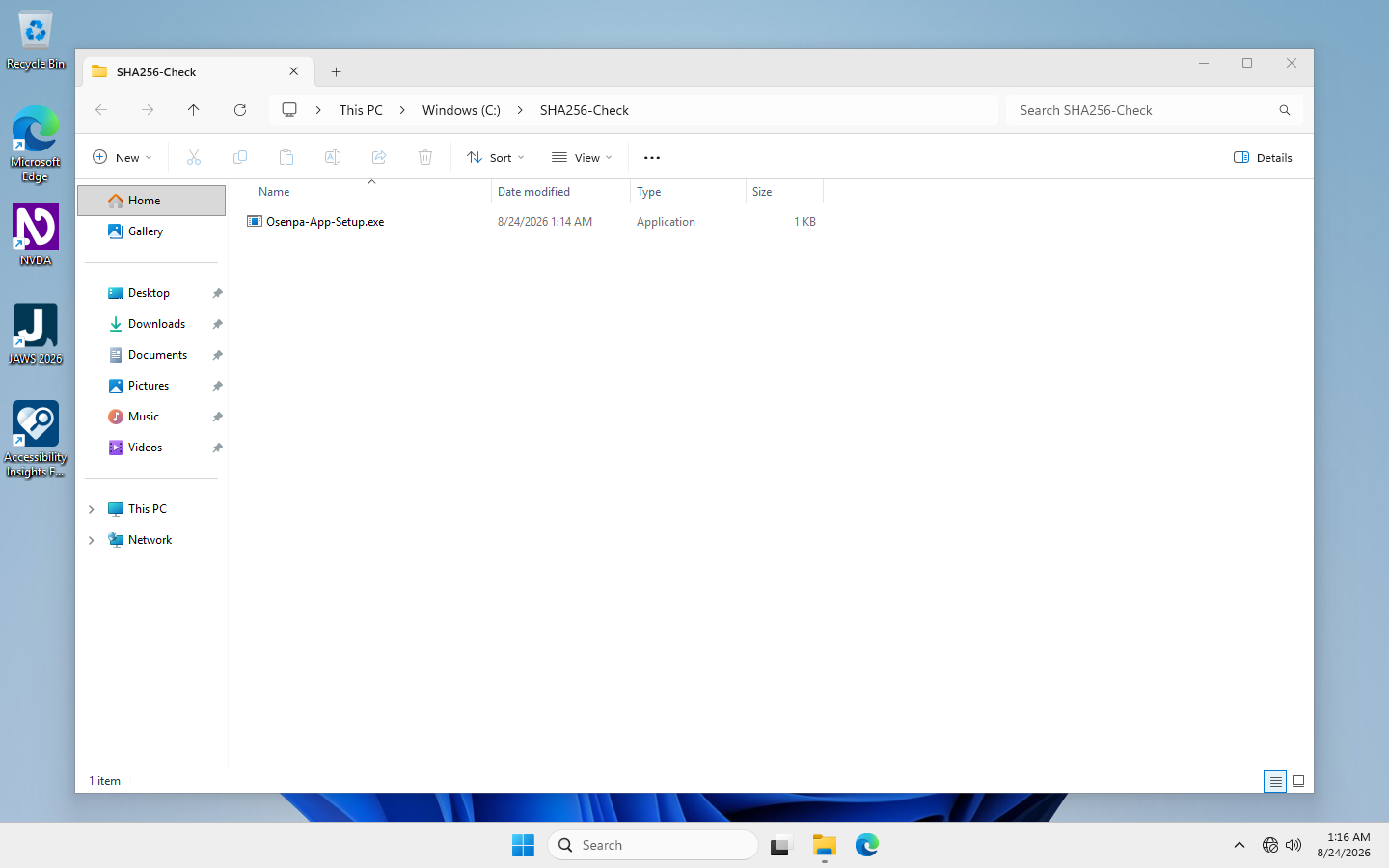
C:\SHA256-Check, so no personal folder name appears. The default folder is Downloads unless you chose another location.-
3. Open PowerShell in that folder
Click the File Explorer address bar. Type
powershelland press Enter. You should see the same folder path in the PowerShell prompt. You can also open PowerShell first and use the full file path. -
4. Calculate the checksum
Replace the example name with the exact file name and run:
Get-FileHash -LiteralPath '.\Osenpa-App-Setup.exe' -Algorithm SHA256Keep the quotation marks around the path.
-LiteralPathalso handles brackets in filenames without treating them as a search pattern. The result contains SHA256, a 64-character hash and the path. PowerShell reads the file but does not install or execute it.
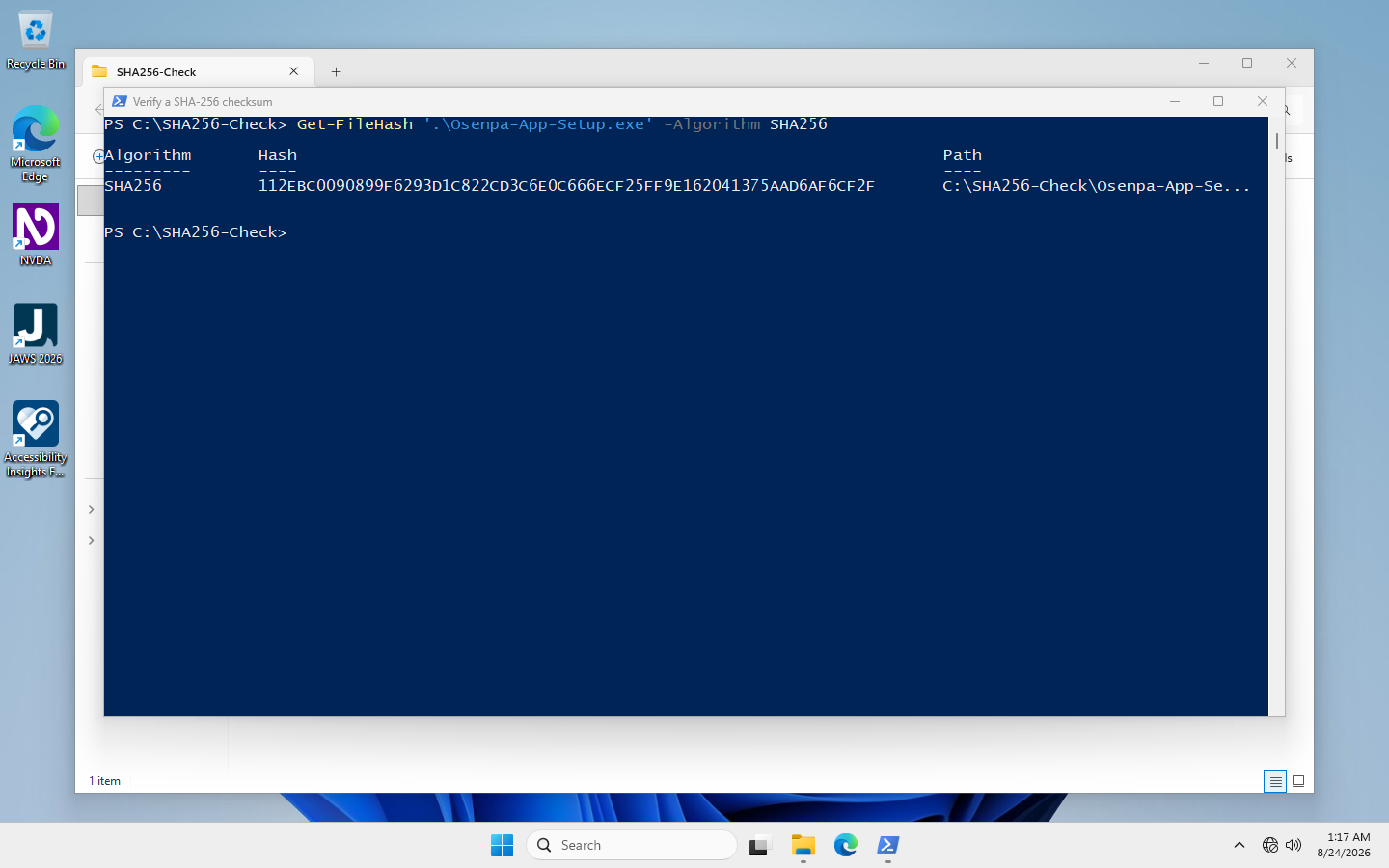
-
5. Compare every character
Compare all 64 characters with the published value. Uppercase and lowercase letters are equivalent. Missing, added, or different characters are not. Do not compare only the beginning or end.
-
6. Stop if the values differ
Do not run the file. Confirm that the checksum belongs to the same file and download channel. Remove the mismatched copy and download it again from the official page. If the fresh copy still differs, contact the publisher.
Checkpoint: read the comparison result correctly
A 64-character calculated value is not automatically a match. It must agree with the expected value in every position; letter case is the only allowed difference.
Let PowerShell compare the values
Manual comparison works, but PowerShell can check the full string for you. Paste the published value between the quotation marks:
$expected = 'PASTE_THE_64_CHARACTER_VALUE_HERE'
First confirm that the pasted value is a complete SHA-256 string:
if ($expected -notmatch '^[0-9A-Fa-f]{64}$') { throw 'Paste exactly 64 hexadecimal characters.' }
$actual = $null
$actual = (Get-FileHash -LiteralPath '.\FileName.exe' -Algorithm SHA256 -ErrorAction Stop).Hash
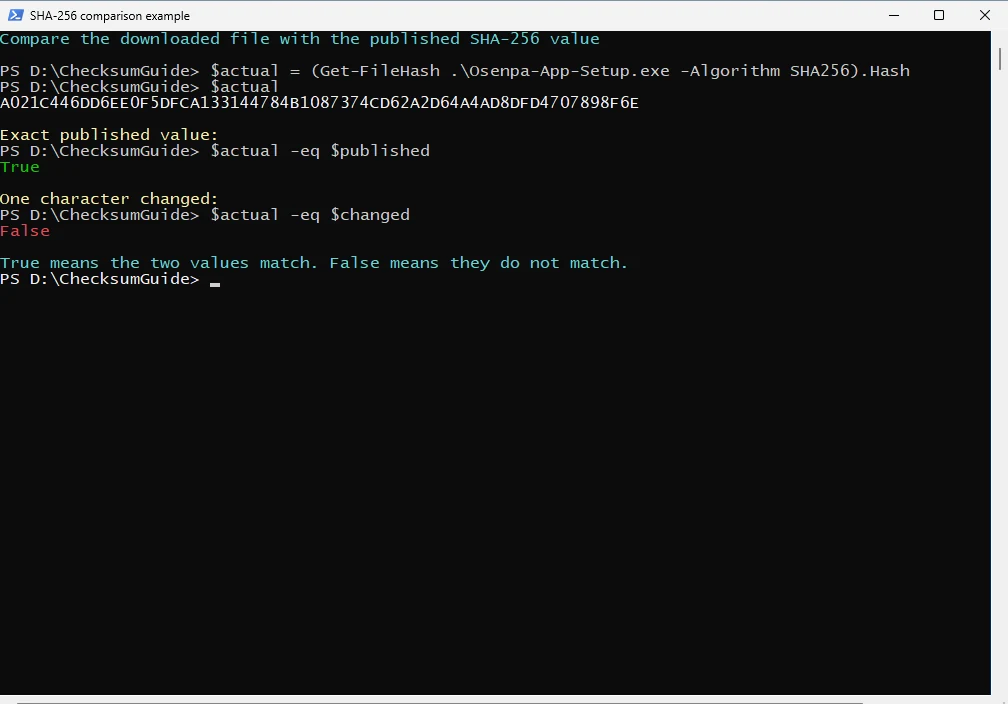
$actual -eq $expected
True means the two complete values match. False means stop. If a command prints an error, stop and fix the path or expected value before comparing; do not reuse an earlier result. This comparison is useful only when the expected value came from the correct official page.
Troubleshooting
PowerShell says the path was not found: copy the exact file name from File Explorer, keep quotation marks around names with spaces, and check that the prompt shows the same folder.
The browser is still downloading the file: wait until the temporary download name disappears and the final file size stops changing, then calculate the hash again.
The path contains an apostrophe: inside a single-quoted path, write the apostrophe twice, for example '.\O''Brien.exe'. This also keeps dollar signs and backticks in a filename literal.
The automatic comparison returns False: confirm the expected value belongs to the exact file and channel, download a fresh copy from the official page, and stop if the new copy still differs.
What a match does not prove
- It does not prove who published the file if the expected value came from an untrusted page.
- It does not create a digital signature or identify a Windows publisher.
- It does not remove a Microsoft Defender SmartScreen warning.
- It does not show whether the publisher's original file is safe to run.
Verification checklist
- The file came from the intended official channel.
- The published checksum belongs to the same file and version.
- The calculated value contains 64 hexadecimal characters.
- Every character matches before the file is opened.
Command Prompt alternative
If PowerShell is unavailable, open Command Prompt in the file's folder and run certutil -hashfile "FileName.exe" SHA256. Compare the checksum in the output with the same official value.