
On this page
Before you start
- CiteFlow 1.2.2 or later with your PDFs already in a project, and a Word document.
- Check that your assignment or publication asks for Chicago Notes-Bibliography rather than Chicago Author-Date.
Follow these steps
Open the project’s format settings
In the left project list, right-click your project and choose Change Format.
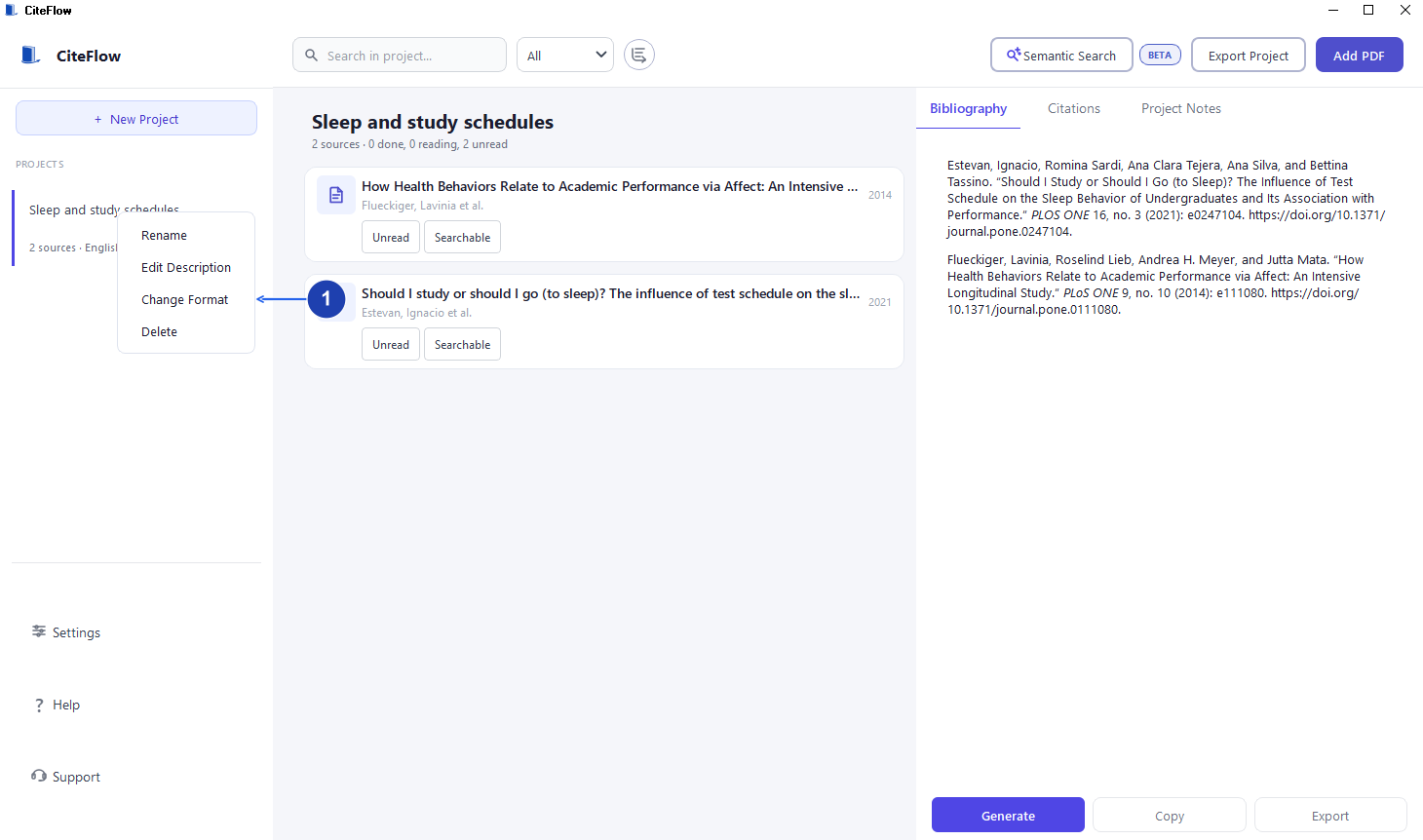
Right-click the project and choose Change Format. Enlarge image. - Choose Change Format from the project menu.
Choose Chicago Notes-Bibliography
Select Chicago 18 Notes-Bibliography and choose Apply if you changed the style. Check the source title, author and publication details against the paper.
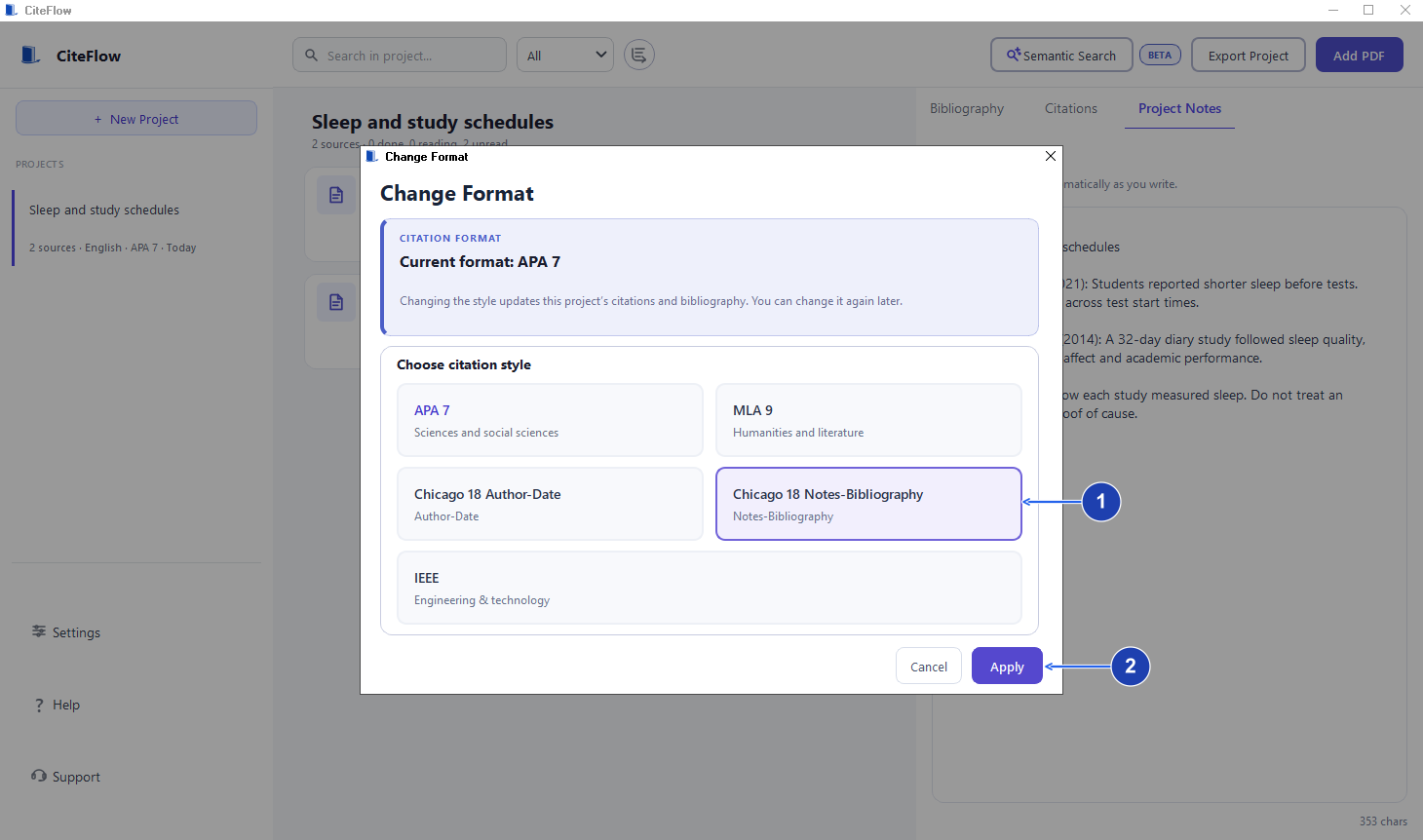
Select Chicago 18 Notes-Bibliography, then Apply. Enlarge image. - Select Chicago 18 Notes-Bibliography.
- Apply changes the project citation style.
Save the passage’s citation
Open the PDF, select the passage and use Copy or Cite. Resolve any source-detail review. If Page Number Needed appears, enter the printed page label you can verify. Choose I Don’t Know when no readable label exists.

Select the passage, then choose Copy or Cite. Enlarge image. Copy the note body
Open Citations and find the saved passage. Check its source and page, then choose Copy note. Full note or Short note describes the form generated from the source’s order in CiteFlow.

Check the source and page, then choose Copy note. Enlarge image. - Use Copy note for the footnote body.
Insert the footnote in Word
Place the cursor where the reference belongs in your Word document. Choose References → Insert Footnote, then paste the copied note into the footnote area. Word creates the linked number in the document.
Check the note in your document
Check the author, title, page and italics. Review full and shortened notes in the order they appear in Word.
Check your result
- Each footnote number in the text links to the intended note in Word.
- The note uses the checked source and page, and its full or shortened form suits its place in your document.
If you need more help
If your document uses a different source order
CiteFlow chooses full or shortened notes from its saved citation order. Your Word document may use a different order or only some of those citations. Check the note form against your required style and the actual document order before submitting.
After changing a source or page
The pasted note does not update automatically when CiteFlow changes. Correct the source or citation in CiteFlow, copy the note again and replace the affected note body in Word.
Add the bibliography separately
A footnote cites a particular passage. Generate the bibliography in CiteFlow for the reference list at the end of your document, then check its contents and formatting. Follow your instructor’s or publisher’s requirements for what to include.
Need the app?
CiteFlow. Check requirements and download options.