
On this page
Before you start
- Make Smaller on Windows 11 24H2 or later, x64, with full access or trial uses available.
- Locally available files, enough free space for separate copies, and the attachment limit for the account you use.
Using the free trial? Each saved copy at least 1% smaller uses one of your five trial uses. How the free trial works.
Follow these steps
Check the whole selection
Put only the files you intend to attach in a working folder. Select them in File Explorer, right-click and choose Properties. Read their combined Size. Several individually small files can still exceed a message’s total attachment limit.
Start with the largest file
Choose a large supported photo, document or recording. Close any app still writing to it. Right-click the file, open Make Smaller and choose Preserve quality. Choosing a profile starts processing; there is no target-MB field.
Open and measure the result
Wait for the result, then choose Show in folder if a smaller copy was saved. Open it in its usual app and check the pages, image detail or playback you need. Use Properties to read the copy’s Size. No improvement means no smaller copy was saved.
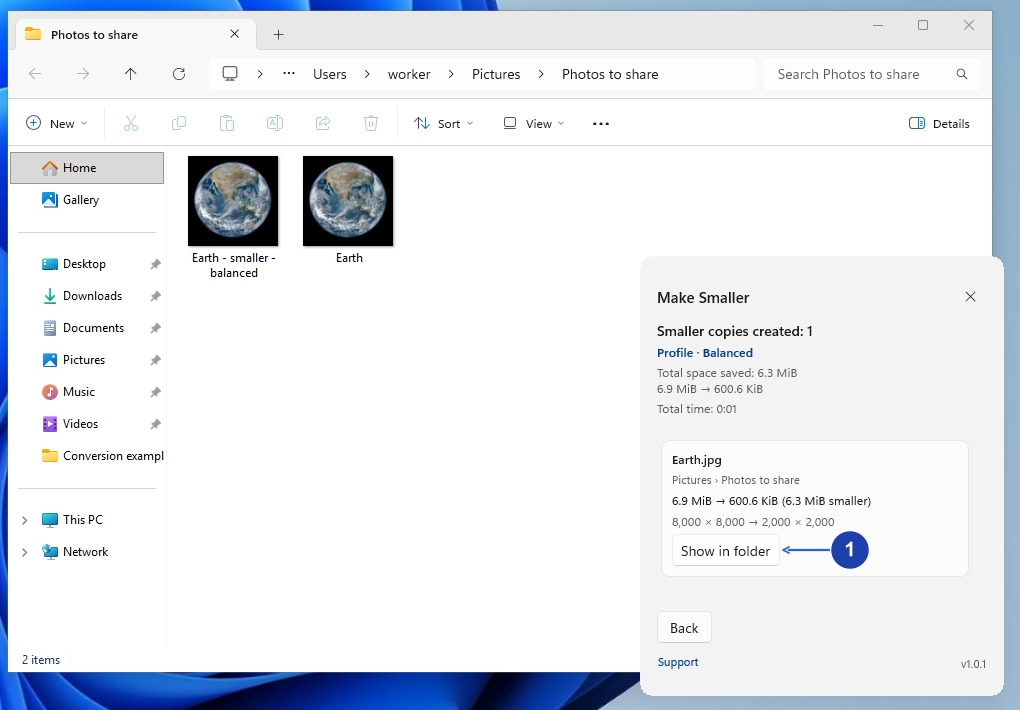
Use Show in folder to open the smaller copy. Enlarge image. - Show in folder opens the smaller copy’s location.
Decide whether to try another profile
If the copy is still too large, return to the original and try Balanced or Smallest size only if some quality loss is acceptable. Compare the result with the original. Keep the version that is small enough and still useful to the recipient.
Attach the checked copies
Select the versions you intend to send and check their combined size again. Remove any larger originals already attached to the draft, then attach the checked copies. Read any message-size warning from your mail service before sending.
Check your result
- The draft contains the checked copies, without duplicate originals.
- The total attachment size fits the account’s limit and the mail service accepts the draft attachments.
- The recipient can still read the documents or use the media at the chosen quality.
If you need more help
Use the limit for your account
Personal Gmail accounts allow up to 25 MB of attachments in total; Google Workspace administrators set their organization’s limits. Gmail can replace an over-limit attachment selection with a Google Drive link.
Microsoft lists a 25 MB attachment limit for Outlook.com. Work accounts and other mail systems can use different limits, and some limits count the whole message. Check the service you actually use rather than assuming every account allows the same size.
If a useful copy still does not fit
Avoid repeatedly reducing the same output. Start another comparison from the original. Some files are already compressed and may not get smaller enough at an acceptable quality.
If the recipient can use a shared file link, that may be more practical than reducing the file further. Check the link’s recipients and access settings. Putting compressed photos or videos in a ZIP does not guarantee enough savings.
Need the app?
Make Smaller. Check requirements and download options.