
Short answer
Open Sign & Watermark and add the PDF you want to mark. Choose text or an image.
Place the mark in the preview, choose which pages receive it, and save a new PDF. Open the new file before sharing it.
This guide covers Osenpa PDF Tools. Check requirements and download options before you begin.
On this page
What it does | Prepare | Steps | Checkpoint | Limits
What a watermark does
A watermark is a visible text or image mark placed in front of or behind page content. It can communicate status, ownership or handling instructions. It is not access control, redaction, a certificate-based digital signature or proof that copying is impossible.
Before you start
- Keep the source PDF and decide which pages need the mark.
- Use wording such as DRAFT or SAMPLE that accurately describes the document.
- Use an image without personal information unless that information is intentionally part of the mark.
- Choose a layer and opacity that remain readable without hiding important content.
Why a watermark can seem to disappear
A scanned page is often one opaque image. A watermark placed behind it may be completely hidden. Check the front or back layer, opacity and selected pages in the preview. Use a dense text page and a dark image page to check that the mark is visible without covering information.
Add and preview the watermark
-
Add the PDF copy
Open Sign & Watermark and select the local source.
You should see: the correct filename and a page preview.
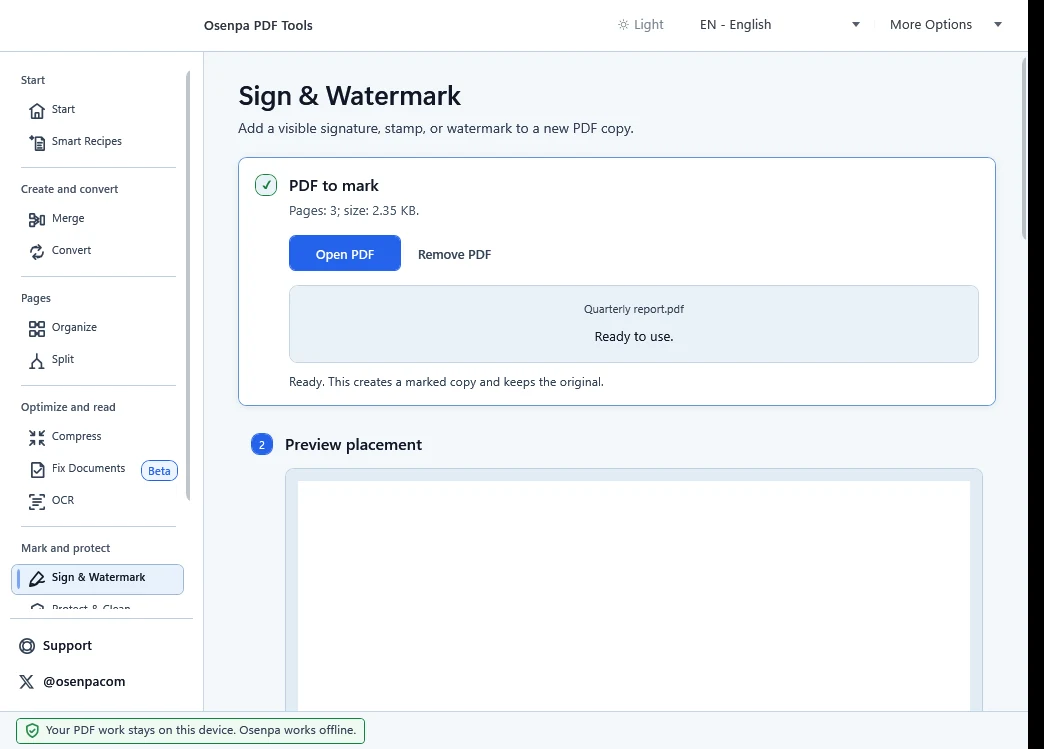
Confirm the filename first. The preview below is where you check the mark before saving a separate copy. -
Create the mark
Under What kind of mark?, choose Watermark. Choose Text stamp and enter Visible text, or choose Image stamp and Choose image. Set Apply to, position, scale, rotation, opacity and Draw layer. For a range, use PDF positions such as
1-3, 5.You should see: the mark in the preview at the chosen size and position.
-
Review the preview
Inspect a page with dense text, a page with images and the first and last selected pages.
You should see: the mark only on selected pages, without hiding important content.
-
Save separately
Choose an output folder and filename, then select Create marked copy. Open the new file in another reader at normal zoom.
Check every affected page type
- The mark appears only on the intended pages.
- Text, forms, signatures and important graphics remain usable.
- The mark is legible on light and dark page areas.
- The filename makes the marked copy easy to distinguish.
Limits and signing caution
If a mark appears on the wrong page, return to the unchanged source and correct the selected page range before exporting again.
A watermark is a visible page change. It does not prevent removal by a determined editor and does not prove identity or tamper evidence. Adding it can also make an existing certificate signature show that the document changed. Return to the unchanged source if a recipient requires a certified signing workflow or a document without modifications.