
On this page
Before you start
- Osenpa Auto Clicker 2.1.0 on Windows.
- A blank Notepad document, kept visible beside the app. Stop any active automation before changing shortcuts.
Follow these steps
Set up one click
Open Quick Click. Choose At a chosen point and use Choose a point inside the blank Notepad document. Set Click interval to 1000 ms, choose A set number of times and set Number of clicks to 1.
For the full setup, follow your first Quick Click.
Try the Start button
Select Start and check that the click reaches Notepad. If this fails too, read the displayed message and fix the target or task setup first.
Check the correct shortcut
Open Settings → Keyboard shortcuts. Find Quick Click. Run / Stop Steps belongs to the step workflow, so changing that entry will not set the Quick Click shortcut. A saved setup can differ from the defaults, and Quick Click can have no shortcut assigned.
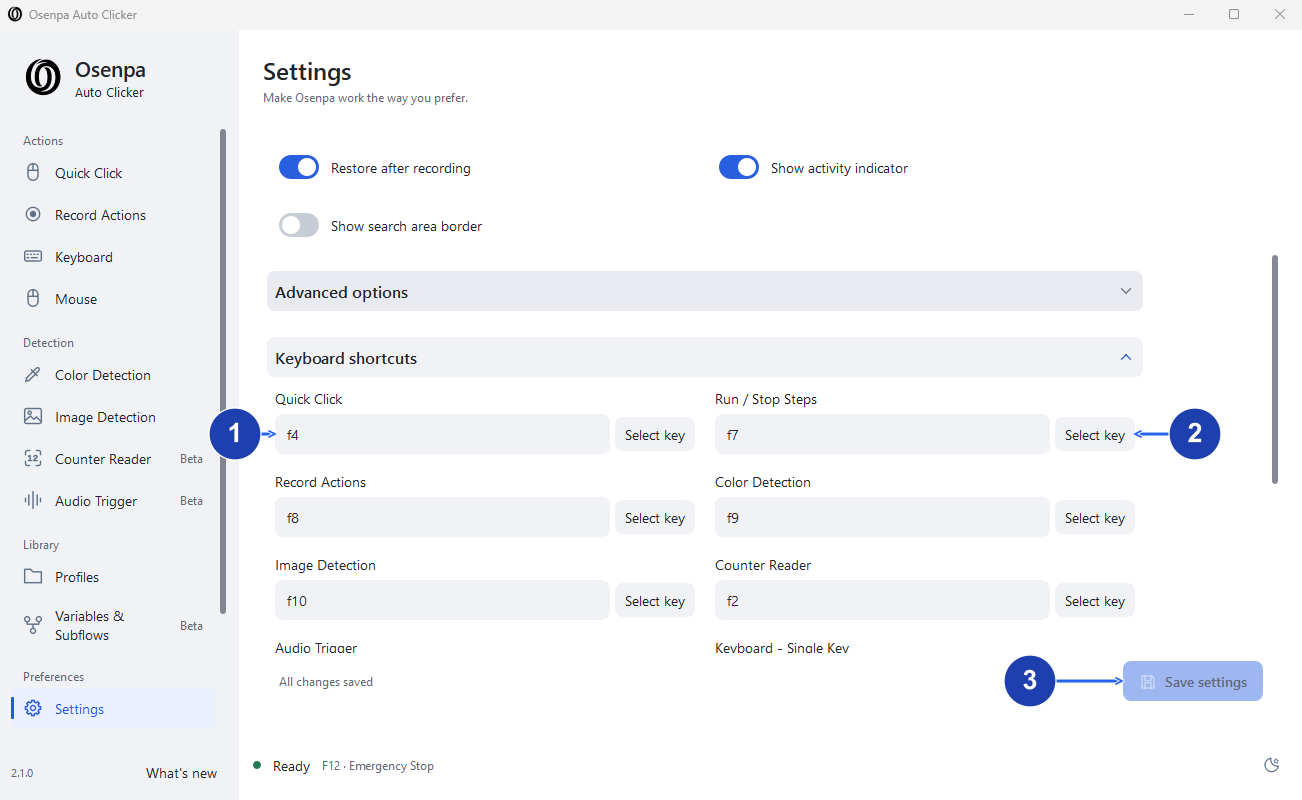
Quick Click and Run / Stop Steps have separate assignments. Select key changes the entry beside it. Enlarge image. - Check the Quick Click shortcut.
- Select key changes the Run / Stop Steps shortcut.
- Save settings when changes are ready.
Assign and save a key
Next to Quick Click, choose Select key and press a single key that is not assigned to another listed tool. F12 is reserved for Emergency Stop. Choose Save settings. If the app reports a conflict or cannot register the key, choose another key and save again.
Retry the shortcut
Return to Quick Click and confirm the displayed shortcut. Keep the one-click limit and the same Notepad target. Press the shortcut once and check that the click reaches the chosen point. Restore your normal settings only after this works.
Check your result
- The Start button and the displayed Quick Click shortcut both run the same one-click setup.
- Save settings completed without a shortcut error.
If you need more help
If you meant to run Steps
For a sequence in Automation with steps, check Run / Stop Steps instead. Other tools have their own entries. Match the entry to the tool you are using before changing a working shortcut.
Before using Reset shortcuts
Reset shortcuts returns the shortcut set to its defaults. Record custom assignments you want to keep first. To fix one key, changing just its entry is usually enough.
Need the app?
Osenpa Auto Clicker. Check requirements and download options.