
On this page
Before you start
- Osenpa Auto Clicker 2.1.0 on Windows.
- A stopped automation; editing is unavailable while it is running or recording.
Follow these steps
Save your existing work
From Quick Click, choose Automation with steps. Choose Save profile and keep a named copy of your existing setup. Then choose File → New automation for a separate practice workflow. If the list is hidden, choose Show steps. Do not select Run automation during this editing exercise.
Add three harmless practice steps
In Steps, choose Add action → Quick delay → 1s three times. Select each row, choose Edit and name it Practice pause 1, 2 or 3, then Save changes. Delay steps do not click or type.
Select two rows
Click Practice pause 1, then hold Ctrl and click Practice pause 2. Check that both rows are selected. Shift-click selects a continuous range instead. Click a row in the list before using shortcuts; when a text field has focus, Ctrl+C copies text rather than steps.
Copy and paste the selection
Press Ctrl+C. Click Practice pause 3 and press Ctrl+V. The copies are inserted after the selected row, so the list should now contain five steps. The original three are still present. Undo the paste once to return to three rows before the next exercise.
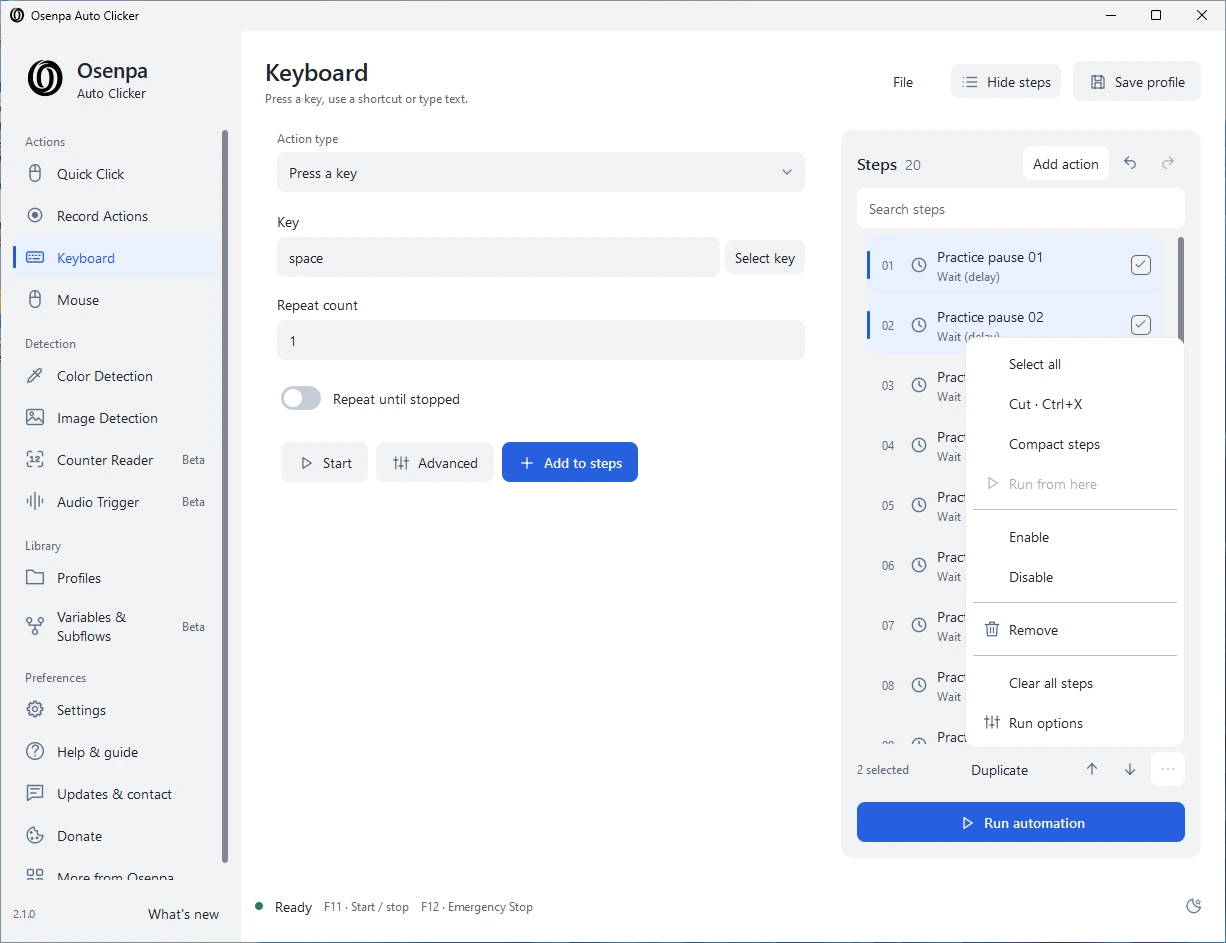
Use selected rows and the step menu to organize a workflow. These practice steps only wait; copying or moving them does not run them. Enlarge image. Move a step
Drag Practice pause 1 below Practice pause 3 and release at the insertion marker. Check that the order is now 2, 3, 1. For a keyboard alternative, select a row and use Alt+Up or Alt+Down. The right-click menu also provides Move up and Move down.
Inspect and save the result
Clear the search and read the full step order. Open Edit to inspect a delay, then cancel if unchanged. Use Save profile to keep the practice setup. No automation run is needed to check these edits.
Check your result
- Copy and paste increased three practice rows to five without removing the originals.
- Undo restored the previous list after the paste.
- Moving a row changed its position without changing its delay.
- The search is clear and the full list is in the intended order.
- The practice setup is saved separately from the original workflow.
If you need more help
Copy, cut or duplicate?
Copy leaves the selected steps in place. Paste inserts their copies after the last selected row; with no row selected, it appends them to the end. Duplicate makes another copy directly after the selected group.
Cut copies and removes the selected steps. Use it only after checking the selection. If Osenpa asks you to repair a reference to a step being removed, cancel until you know where that reference should point. A failed copy or a changed clipboard can prevent the cut; read the message before trying again.
Make a long list easier to read
Open More actions in Steps and choose Compact steps to fit more rows on screen. This option appears for lists with at least 20 steps, or when compact rows are already active. Choose Comfortable steps to return to the larger rows.
Search filters the visible list without deleting steps. Ctrl+A selects the displayed results, so clear the search first when you intend to select the whole workflow. In a narrow window, use the menu for actions that do not fit beside the list.
Useful shortcuts while the Steps list has focus
Ctrl-click: add or remove an individual row from the selection. Shift-click: select a range.
Ctrl+C / Ctrl+X / Ctrl+V: copy, cut and paste steps.
Ctrl+D: duplicate the selected steps. Delete: remove them.
Alt+Up / Alt+Down: move the selected steps.
Ctrl+Z / Ctrl+Y: undo or redo a workflow edit.
Shift+F10: open the selected row’s context menu.
Check more than the visible order
A real workflow may include a Go to step action, a condition or a subflow call. Review those destinations after moving or copying steps, especially between different documents. A copy of a step is not a guarantee that all required values, subflows or external image and sound files are present.
Disabled steps remain in the list but are skipped. Run from here starts execution at the selected step; it is not an editing preview. Before any real run, check Run options, the starting step, repeat settings and the target window. Keep F12 available as Emergency Stop.
If an edit does not work
Stop any active run or recording and wait for it to finish. Click a row in Steps and try the command again. For Paste, copy steps from Osenpa first; ordinary text or an image on the clipboard is not a step list.
If a step points to a missing destination, read the repair message and keep your saved original. Undo changes the automation document; it cannot reverse mouse clicks or text already sent to another app. Restore your saved profile if you are unsure what changed.
Need the app?
Osenpa Auto Clicker. Check requirements and download options.