
On this page
Before you start
- A Windows PC with the app already installed. If Microsoft Store still shows an installation in progress, let it finish.
Follow these steps
Open the Applications folder
Press Windows+R. Type
shell:AppsFolderinto Run and press Enter. Windows opens a list of installed applications.Find the app
Find the app by name in the Applications window. Select the installed app you want to open from the desktop.
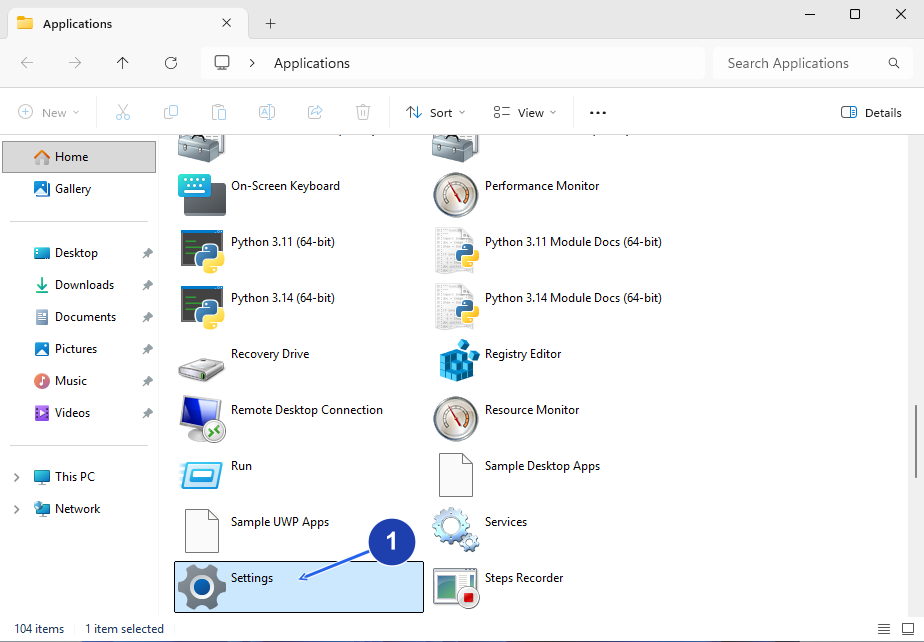
Choose your installed app in Applications; Settings is shown as an example. Enlarge image. Open the app’s right-click menu
Right-click the selected app and choose Create shortcut.
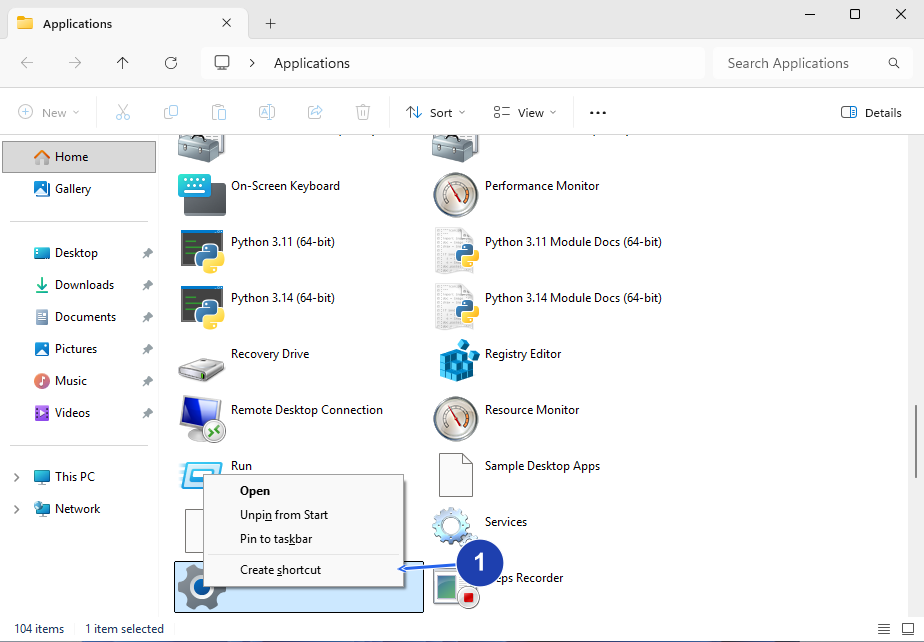
Choose Create shortcut from the menu for the app you selected. Enlarge image. Put the shortcut on the desktop
If Windows says it cannot create a shortcut here and offers the desktop instead, choose Yes.
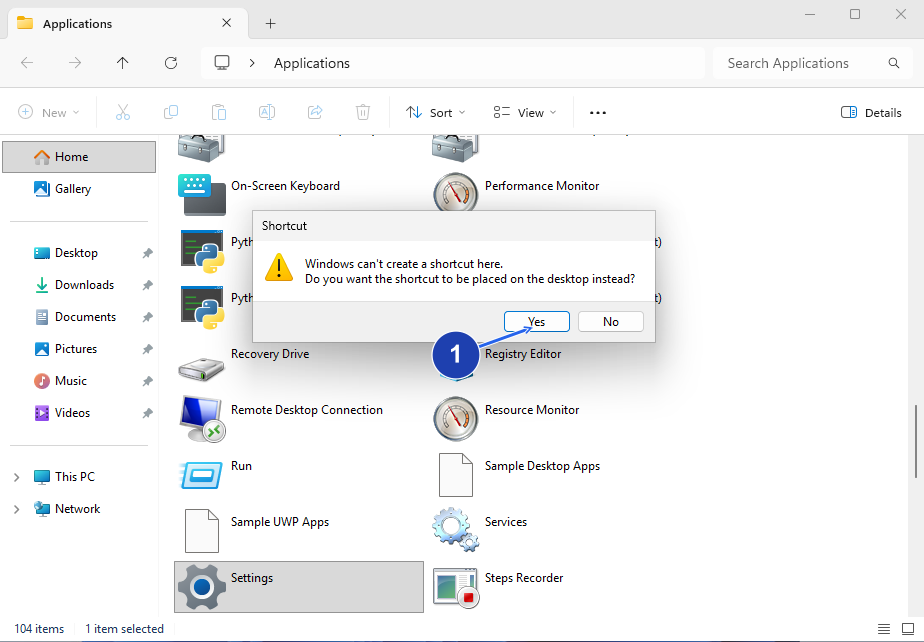
Windows offers to place the shortcut on the desktop. Enlarge image. Try the new icon
Press Windows+D to show the desktop. Double-click the new shortcut and check that the intended app opens.
If you need more help
If the app is missing
Search for its name in Start. If Microsoft Store has not finished installing it, complete the installation first, then reopen the Applications window.
For an Osenpa app, the official downloads page links to its Store listing. Use the same installed app name when looking for it in Windows.
To remove the icon later
Delete the desktop shortcut when you no longer need it. Removing that shortcut leaves the app installed.
Windows references
- Microsoft: add app shortcuts and show desktop icons
- Microsoft: open the installed-app list with shell:appsfolder