
On this page
Before you start
- An internet connection and the app already installed through Microsoft Store.
Follow these steps
Open Microsoft Store
Search Start for Microsoft Store and open it.
Check for available updates
Open Downloads. If your Store version uses Library for updates, open that instead. Select Check for updates (called Get updates in some versions), then wait for the list to refresh.
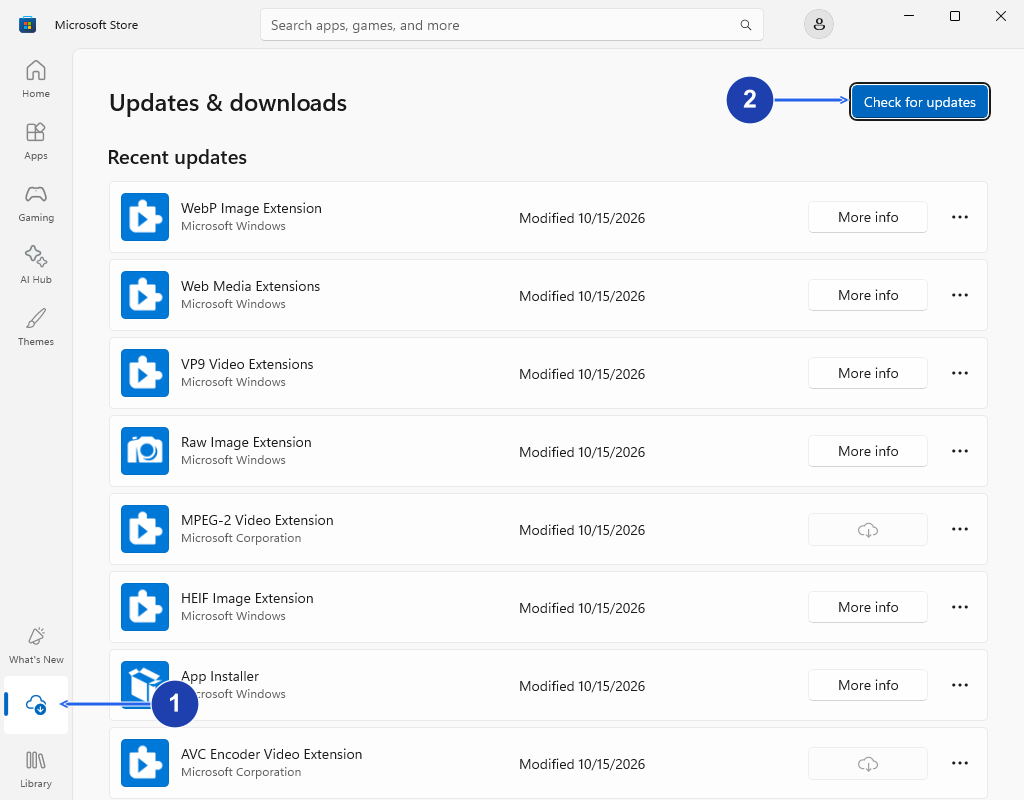
Open Downloads, then choose Check for updates. Your Store version may place updates in Library instead. Enlarge image. - Open Downloads in Microsoft Store.
- Choose Check for updates. Older Store versions can call this Get updates.
Install your app’s update
Save your work and close the app if Store asks you to. Start its update and leave it to finish. A queued or downloading entry has not finished installing yet.
Check the installed version
Open the app again. Look in its About, Help or Settings area for the version number and compare it with the publisher’s release notes.
Check your result
- Store no longer shows an update in progress for the app, and the reopened app shows the version you expected.
If you need more help
The new version does not appear
Confirm that you installed this copy through Microsoft Store. A separate installer may have its own update method. Also check that the publisher says the update is available in Store; a release announcement alone does not confirm availability on every device.
Will Store update apps automatically?
Store normally updates eligible apps automatically. You can still check manually. Some apps use their publisher’s own updater, so follow the method offered by that app.
The update is waiting or fails
Check your internet connection and free disk space. Close the app if Store says it is in use, then retry the update. If it still fails, note the exact Store error code for support rather than uninstalling and risking local app data.