
On this page
Follow these steps
Restart and try again
Save work in other apps, then choose Start → Power → Restart. After signing in, open the problem app from Start.
Check for an app update
Open Microsoft Store and check Downloads or Library for an update to the app. Let any installation finish, then try opening it again.
For the update steps, see update a Store app.
Open the app’s options
Open Settings → Apps → Installed apps. Find the problem app, select its three-dot menu and choose Advanced options, if available.
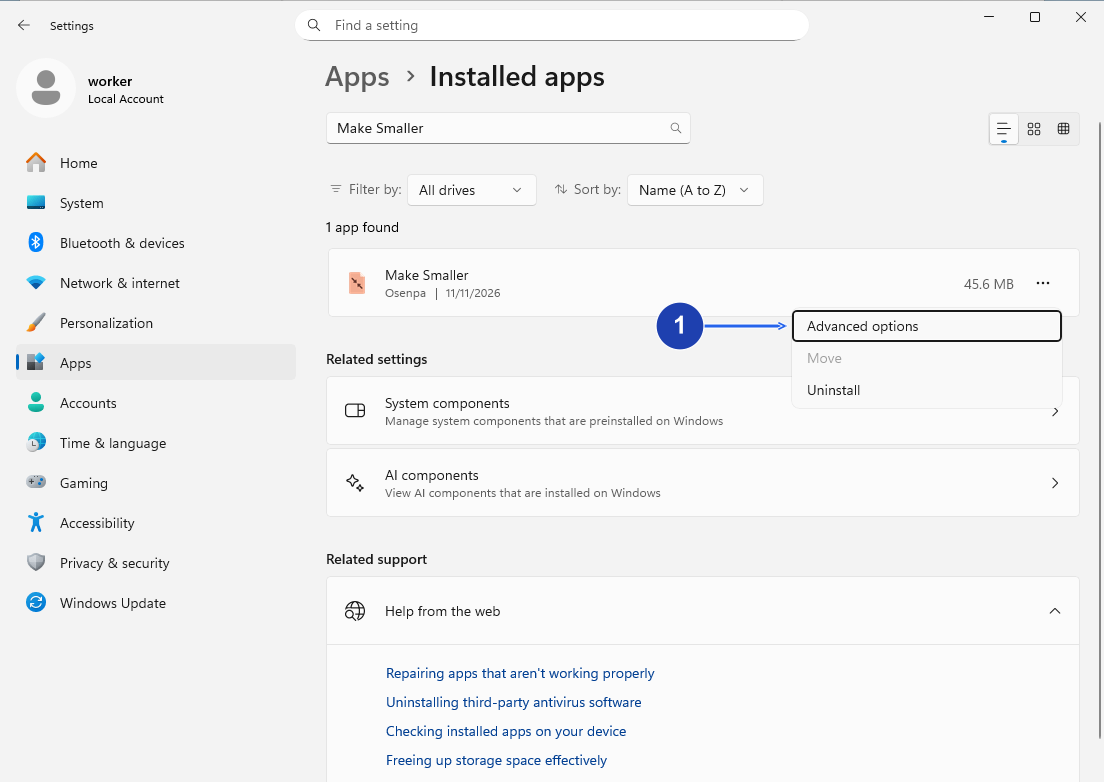
Find your app and open its three-dot menu, then choose Advanced options. Make Smaller is the example here. Enlarge image. - Open Advanced options for the app you want to repair.
Try Repair
In Advanced options, find Repair. Select it, wait for completion and open the app again. Repair is intended to keep the app’s data.
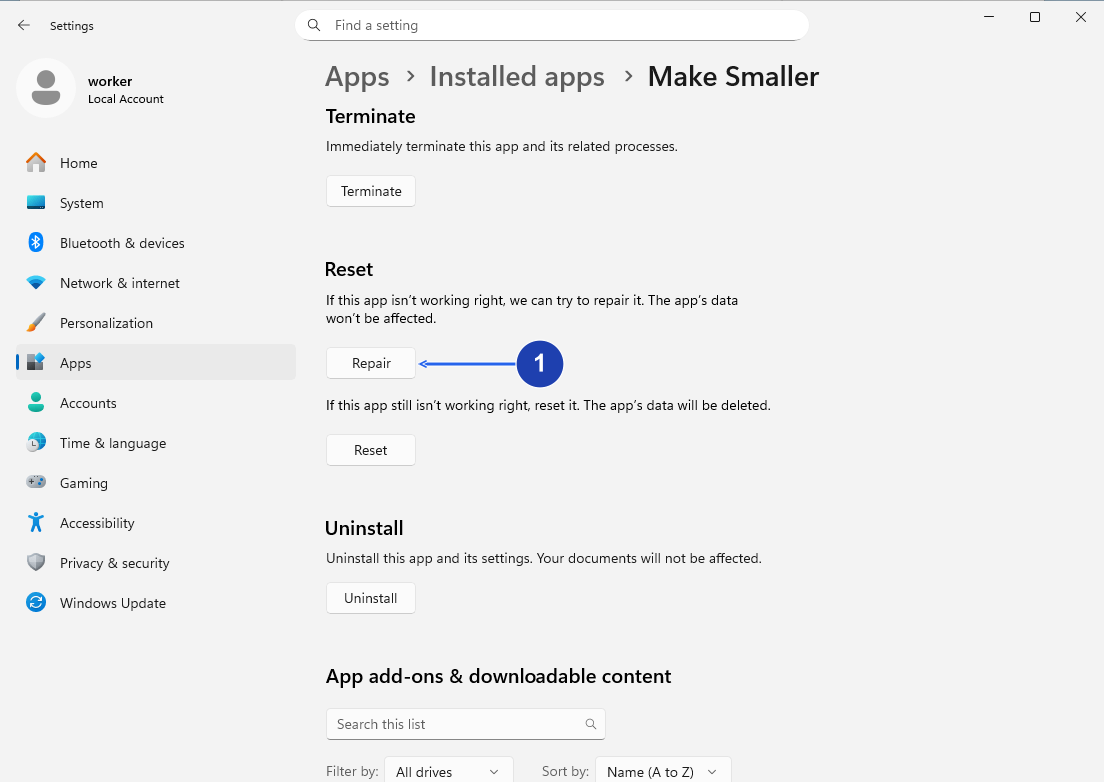
Choose Repair first. Read the separate Reset warning before using that option. Enlarge image. - Try Repair first. Reset below it removes the app’s local data and settings.
Decide before using Reset
If Repair does not help, check whether the app has a backup or export you can use. Reset removes the app’s local data and settings. If you need that data and cannot back it up, contact the publisher first. Only select Reset and confirm when you are ready for that loss.
Check your result
- The app opens from Start. Check that the documents or projects you need are still available before resuming work.
If you need more help
There is no Advanced options or Repair button
These options are not available for every app, including some desktop apps distributed through Store. Follow that app’s support instructions instead. Do not uninstall it as a substitute until you know what happens to its saved data.
It still will not open
Contact the publisher with the app name and version, your Windows version and the exact error message. Say whether it closes immediately or stays on a loading screen. This is more useful than repeatedly resetting it.
Microsoft Store itself will not open
That is a different problem. Use Microsoft’s Store troubleshooting steps before trying to update another app.