
On this page
Before you start
- Osenpa Clipboard Manager 2.0.4 or later with monitoring active.
- A non-private picture copied to the clipboard and a document or message where you can test pasting an image.
Follow these steps
Open the image editor
Press Alt+V to open Osenpa Clipboard with its default shortcut. Find the image card, right-click it and choose Edit Image.
Crop the picture
Choose Crop and drag around the area to keep. Release to apply the crop. If it removes too much, choose Undo and try again.
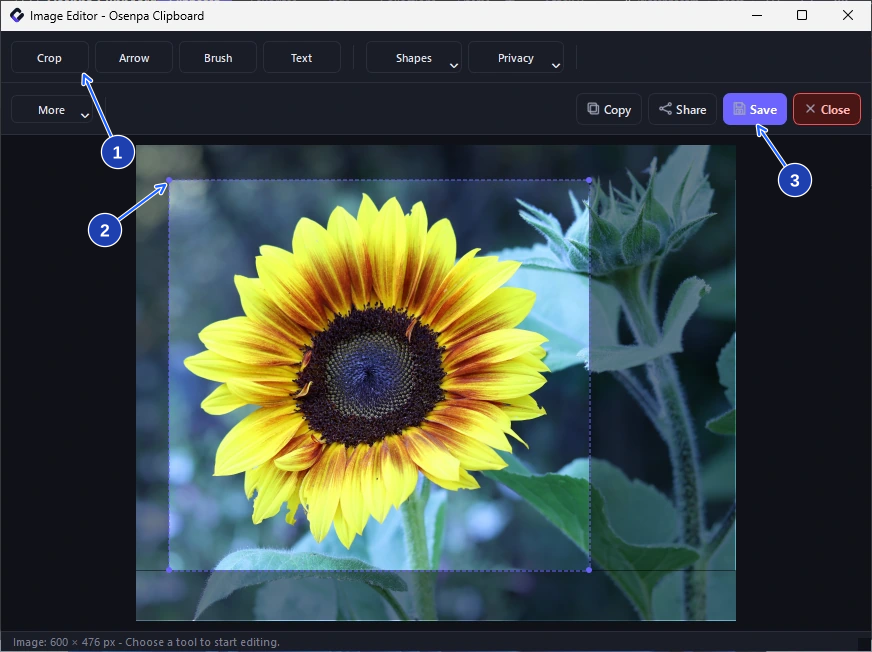
Drag around the part you want to keep. Release to crop; use Undo if you remove too much. Enlarge image. - Choose Crop in the image editor.
- Drag around the part you want to keep, then release to crop.
- Save the edited copy when the crop is ready.
Add an arrow
Choose Arrow. Drag from an empty area toward the detail you want to show. Keep the arrow clear of any text the reader needs.
Copy the result
Choose Copy. Return to your document or message and press Ctrl+V. Check the pasted picture before sending it.
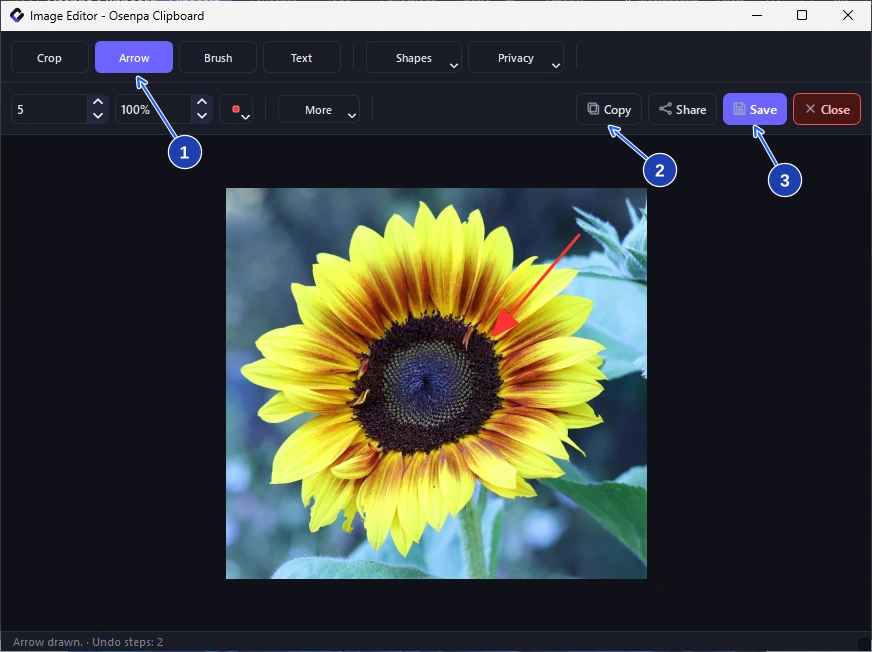
Point to the detail with Arrow, then choose Copy and paste the edited picture into your document. Enlarge image. - Choose Arrow, then draw on the image.
- Copy puts the edited image on the clipboard.
- Save writes the edited image to a file.
Save a file if needed
Choose Save to keep a separate image file. Select a supported format such as PNG, give it a clear name and open the saved file to check it.
Check your result
- The crop includes everything the reader needs, and the arrow points to the intended detail.
- The pasted or saved result opens correctly. Your original image card remains available in history.
If you need more help
If Edit Image is missing
Select an image card, not text or a file-path card. If the picture was copied before monitoring started, copy it again. Clear filters if the new card is not visible.
Copy and Save do different jobs
Copy puts the edited image on the Windows clipboard for pasting. Save writes a separate file. PNG can retain transparency; JPEG flattens transparent areas onto white. Check the result in its receiving app.
Check before sharing
An arrow or highlight only adds a mark. It does not remove private information underneath. Review the whole image for names, addresses and other details you did not intend to share.
Need the app?
Osenpa Clipboard Manager. Check requirements and download options.