
On this page
Short answer
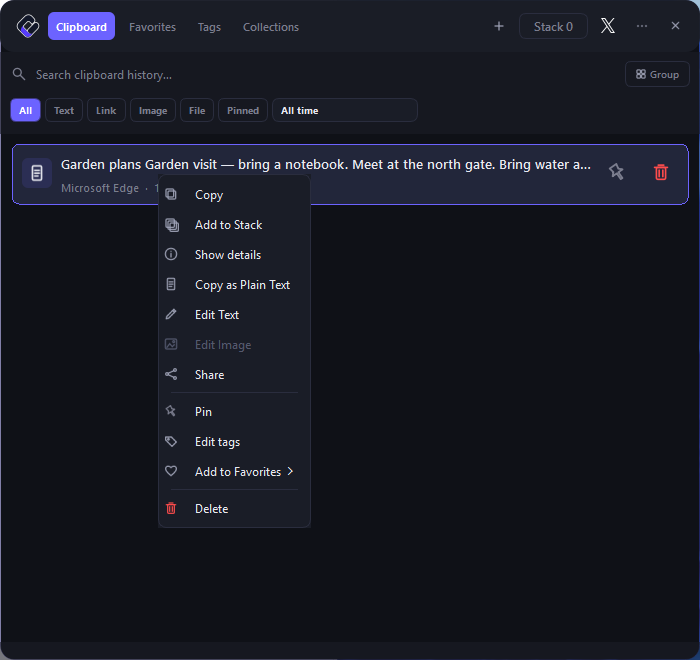
If your destination app already offers Paste as plain text or Paste without formatting, try that first. For a saved item in Osenpa Clipboard Manager, right-click its text card and choose Copy as Plain Text. Then return to the destination and press Ctrl+V. The Osenpa command copies text to the Windows clipboard; it does not paste it for you.
This guide covers Osenpa Clipboard Manager. Check requirements and download options before you begin.
Before you start
- Osenpa Clipboard Manager 2.0.2 on Windows, if you are using the history steps below.
- A harmless text item in your clipboard history and an editable destination where you can check the pasted result.
Start here
Find the text you want
Open Osenpa Clipboard Manager with Alt+V, the default shortcut, or open the app normally if you changed it. In the Clipboard tab, find the text item you want to reuse. For a first try, copy a short, non-private sentence with some bold text from a document.
Choose Copy as Plain Text
Right-click the text card and choose Copy as Plain Text. This places a text-only version on the Windows clipboard. It does not edit the source document or paste into another app.
Return to the destination
Switch to the document or message you are editing, click where the text belongs and press Ctrl+V. The destination can apply its own font and style, so plain text does not mean that every app will display it identically.
Check the result
Read the pasted words, punctuation and line breaks before using them. Check code, tables and quotations especially carefully. If the result differs from what you need, undo that paste and return to the source.
Check your result
- The intended text appeared at the correct insertion point.
- Unwanted source styling is gone, and the destination's own style is acceptable.
- Words, punctuation, spacing and line breaks are suitable for the destination.
If the command is unavailable
Copy as Plain Text is disabled for image items. It does not recognize words inside a screenshot. Choose a text item; extracting text from an image is a separate OCR task.
Plain text can change more than appearance
Some saved text contains formatting codes. Removing them can also change spaces, line breaks or long dashes. Do not assume code or a quotation will stay character-for-character identical. Keep the source available for comparison.
Osenpa Clipboard Manager
Related guides
- How to Use Clipboard History on Windows 11
- Find Text You Copied Earlier on Windows
- Paste a Reusable Sequence with Clipboard Stack