
Short answer
Copy puts an item on the Windows clipboard. Paste inserts it at the destination, and Win+V shows recent items.
Use Osenpa Clipboard when you need a longer, searchable history. Begin with harmless test items before keeping real content.
This guide covers Osenpa Clipboard Manager. Check requirements and download options before you begin.
On this page
Copy, clipboard and paste
Ctrl+C copies selected content. Ctrl+V pastes the current item. Clipboard history keeps earlier items so you can choose one again.
Try Windows history, then Osenpa
1. Copy two sample sentences
In a disposable document, type
Blue kite clipboard testandSecond sampleon separate lines. Press Win+V and select Turn on if asked. Copy the first sentence with Ctrl+C, then copy the second.2. Paste the earlier sentence
Put the cursor on an empty line. Press Win+V and choose
Blue kite clipboard test. The first sentence should appear even though you copied another one afterward. Pin an item from its menu to keep it across a restart. Otherwise Windows history clears when the PC restarts.3. Decide whether you need search
Windows history may be enough for recent copies. Continue with Osenpa when you want searchable local history, tags or a paste queue. The Windows and Osenpa comparison explains the difference.
4. Capture the sample in Osenpa
Start Osenpa Clipboard, then copy
Blue kite clipboard testagain. Press Alt+V to open its Clipboard tab. This is Osenpa's default shortcut and can be changed in Settings; Win+V still opens Windows history.5. Check and paste the card
Select the new card and press Space, or right-click and choose Show details. Check the sentence, source and capture time. Click the card to put it on the clipboard, then press Ctrl+V in the practice document.
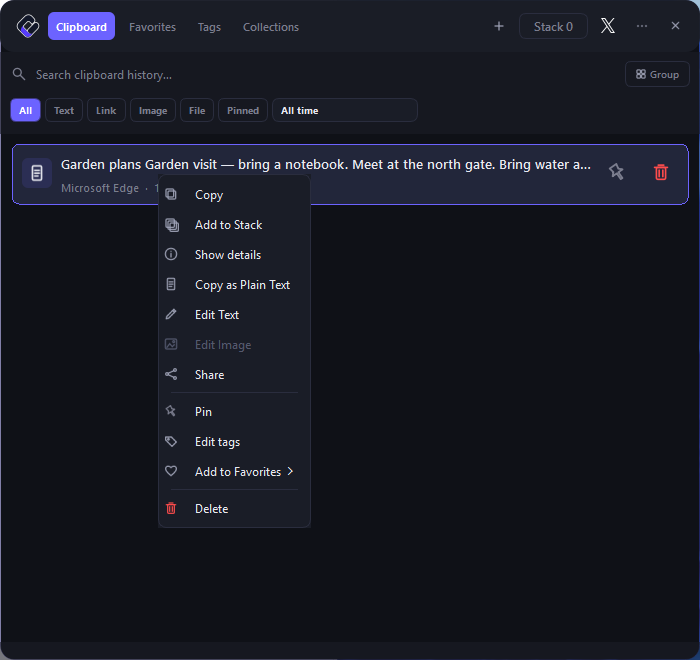
This example card says Garden plans; yours will show the Blue kite sentence you copied.
- Search: the field below the tabs finds words in saved text.
- Filters: All and All time keep the first search broad.
- Show details: right-click the card and choose this item to inspect the full text, source and time.
6. Finish the test
Delete the sample cards when finished; the original sentences in your document remain. Closing the panel only hides it. Use Exit from the tray when you want Osenpa monitoring to stop completely.
More supported item typesFormats, size limits and creating an item without copying it.
What history can keep
Supported content includes text, safe links, images, file or folder selections and color codes. Compatible HTML and RTF can accompany text. Unknown private formats and non-file content above 15 MiB are not retained.
Ctrl+N can create a text or safe-link item in History or Favorites. It does not create arbitrary file formats.
Find an older item
In Osenpa, type kite in the search box. For an exact phrase, try "Blue kite clipboard test". Clear the type and date filters if the sample is missing.
For source, website, tag and size filters, use Find Text You Copied Earlier on Windows. To drop the original styling, follow Paste Without Formatting on Windows.
More organization, privacy and recovery toolsOpen this when you are ready to keep real clipboard history.
Keep the items you reuse
Pin an item or save it in Favorites to protect it from routine cleanup. Tags help label content. A Smart Collection is a saved search, so it does not protect its matches from cleanup.
For several values in a fixed order, use Clipboard Stack. Prepare Next puts the next value on the clipboard and advances the queue; paste that value before preparing another.
Copied files and images
A copied file can be a path reference or an eligible local snapshot. A path stops working if its source moves or disappears; a snapshot takes disk space. Check the file card and follow the paths and snapshots guide.
The copied-image editor can crop, draw, add text or shapes, blur, pixelate, rotate, flip or resize a separate result. It leaves the original history item unchanged.
Choose what stays in history
Osenpa auto-delete starts at 24 hours, and regular history starts with a 1,000-item cap. Change these settings to fit your use, or pin the items you need to keep. History is not a permanent backup.
Regular history is not encrypted. Pause monitoring before copying private information. Filters are off by default and need a harmless test after enabling. Locked Notes is a separate encrypted area; a forgotten PIN or passphrase cannot be recovered. The privacy guide explains these controls.
Back up history you depend on
Automatic backup stays off until you choose a folder. Make and check a manual copy before relying on it, preferably on another storage device. Regular history remains unencrypted in backups. Follow the backup and recovery guide; backup settings are not a manual restore picker.
If a copied item is missing
It may have been copied before monitoring started, excluded by a filter or removed by retention. History cannot recreate an item it did not keep. Start with a newly copied sample to separate a capture problem from an old missing item.
Your first successful test
- Win+V pastes the earlier sample.
- If you chose Osenpa, Alt+V opens its separate history.
- Search finds the sample and Ctrl+V pastes the expected text.
- You know how long ordinary history is kept and how to pause monitoring.
If nothing appears after you copy
Check the tray icon and resume monitoring if it is paused. Clear the current search and filters. Then copy a harmless supported item and make sure no privacy rule blocks it.
If Alt+V does not open the panel, open the app normally and choose a different shortcut. After an unclean shutdown or a database warning, use the built-in health and recovery tools instead of replacing files by hand.