
On this page
Before you start
- Osenpa PDF Tools on Windows and a PDF whose current password you know.
- A folder for the separate copy. Keep the protected original.
Follow these steps
Open the protected PDF
Choose Protect & Clean, then Select PDF. Select your file and check its name. A locked-file status is expected for this task.
Choose Remove known password
Select Remove known password under the available actions. Enter the existing password in Current PDF password.
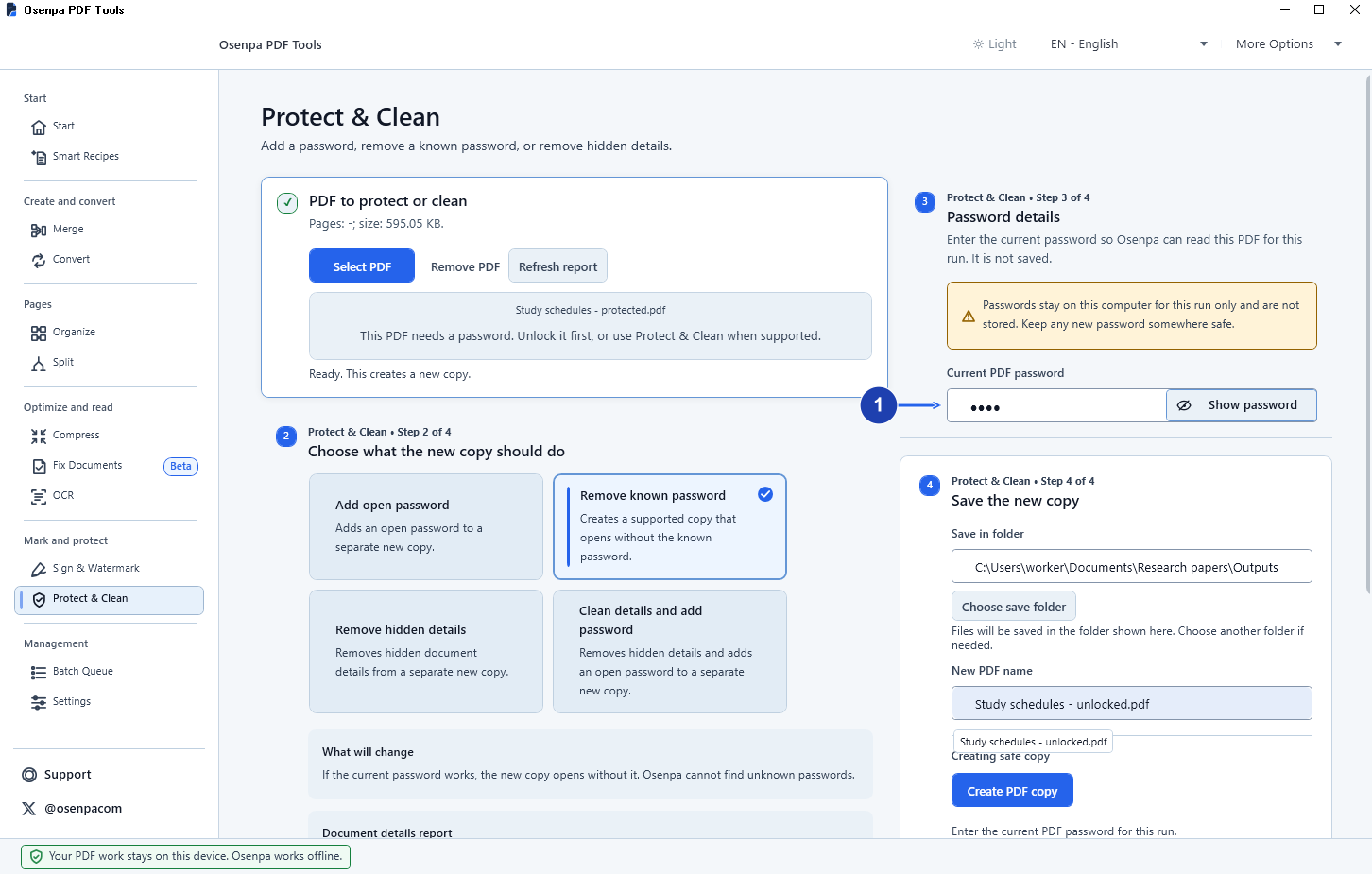
Enter the current password, then save a separate copy. Enlarge image. - Enter the current password.
Create a separate copy
Choose an output folder and a new filename, such as report-unlocked.pdf. Select Create PDF copy and wait for the completed result.
Reopen the saved file
Close the PDF, then open the new copy in a PDF reader. Confirm it opens without asking for a password and check the page count and content.
Check your result
- The saved copy opens without a password and contains the pages you expected.
- The original protected file is still available. Store the unlocked copy where only its intended readers can access it.
If you need more help
If the password is not accepted
Check the password by opening the original in your usual PDF reader. If it works there but fails here, this PDF may use protection that Osenpa PDF Tools cannot remove. Keep the original and use the application that created it.
If you do not know the password, ask the sender for it or for an unlocked copy. This action needs the current password.
If the app says the PDF is not locked
There is no open password to remove. Check that you selected the right source file. A restriction on printing or editing is a different requirement from a password needed to open a PDF.
If the PDF has a digital signature
Creating a new copy can affect an existing digital signature. Keep the original signed file and check the signature status in the reader before using the copy.
Need the app?
Osenpa PDF Tools. Check requirements and download options.