
On this page
Follow these steps
Open the folder
Press Windows+E to open File Explorer. Open the folder containing your file, such as Downloads.
Show the file endings
Choose View in the toolbar, then Show. Turn on File name extensions.
Check the complete name
Look at the letters after the last dot. For example, invoice.pdf is labelled as a PDF, while invoice.jpg is labelled as an image. Widen the Name column if the end is cut off.
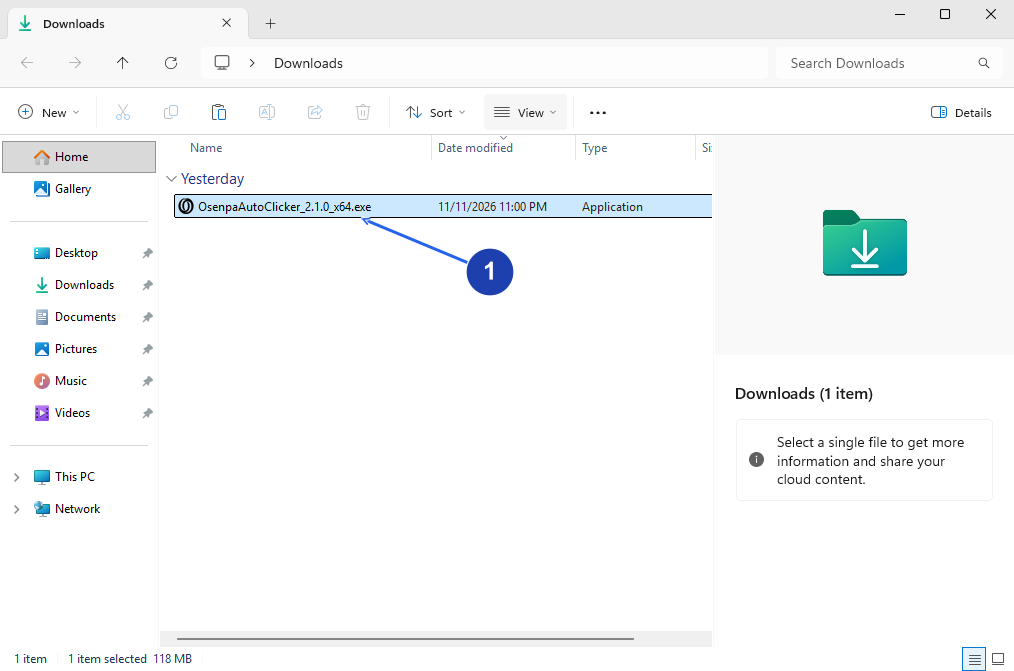
The full name now ends in .exe. Check the last extension to identify the file type. Enlarge image. - Read the last ending in the name. This installer ends in .exe.
Check your result
- The filename includes an ending such as .pdf, .jpg or .zip. Files without an extension still have no ending to show.
Changing the name does not convert the file
Renaming photo.heic to photo.jpg changes its label, not the image inside. Use a converter when you need a different format. Keep the original file until you have opened and checked the converted copy.
If you need more help
Why does the name end in two extensions?
The last ending is the extension Windows uses. In report.pdf.exe, it is .exe: an application, even though PDF appears earlier in the name. If an unexpected download looks like this, do not open it just because its icon resembles a document.
Using Windows 10?
In File Explorer, open the View tab and select File name extensions. The toolbar differs, but the setting serves the same purpose.
Another way to show extensions
In File Explorer, open the three-dot menu and choose Options. Open the View tab, clear Hide extensions for known file types and choose OK.
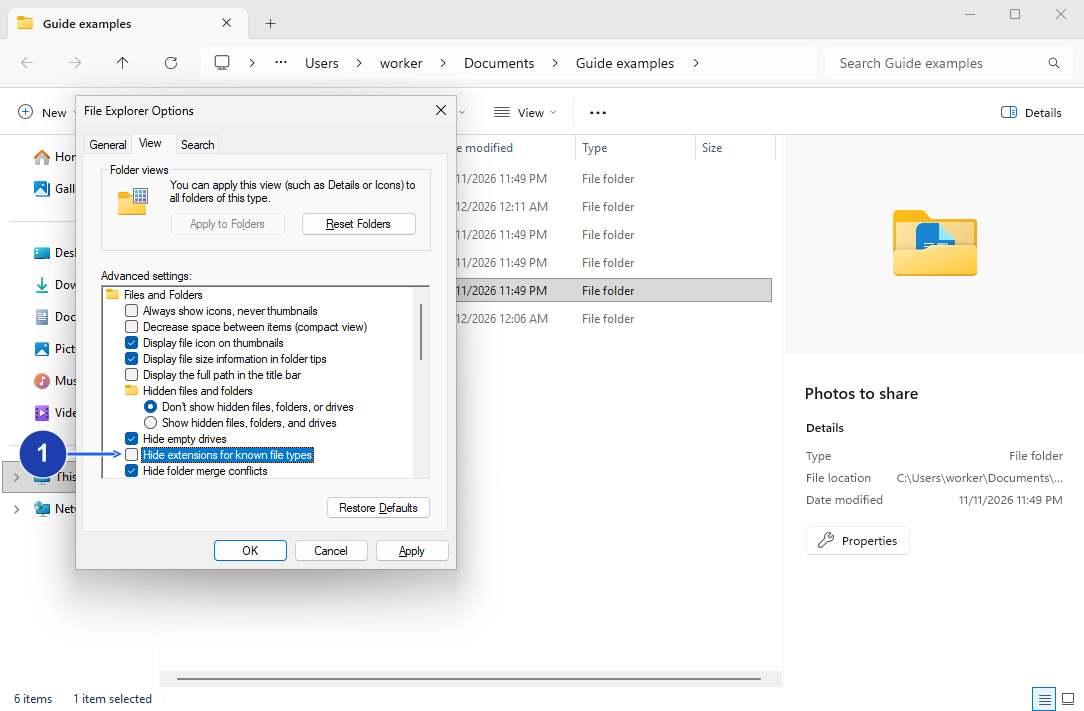
- Clear Hide extensions for known file types, then choose OK.