
On this page
Follow these steps
Open Downloads
Press Windows+E. Select Downloads in File Explorer’s left sidebar.
Find the recent file
Switch to Details view if helpful. Sort by Date modified with the newest files first, or type part of the filename in Search Downloads.
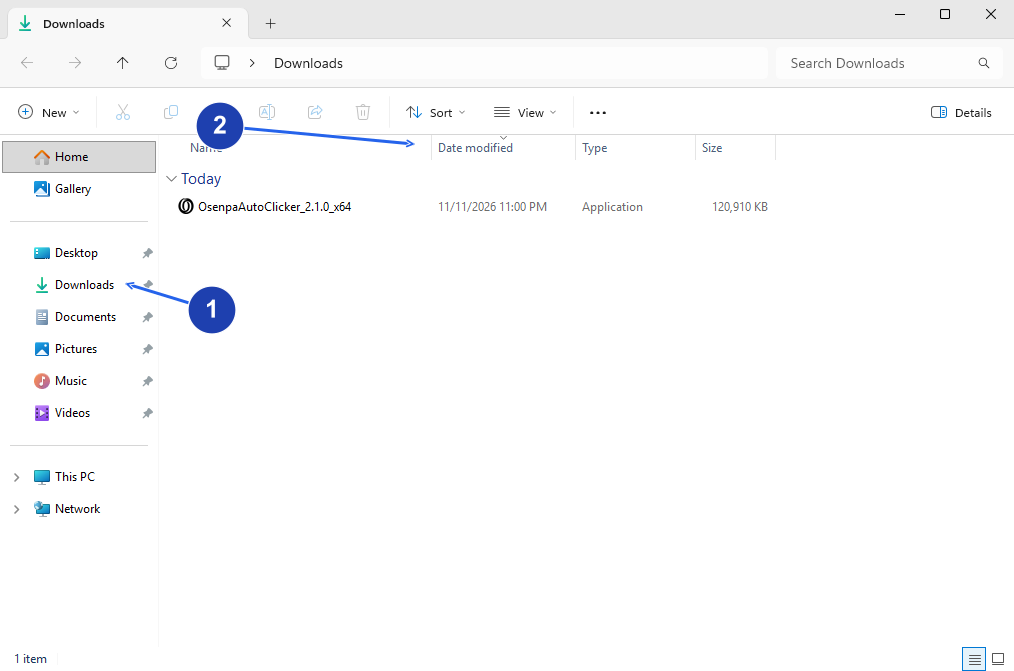
Downloads is open. Sort recent files by Date modified or use Search Downloads at the top. Enlarge image. - Open Downloads in the File Explorer sidebar.
- Use the Date modified column to find recent files.
Check the browser’s download list
If the file is missing, return to the browser you used. In Edge, Chrome or Firefox, press Ctrl+J. Find the matching download and choose Show in folder or the folder icon.
Check whether the download finished
If the browser says the download failed or is still in progress, it is not ready to open. Retry from the original download page after checking the connection and available disk space.
Check your result
- Show in folder selects the downloaded file in its actual location. Check its full name before opening it.
If you need more help
Downloads keep going to another folder
In Microsoft Edge, open Settings → Downloads and check the folder shown for downloads. If you choose a folder for each download, files can be in different places. Use the browser’s download entry to locate each one.
The browser lists it, but the file is gone
A download-history entry is not a backup. The file may have been moved or deleted after downloading. Search for its name in File Explorer or download it again from the original source.
Did you install from Microsoft Store?
A Store installation usually appears as an app in Start, not as an installer in Downloads. Search Start for the app’s name. You can also make a desktop shortcut after installation.