
On this page
Before you start
- Install the PDF app you want to use first.
Follow these steps
Open Default apps
Open Start → Settings. Choose Apps, then Default apps.
Find the PDF file type
In the box for a file type or link type, enter .pdf. Select the result showing the current app for PDF files.
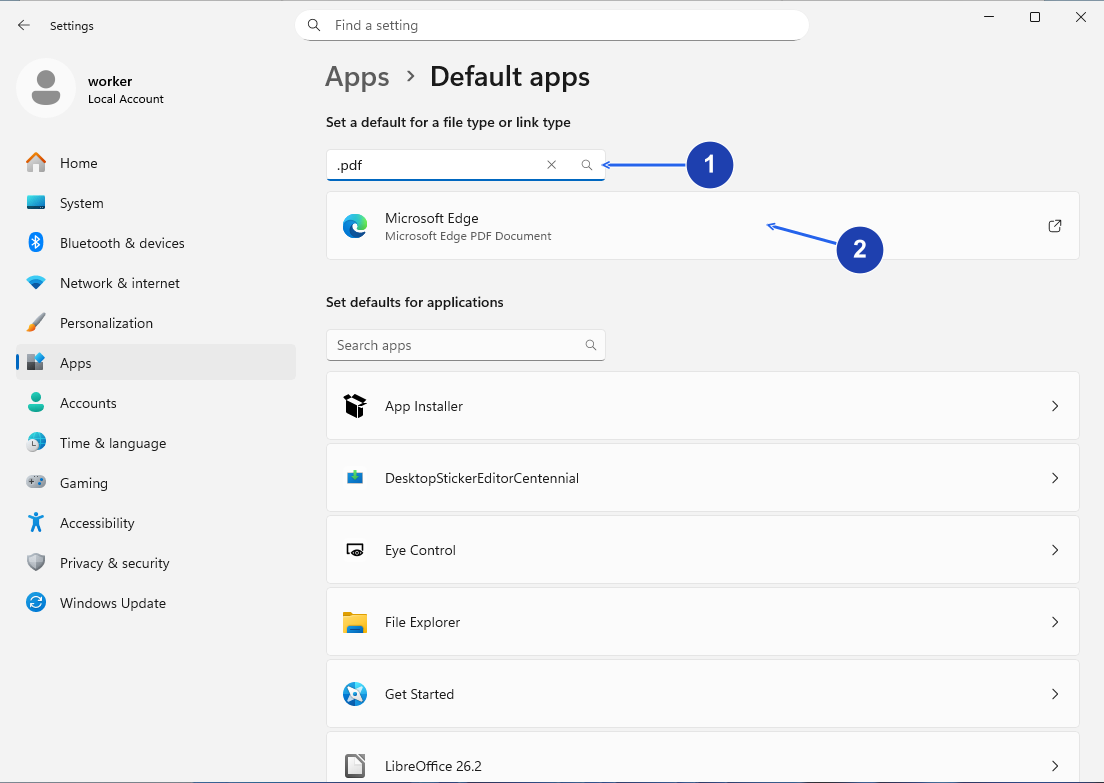
Search for .pdf in the file-type box, then open the current app’s entry. Enlarge image. - Enter .pdf in the file-type search.
- Select the current PDF app to choose another.
Choose your PDF app
Select the installed app you want and confirm with Set default. If it is missing, make sure its installation has finished, then reopen this page.
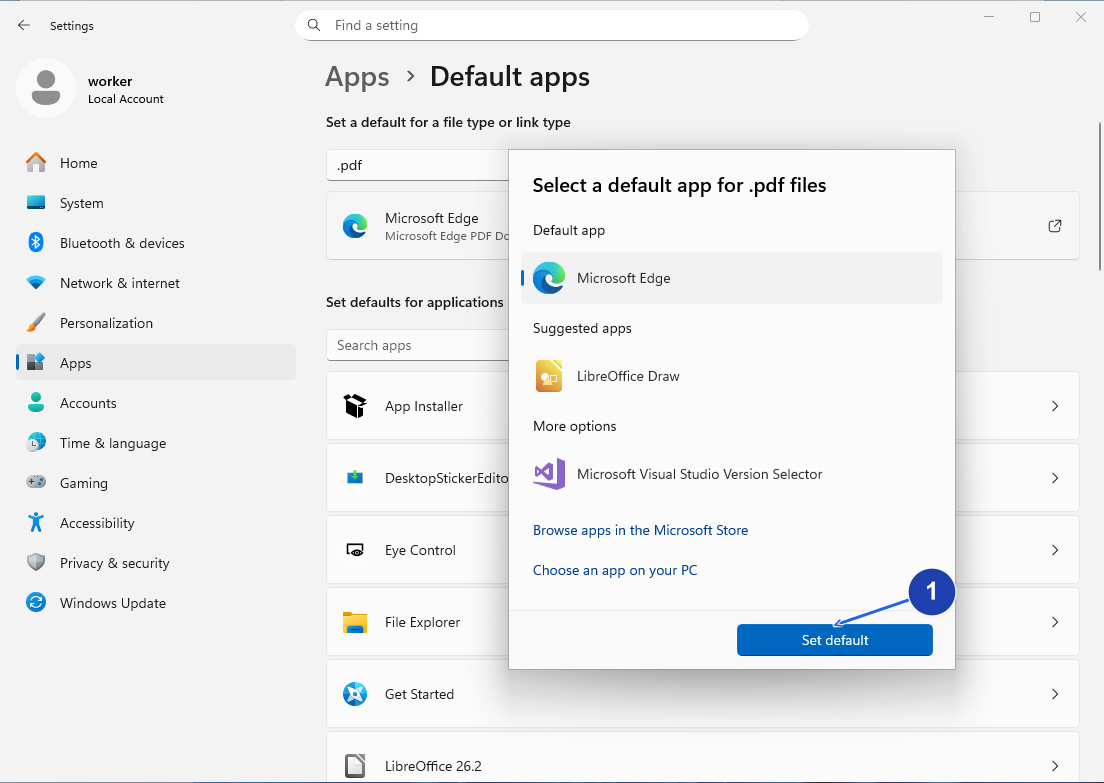
Choose the app you want and select Set default. The available choices depend on what is installed on your PC. Enlarge image. - Choose the installed app you want, then select Set default.
Try a saved PDF
Open File Explorer and double-click a PDF. It should open in the app you chose.
Check your result
- The saved PDF opens in your chosen app. Its filename, pages and contents are unchanged.
If you need more help
PDF links still open in the browser
A PDF link on a website may use the browser’s built-in viewer. Download the PDF, then open the saved file from File Explorer to test your Windows default. Browser PDF settings are separate.
Open one file in a different app
Right-click a saved PDF, choose Open with and select another installed app. Use this when you only want to open that file differently.
The PDF icon changed. Did my file change?
An app icon can change when its default changes. That does not turn a PDF into a Word document or web page. Show file name extensions to check that the filename still ends in .pdf.