
Short answer
Open Split and add the PDF you want to divide. Choose Page ranges, Even chunks, Every page, or Pick from preview.
Read the planned output before starting. Open every new file and make sure no source page is missing.
This guide covers Osenpa PDF Tools. Check requirements and download options before you begin.
On this page
Choose the split mode by the result you need
- Page ranges: make files from exact page spans such as 1-3 and 4-8.
- Even chunks: make equal-size parts, such as 10 pages per file. The last part can be shorter.
- Every page: make one PDF for each source page.
- Pick from preview: choose thumbnails to create one separate PDF per selected page. Use Organize > Extract selected pages when the selected pages should stay together in one PDF.
Before you start
- Keep the original and confirm it opens normally.
- Write down the required groups and expected output count.
- Remember that printed page labels can differ from positions in the PDF.
- Choose a separate empty output folder.
Count the expected parts
A 23-page PDF split into chunks of 10 pages produces three files: pages 1 to 10, 11 to 20 and 21 to 23. For selected ranges, write down the pages in each intended file first. A gap leaves pages out; an overlap repeats them. Use either only when that is intentional.
Split the PDF
-
Add one source
Open Split and select the local PDF copy.
You should see: the correct filename and page count.
-
Choose and review the mode
For Page ranges, enter comma-separated groups such as
1-3, 4-8; each group becomes a separate PDF. For Even chunks, enter pages per part. Pick from preview creates one PDF per selected thumbnail. Check the displayed plan.You should see: the expected number of new PDFs and the pages each one will contain.
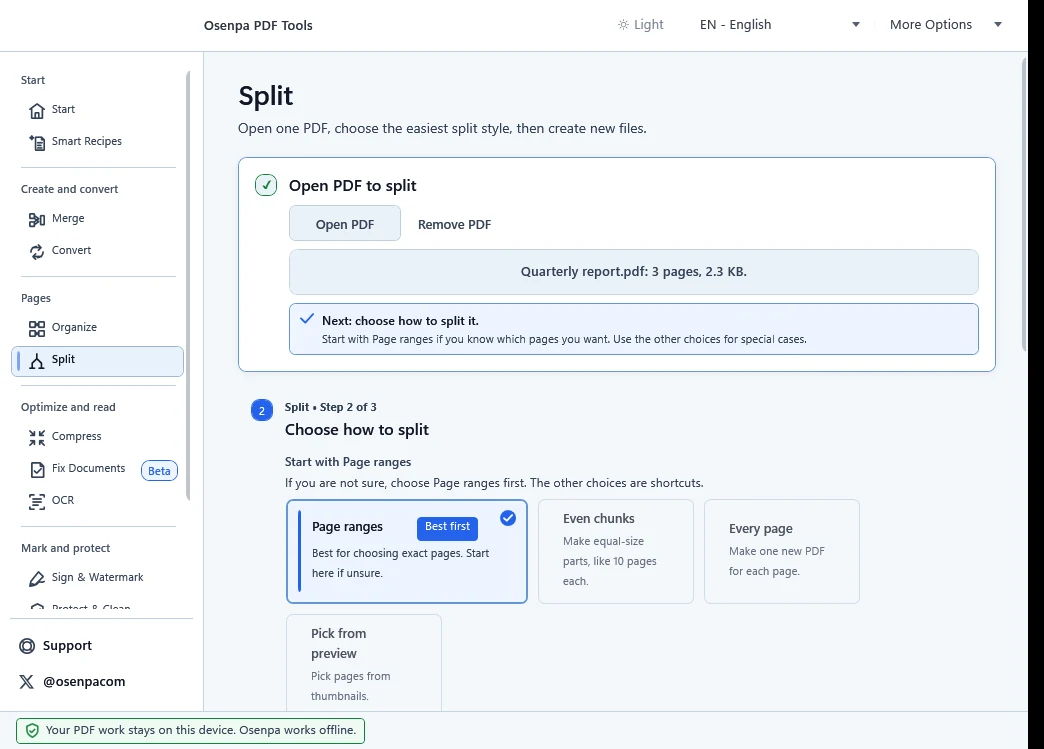
Start with Page ranges when you know the exact pages. Use the other methods only when their planned result matches what you need. -
Choose the destination
Use a clear base name and an empty folder so output files are easy to count.
-
Create the parts
Select Create new PDFs, review any many-output or replacement confirmation and wait for completion. Keep the source until every part passes review.
You should see: one completed file for every item in the displayed plan.
Account for every page
- Output count matches the displayed plan.
- The first and last page of every part are correct.
- No source page is missing or repeated unless that was intended.
- Required links, forms and signing state were checked after modification.
Problems and limits
If the wrong pages appear, return to the source and select them by thumbnail instead of printed page labels. A damaged, encrypted, unusually structured, or signed PDF can fail or behave differently after a change.
Splitting does not hide text or edit words inside a page. If the task would create many files, the app warns you. You can set that warning threshold from 10 to 500 outputs; it starts at 25.