
Short answer
Add the PDFs and place them in the order you want. Save the merged document as a new file.
Open the new PDF and check the point where each source document begins and ends before sharing it.
This guide covers Osenpa PDF Tools. Check requirements and download options before you begin.
On this page
When to use this method
Local merge is useful when the source documents should not be uploaded. Osenpa PDF Tools combines pages, but it is not a full editor for changing paragraph text or rebuilding complex forms.
What you need before merging PDFs
- The PDF files you want to join
- The order those files should follow
- Readable, unprotected copies of sources you are allowed to merge
- A new filename for the merged result
Check a small merge first
For example, join a two-page cover letter and a three-page report. The result should contain five pages, with the report starting at PDF position 3. Check that boundary as well as the first and last pages. Printed numbers on the report do not change its position in the merged file.
Put the files in the order you checked
-
Open every source first
Confirm that each PDF opens. If a source requires a password, first use Protect & Clean > Remove known password with the current password to create an authorized unprotected copy. Merge has no password-entry step.
You should see: every source open normally with its expected page count.
-
Arrange the inputs
Open Merge, add the PDFs and read their displayed order from top to bottom. Move any document that is out of place and remove accidental duplicates before starting.
You should see: each filename once, in the order the merged PDF should use.
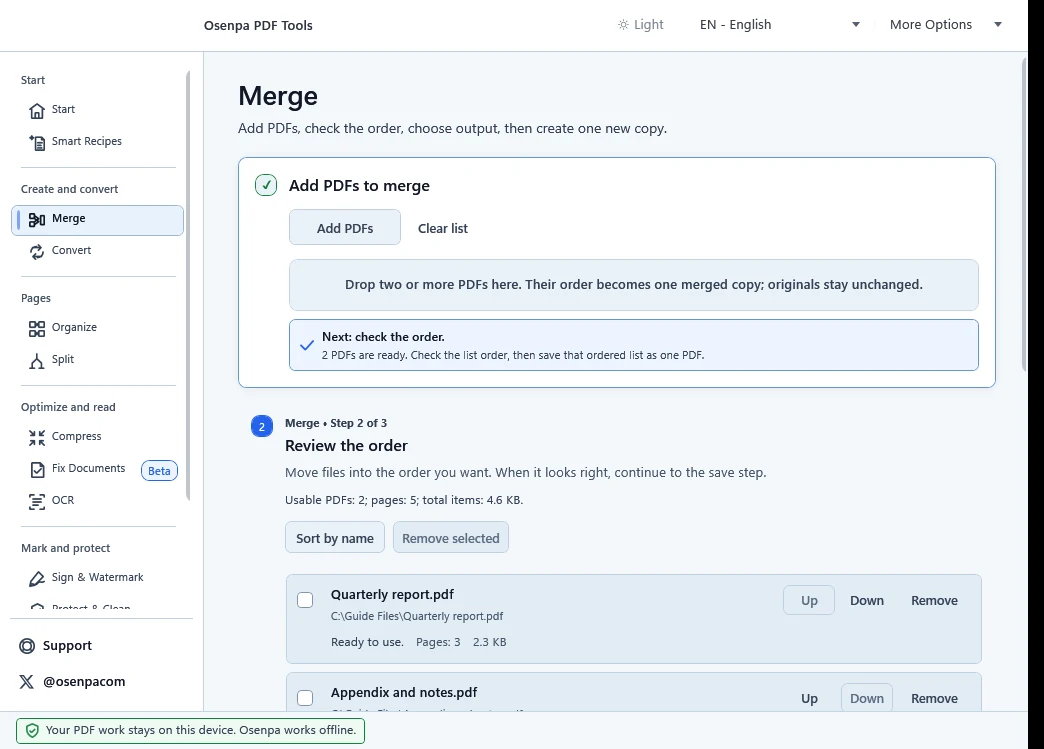
Read the filenames from top to bottom. That displayed order is the order used in the merged copy. -
Save to a new path
Choose the output folder and a new filename. Check the planned output path and keep the original files until the merged result has passed review.
-
Create and open the merged PDF
Select Create merged PDF. When it finishes, open the new file and check the first and last page of each source, then test any links and forms that matter.
You should see: one new PDF with all sources in the chosen order.
If a source is rejected or the result behaves differently
Reopen the source. For a password-required file, create an authorized unprotected copy with Protect & Clean before adding it to Merge. Corrupted, encrypted, unusually structured or signed PDFs can fail or lose interactive behavior. Rebuild required bookmarks with another tool instead of assuming the old bookmark tree remains.
Merging places complete PDFs one after another. It does not edit paragraph text, and source bookmarks are not copied. Changing a signed PDF can make its existing certificate signature show that the document was modified.
Merge mistakes
- Relying on filename order without checking it
- Overwriting the only copy of a source
- Assuming an existing certificate signature remains valid after modification
Merged PDF checkpoint
- The merged page count equals the recorded source page counts, and the source order is correct.
- The first and last page of every source are present and readable in the merged file.
- Required links, forms and signature state still work as intended.
- Keep all source PDFs until the merged copy passes these checks.