
On this page
Follow these steps
Open About
Open Start → Settings → System. Scroll down and choose About.
Read the Windows version
Find Windows specifications. Note Edition and Version, such as Windows 11 and 24H2. The version is more specific than just Windows 11.
Read the system type
Find Device specifications → System type. Look for x64-based processor or ARM-based processor as well as whether Windows is 64-bit.
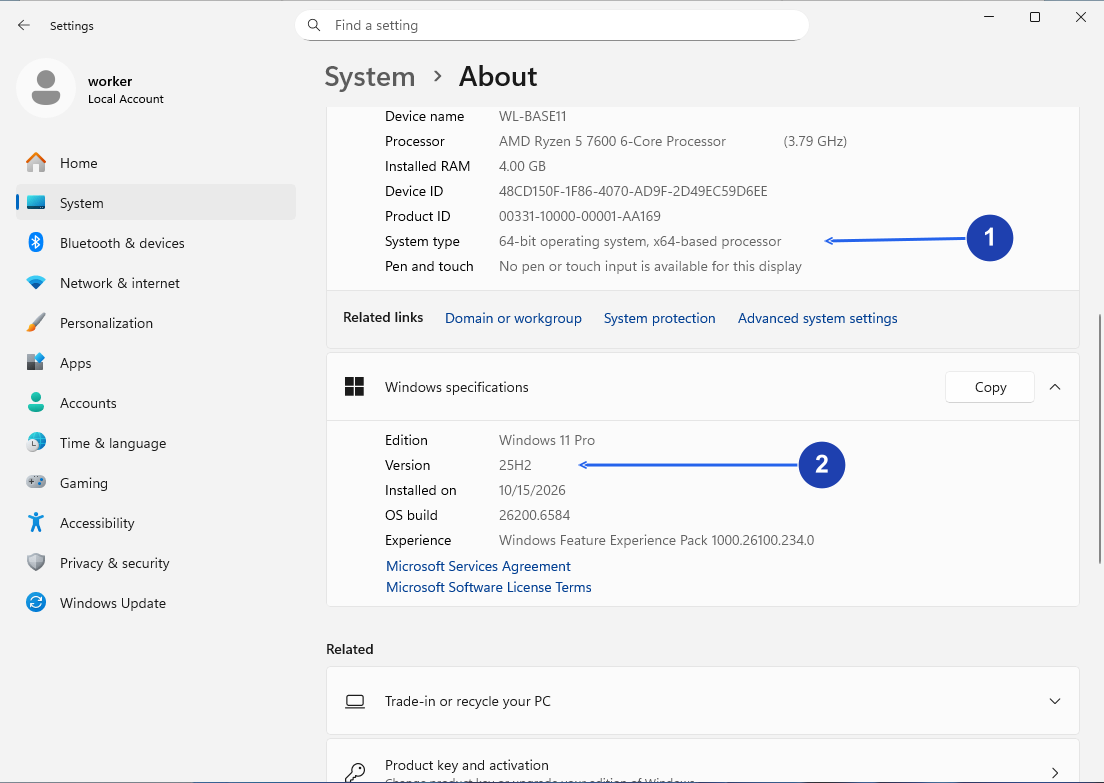
This PC shows an x64-based processor and Windows 11 version 25H2. Read your own values in the same places. Enlarge image. - Read the processor type as well as whether Windows is 64-bit.
- Read Version under Windows specifications.
Compare with the app’s requirements
Return to the product or download page. Check the required Windows version and processor type before choosing an installer.
Check your result
- You have the Windows edition, version and processor type. You do not need a product ID, device ID or activation key to compare app requirements.
Does 64-bit always mean x64?
No. Both x64 and ARM PCs can run 64-bit Windows. Read the processor part of System type. For an app listed as x64, check the publisher’s ARM support before assuming it will work through Windows emulation.
If you need more help
My Windows version is older than required
Open Settings → Windows Update to see which updates are available for your PC. Installing an app does not upgrade Windows. If the required Windows release is unavailable, check with the publisher before buying.