On this page
Before you start
- Just Converter 1.2.5 or later, a local audio file and a picture to use as its cover.
Follow these steps
Add the recording
Open Media tools → Audio tools and choose Add media. Select the audio file. Leave Trim start and Trim end empty to use the whole recording.
Choose MP4
Set Output format to MP4 in Output settings.
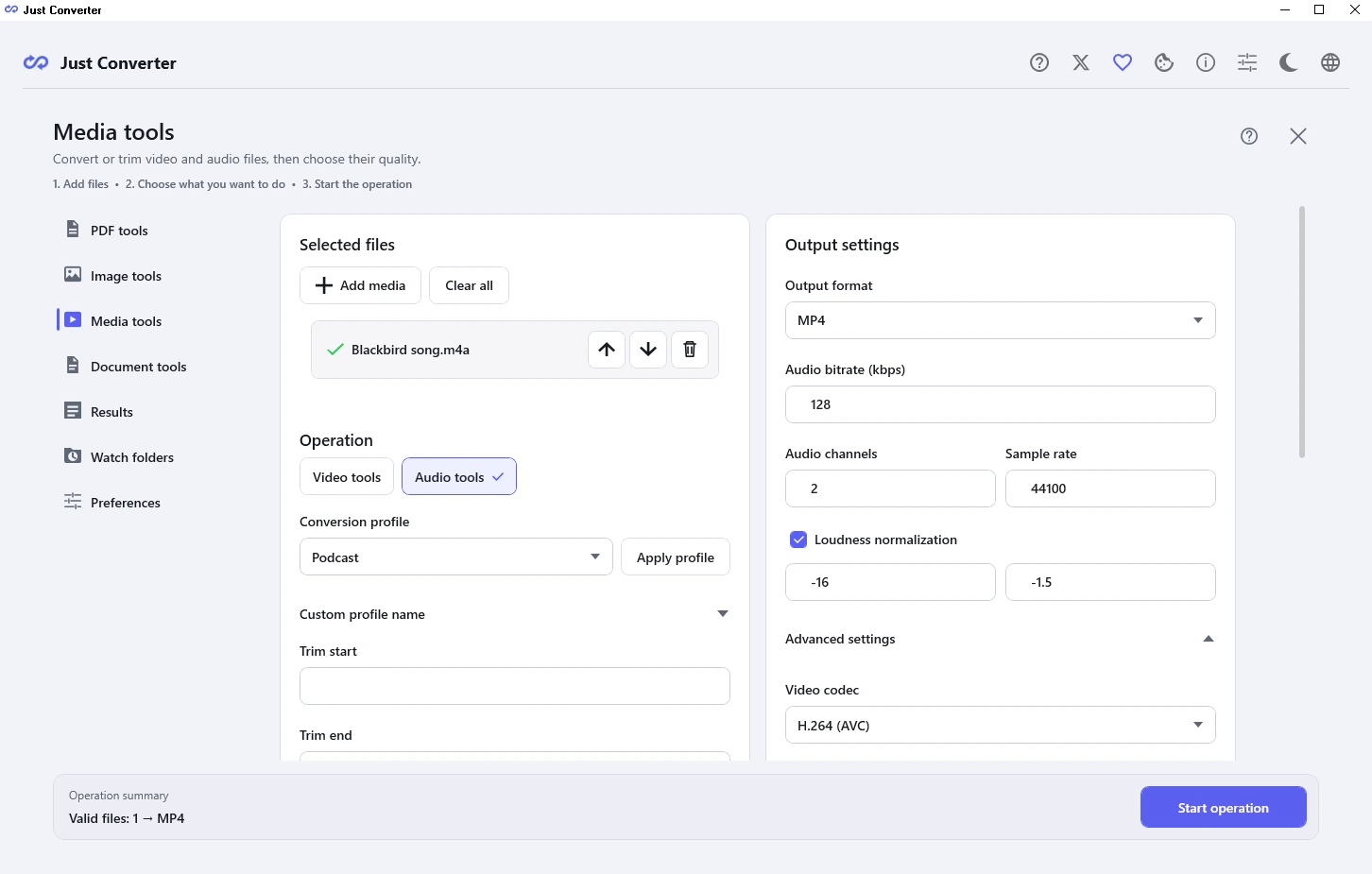
Choose MP4 for a video with a still picture. Enlarge image. Add the cover picture
In Output settings, open Advanced settings and scroll to Cover image. Use its browse button to select the picture. Choose a file here even if the audio already has embedded cover art.
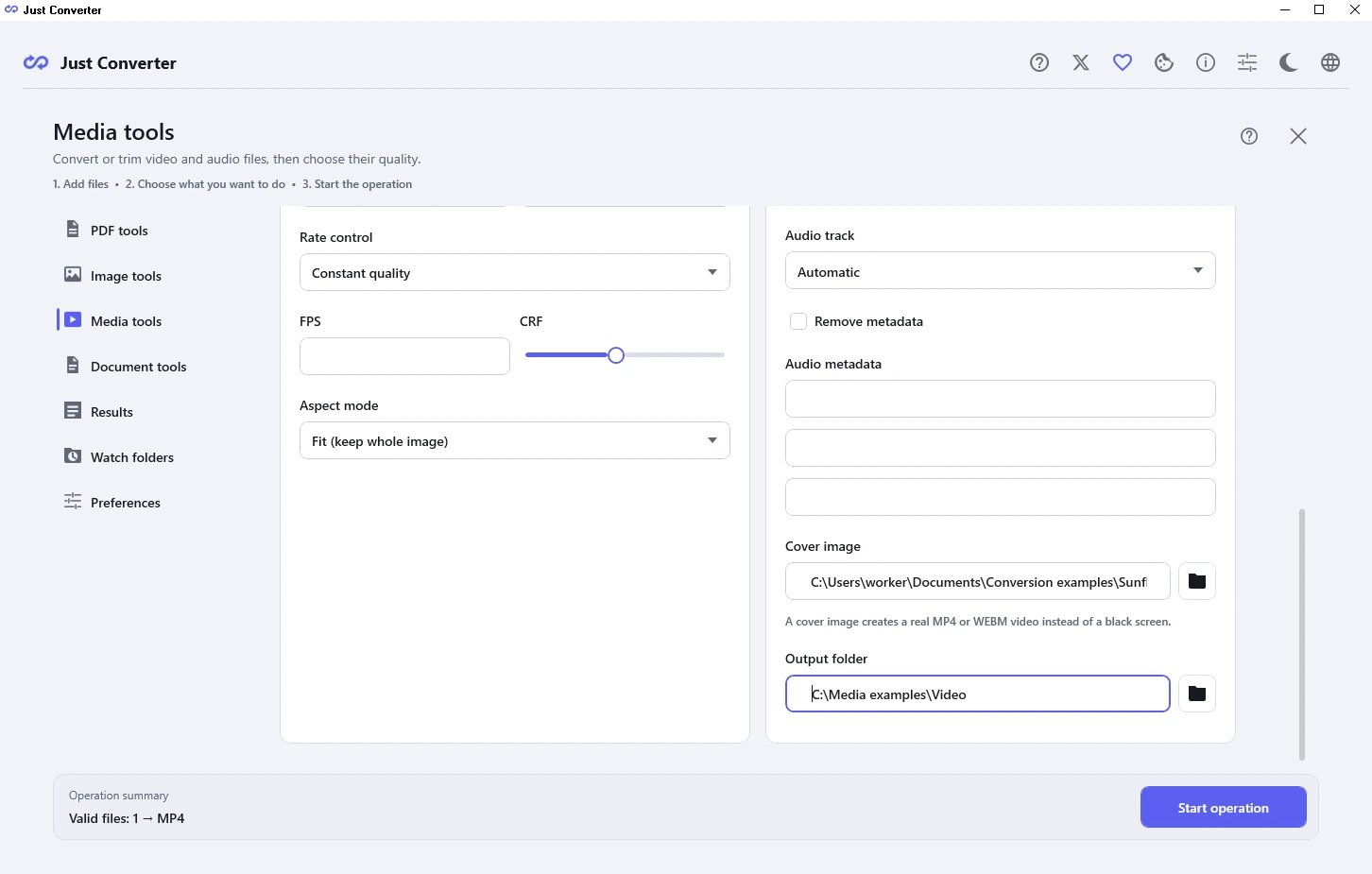
Choose the cover picture in Advanced settings. Enlarge image. Check the video settings
Set the video dimensions if your destination requires a particular size; otherwise keep the current settings. Under Aspect mode, Fit (keep whole image) keeps the full cover visible. Check the saved video for unwanted borders.
Create the video
Choose a separate Output folder. Select Start operation, check the recording, MP4 format and destination in Review before starting, then choose Confirm and start.
Play the saved MP4
Open the successful output from Results. Check that the cover is visible and the recording plays to its intended end before uploading or sending the file.
Check your result
- The saved MP4 contains the intended picture and audio, with the expected duration.
- Small writing on the cover is readable at the size people will watch.
If you need more help
When a site accepts video but not audio
YouTube does not accept an audio file as a video upload. Its help recommends adding an image to turn the audio into a video. This workflow prepares that local MP4; you upload it separately when it is ready.
If the job asks for a cover image
Choose a readable image file in Cover image, then review the job again. If the image is rejected, open it in an image viewer and try a supported JPG or PNG copy.
If the sound or duration is wrong
Check the chosen audio file and any trim values. When more than one audio track is offered, select the one you need. Keep the recording and picture so you can make a corrected copy.
Need the app?
Just Converter. Check requirements and download options.