
On this page
Before you start
- Just Converter 1.2.5 or later and two or more recordings to compare.
- Any loudness target specified by your publisher or receiving service.
Follow these steps
Start with one recording
Open Media tools → Audio tools and choose Add media. Add one recording and choose the audio output format you need. Leave the trim fields empty to process the whole file.
Enable loudness normalization
Select Loudness normalization. LUFS sets the overall listening level; dBTP limits the highest true peaks. If you have no required target, start by testing the app defaults of −16 LUFS and −1.5 dBTP.
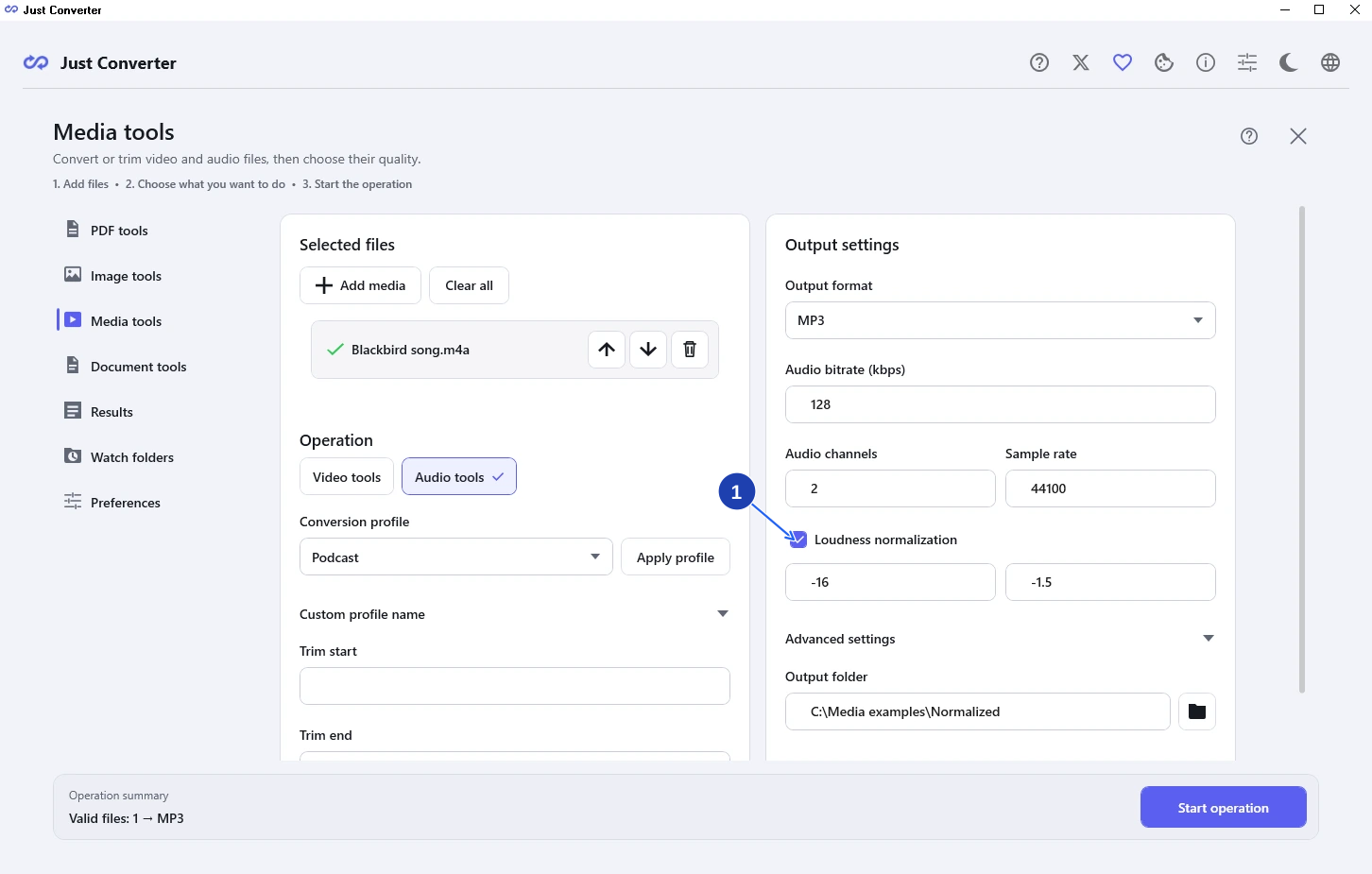
Set the listening level and true-peak limit. Enlarge image. - Enable Loudness normalization, then set its two targets.
Convert a separate copy
Choose an Output folder. Select Start operation, review the job and choose Confirm and start. The app first measures the audio, then applies the result in a second pass; let both finish.
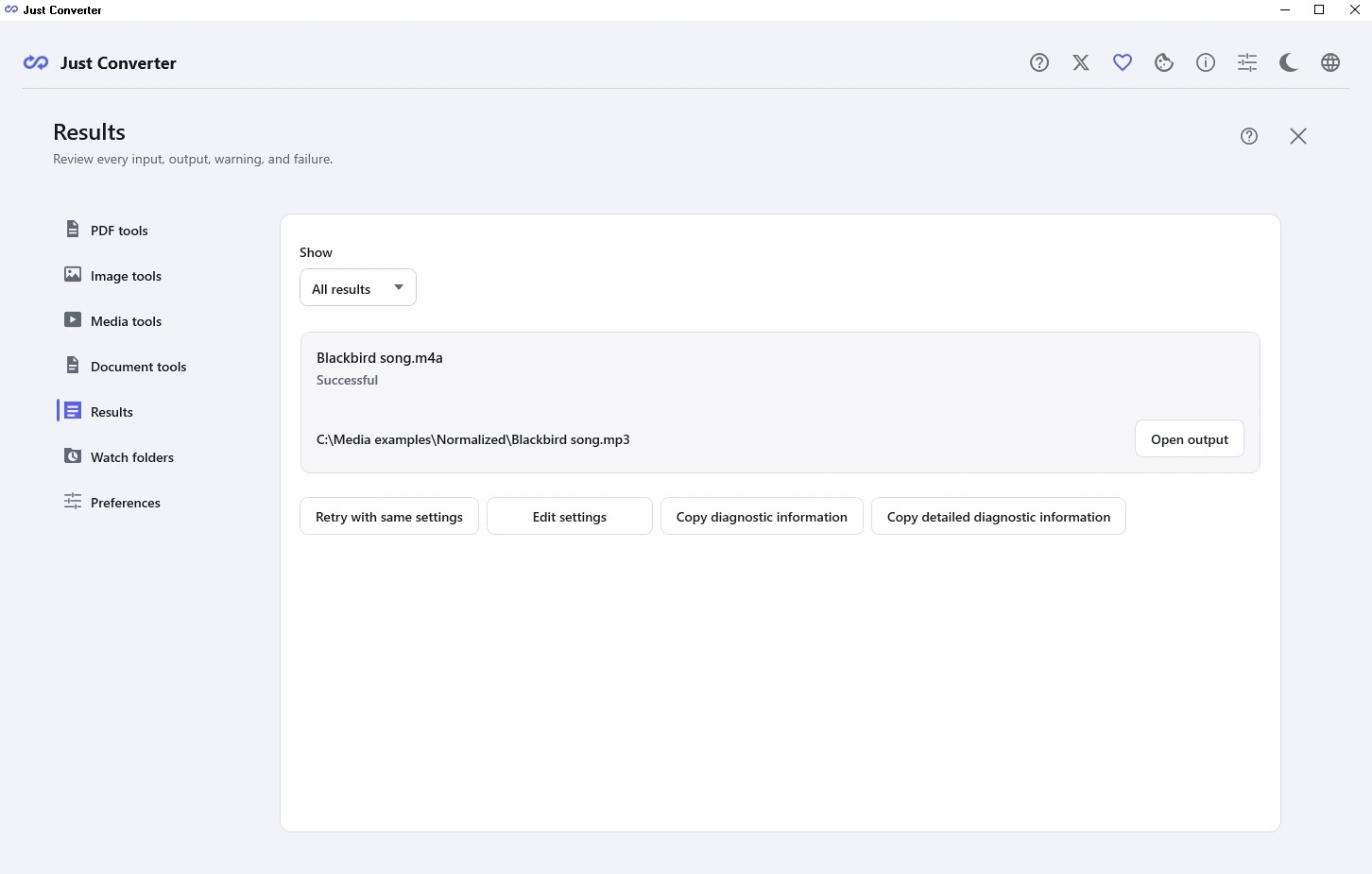
Open the saved recording before applying the settings to more files. Enlarge image. Use the same target for the other files
Once the sample sounds suitable, apply the same normalization values to the other recordings and convert them. Keep each original so you can compare or change the settings.
Compare at one player volume
Play parts of each output without moving the player’s volume control. Listen for large jumps between files, distortion and background noise before using the set.
Check your result
- The files play at a more consistent level at the same player volume.
- Speech or music remains clear, and you checked every file’s result.
If you need more help
If your publisher specifies a target
Use the publisher’s LUFS and true-peak requirements. The app defaults are a starting point for a listening test, not a guarantee that a particular service will accept the file.
If a louder copy exposes noise or distortion
Raising a quiet recording can make its background noise more noticeable. Normalization cannot reconstruct peaks already distorted in the source. Use a cleaner recording or edit the audio before converting.
If one speaker is much quieter within the same recording
A shared loudness target helps compare whole files. It does not provide separate controls for each speaker. For large changes within a recording, use an audio editor with clip-level or compression controls, then check the edited file.
Need the app?
Just Converter. Check requirements and download options.