
On this page
Before you start
- Just Converter 1.2.5 or later and a saved PPTX presentation.
- PowerPoint or LibreOffice installed, or internet access to download the optional LibreOffice support offered by the app.
Follow these steps
Add the presentation
Open Just Converter. Click the large file area and select your PPTX, or drag it onto the main window.
Choose PDF
Under Convert to, select PDF. Choose Browse next to Save Location and select a folder for the new PDF.
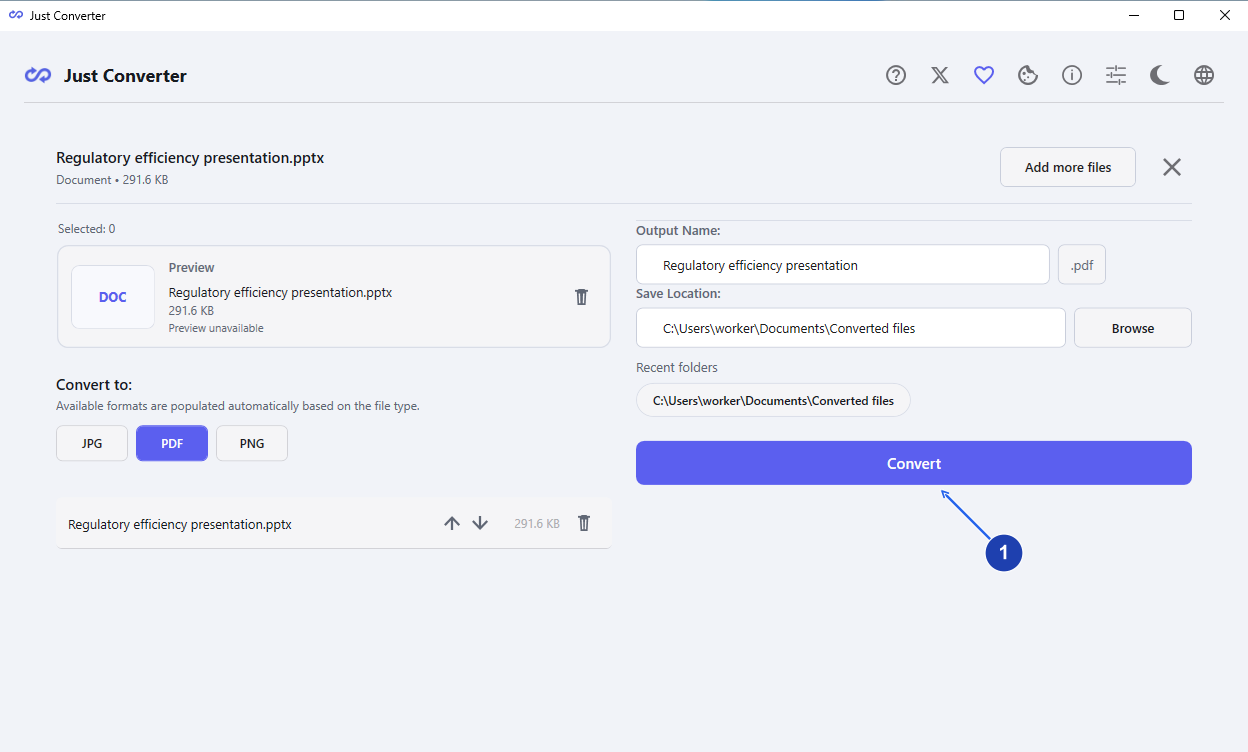
Choose PDF for a copy of your presentation’s slides. Enlarge image. - Choose Convert when the output format and save location are ready.
Add presentation support if asked
The app can use installed PowerPoint or LibreOffice. If neither is available, choose the offered Download LibreOffice option and wait for it to finish. This download needs an internet connection.
Convert the presentation
Select Convert. Wait for the conversion to finish before opening the output.
Check the PDF slides
When Conversion complete! appears, choose Show in Folder and open the PDF. Compare the slide order, orientation, fonts and pictures with your presentation.
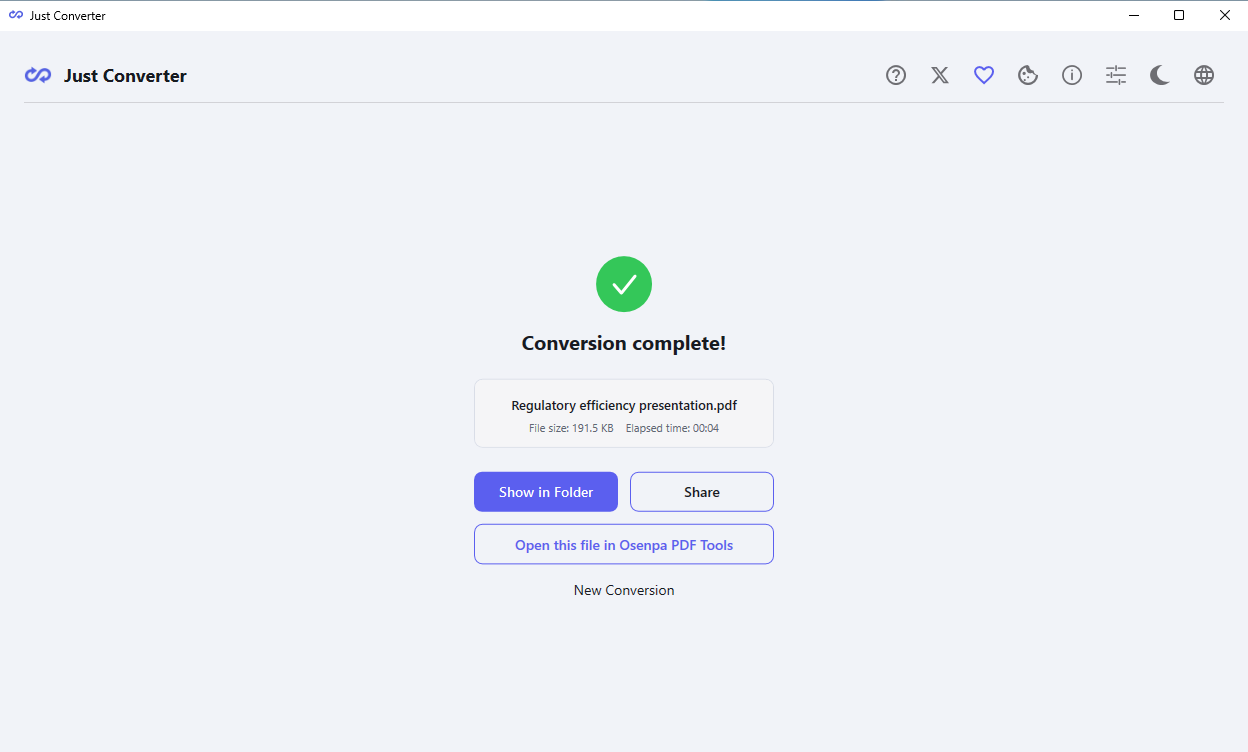
Open the saved PDF and check that the slides look right. Enlarge image.
Check your result
- Every visible slide appears in the intended order and orientation. Hidden slides and speaker-note pages are not exported; unhide any wanted slides in the presentation before converting.
- Text, pictures and charts fit the pages. A PDF does not preserve a presentation’s animations or interactive slideshow behavior.
If you need more help
If presentation support is unavailable
The app can use PowerPoint or LibreOffice already on the PC. Its optional downloaded LibreOffice can also be repaired or removed through the app’s component controls.
If a download fails or you cancel it, wait for cleanup before retrying. Read the actual error. Installing support does not require changing your source presentation.
If a slide looks different
Check whether the presentation uses fonts missing from this PC. Review text boxes, diagrams and charts in the source, then convert again after correcting the cause. A successful conversion does not guarantee an identical layout.
If linked or active content is rejected, save a plain copy with those objects removed in the presentation editor. Disconnecting from the internet does not make unsupported linked images, embedded objects or macros supported.
Need slide pictures instead?
Choose a supported JPG or PNG output instead of PDF when the destination needs slide images. Review the output options and check the exported images. Keep the PPTX for future editing.
Need the app?
Just Converter. Check requirements and download options.