
On this page
Short answer
In Just Converter, open Document tools and choose Add documents. Add your DOCX file, choose PDF under Output format and select an Output folder. Choose Start operation, review the summary and select Confirm and start. Open the new PDF to check its content and layout.
This guide covers Just Converter. Check requirements and download options before you begin.
Before you start
- Just Converter 1.2.3 on Windows and a DOCX document you want to share as a PDF.
- A separate folder for the PDF. Keep the Word document so you can make changes later.
Start here
Add one Word document
Open Document tools and choose Add documents. For a first try, use a short file such as Weekend-plan.docx with a heading and a few paragraphs. This makes it easy to compare the original with the PDF.
Choose PDF and an output folder
Set Output format to PDF. Choose an Output folder where you will find the new file. Leave your original document in its current folder.
Review and start
Choose Start operation. In Review before starting, check the selected file, output format, destination and warnings. Then choose Confirm and start. If a required component is unavailable, read the message before trying again.
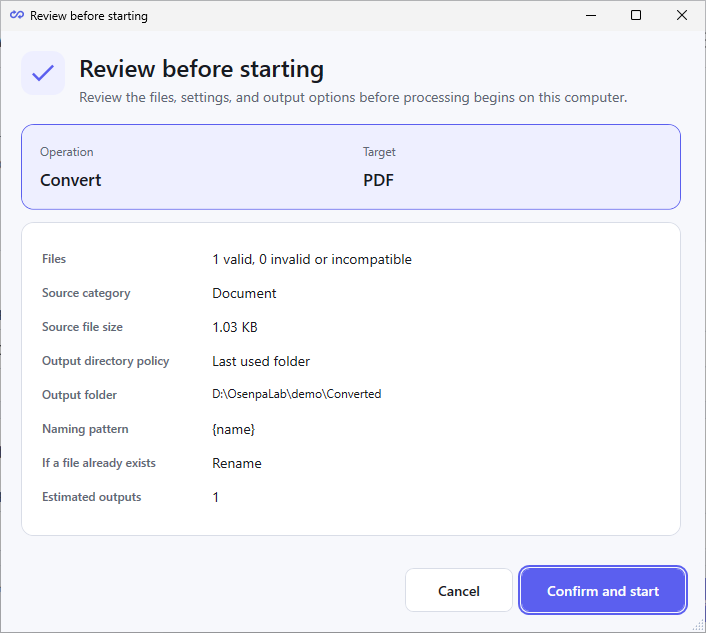
Just Converter 1.2.3: the review for one sample Word document. Check the target and output folder before confirming. Open your PDF
In Results, select the completed item and choose Open output. Compare the PDF with the DOCX, including the heading and paragraphs in your sample. When the result is suitable, you can use the same workflow for other documents.
Check your result
- The words and pictures you need are present; tables are readable and nothing is cut off.
- Page breaks, headings and spacing are suitable for the recipient. Conversion can change the original layout.
- The PDF opens normally and the original DOCX is still available.
If the layout changes
A PDF conversion may place text, pictures or tables differently from the Word document. Check the whole result when its layout matters. If a table is cut off or a page breaks in the wrong place, simplify that part of the source document and convert it again.
PDF is useful for sharing a finished copy. Keep the DOCX for future edits instead of repeatedly converting between the two formats.
Converting several documents
Once one sample looks right, add the remaining compatible documents and review the job summary. This converts the files; it is not a request to join them into one document. Check each Results row because a batch can contain both completed and failed files.
Older DOC files and offline requirements
DOC and DOCX are different formats. DOCX uses components included with Just Converter. Older DOC files require a detected external LibreOffice installation. Changing a file's extension from .doc to .docx does not convert it.
The selected document is processed on your PC. A document can also refer to remote pictures or other resources, which the conversion engine can request. Remove those external resource links or disconnect first if the job must not request them.
Just Converter
Related guides
- Convert a Text PDF to Word on Windows
- Convert JPG and PNG to PDF on Windows
- Compress a PDF Toward a Size Limit Offline
- Convert Files Offline on Windows