
Short answer
Choose the format you need, then start with one file. Just Converter processes supported files on your PC. Add the sample, choose its output format and folder, and review the summary before conversion. Open the result before running a larger batch.
This guide covers Just Converter. Check requirements and download options before you begin.
On this page
What do you want to convert?
Start with the guide for your file and the result you need. The image-to-PDF and PDF-to-image guides use Osenpa PDF Tools; the other rows use Just Converter.
On a narrow screen, scroll the table to see all three columns.
| Your file | You want | Follow this guide |
|---|---|---|
| Word document (.docx) | Word to PDF | |
| PDF with selectable text | Editable Word document (.docx) | PDF to Word |
| JPG or PNG pictures | One PDF with pages in order | Images to PDF |
| PDF pages | JPG or PNG images | PDF to images |
| HEIC photo | JPG image | HEIC to JPG |
| MOV video | MP4 video | MOV to MP4 |
| M4A audio | MP3 audio | M4A to MP3 |
| XLSX spreadsheet | CSV files for its sheets | XLSX to CSV |
Before you start
- Check the format the receiving app, website or person needs.
- Keep the original and choose a separate folder for the converted copy.
- Use one sample with the features that matter, such as a table, transparent background or audio track.
Try one file in Just Converter
Add your sample
Open the workspace for your file, such as Document tools or Image tools, and add a copy. Choose the supported output format and the folder where the result should go.
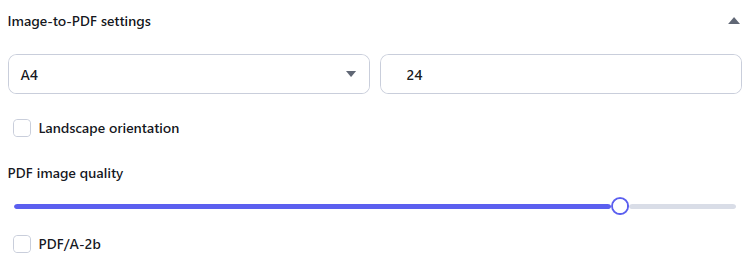
Image-to-PDF settings in Just Converter 1.2.3. The left menu sets page size; the box beside it controls the blank space around the picture. Review the job
Choose Start operation. In Review before starting, check the files, output format and folder. Read any warnings before continuing.
Run the conversion
Choose Confirm and start, then read the result for the sample. If a component is missing or the file cannot be read, use the reported message to decide what to fix.
Open the converted copy
Open it in the app that will use it. Check the parts that matter for the task, then reuse the settings for the remaining files.
What should you check?
For documents, check words, tables and page layout. For pictures, check orientation, small detail and transparent areas. For recordings, check picture and sound together. For spreadsheets, check the values you need. A completed job means a file was produced; it does not promise that every detail stayed the same.
What offline conversion means
The selected source files are processed on your PC rather than uploaded to a conversion website. Installed formats can work without an internet connection. The app also has separate update, download and support network actions.
Documents can contain links to remote pictures or other resources. A Pandoc conversion can fetch those resources. Remove the external resource links or disconnect first if the job must not request them. See network and data details.
If some files did not finish
Read each result before running the batch again. After fixing the cause, choose Retry failed files only if Results offers it; this includes canceled inputs. Retry with same settings runs the original batch again, including completed files. Follow the interrupted conversion guide for the right recovery action.
Format and component limits
There is no every-file-to-every-format conversion. Older DOC, XLS and PPT inputs require an external LibreOffice installation. HEIC and other reader-dependent images need a successful sample on your PC. Just Converter's PDF-to-DOCX output is text based, so complex layout can be lost.
PDF compression and OCR open a verified installed copy of Osenpa PDF Tools. If it is unavailable, Just Converter opens the PDF Tools website without including local file paths. URLs and YouTube links are not media-file inputs.
Before you run the full batch
- The sample opens in the app that needs it, and its important content is usable.
- The output folder and filenames are clear.
- You know how existing output names will be handled, and the originals remain available.
Need a smaller file instead?
Changing a format does not always make a file smaller. Use an image-size target for an image upload limit, or PDF compression for a PDF limit. Make Smaller creates smaller copies in supported existing formats.