
On this page
Before you start
- Osenpa PDF Tools on Windows and an upright, readable scan. Keep the original for checking.
Follow these steps
Add the scan
Open OCR and choose Add files. Select the scanned PDF or page image. Start with one document so you can check its text easily.
Choose its language
Set Text language to match the document. If it is not ready, install it in Settings → OCR languages and wait for Ready. Installation needs internet access; recognition runs on your PC.
Choose a text file
Under Text output, select Text files you can copy (.txt). Choose an output folder and check the new filename. Preview text in Osenpa shows text inside the app but does not save a file.
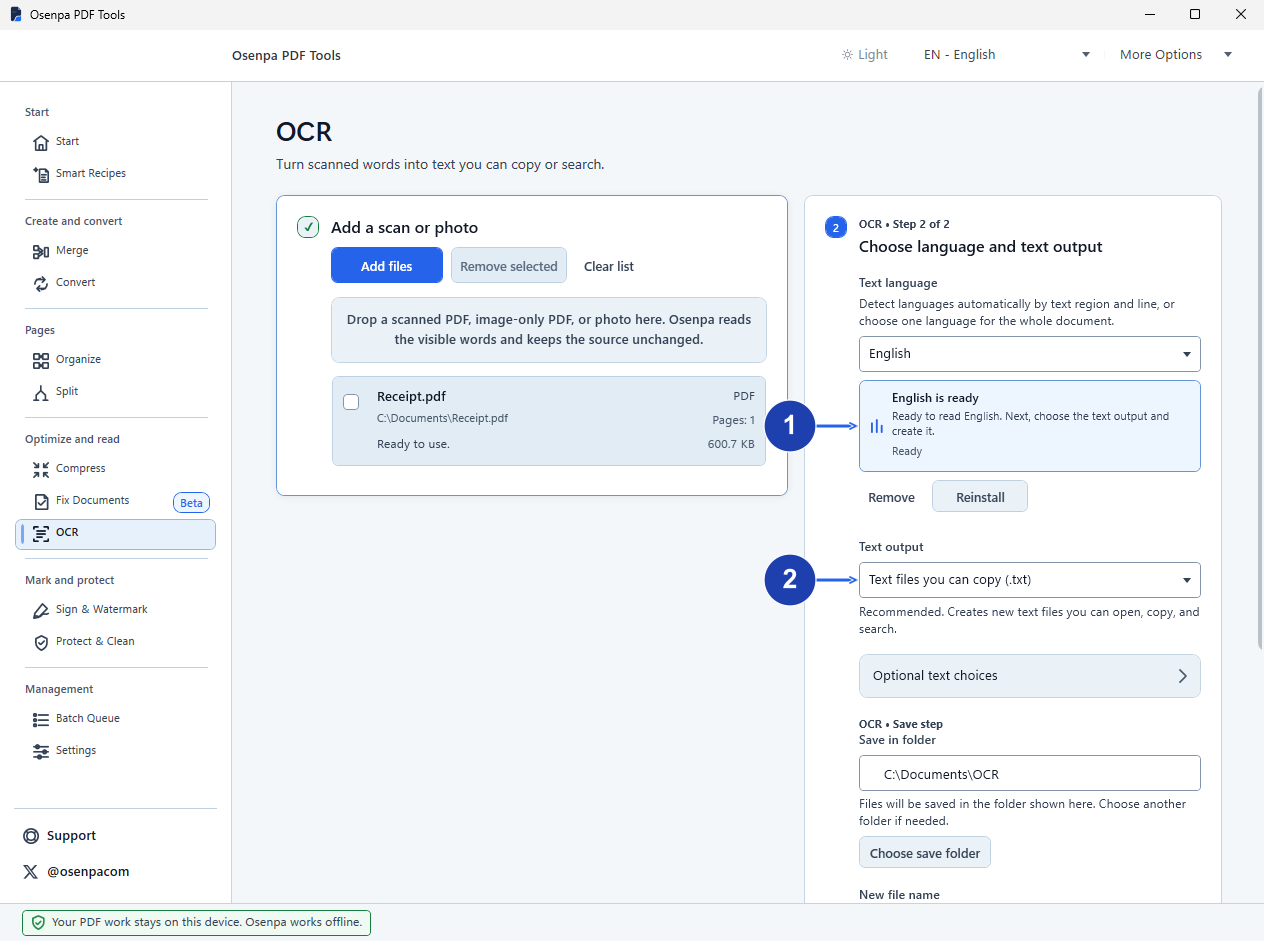
Choose the document’s language and Text files you can copy (.txt). Enlarge image. - Wait until the text language is ready.
- Choose Text files you can copy (.txt).
Read the scan
Choose Create copyable text and wait for the result summary. Read any page-failure or low-confidence message before relying on the output.
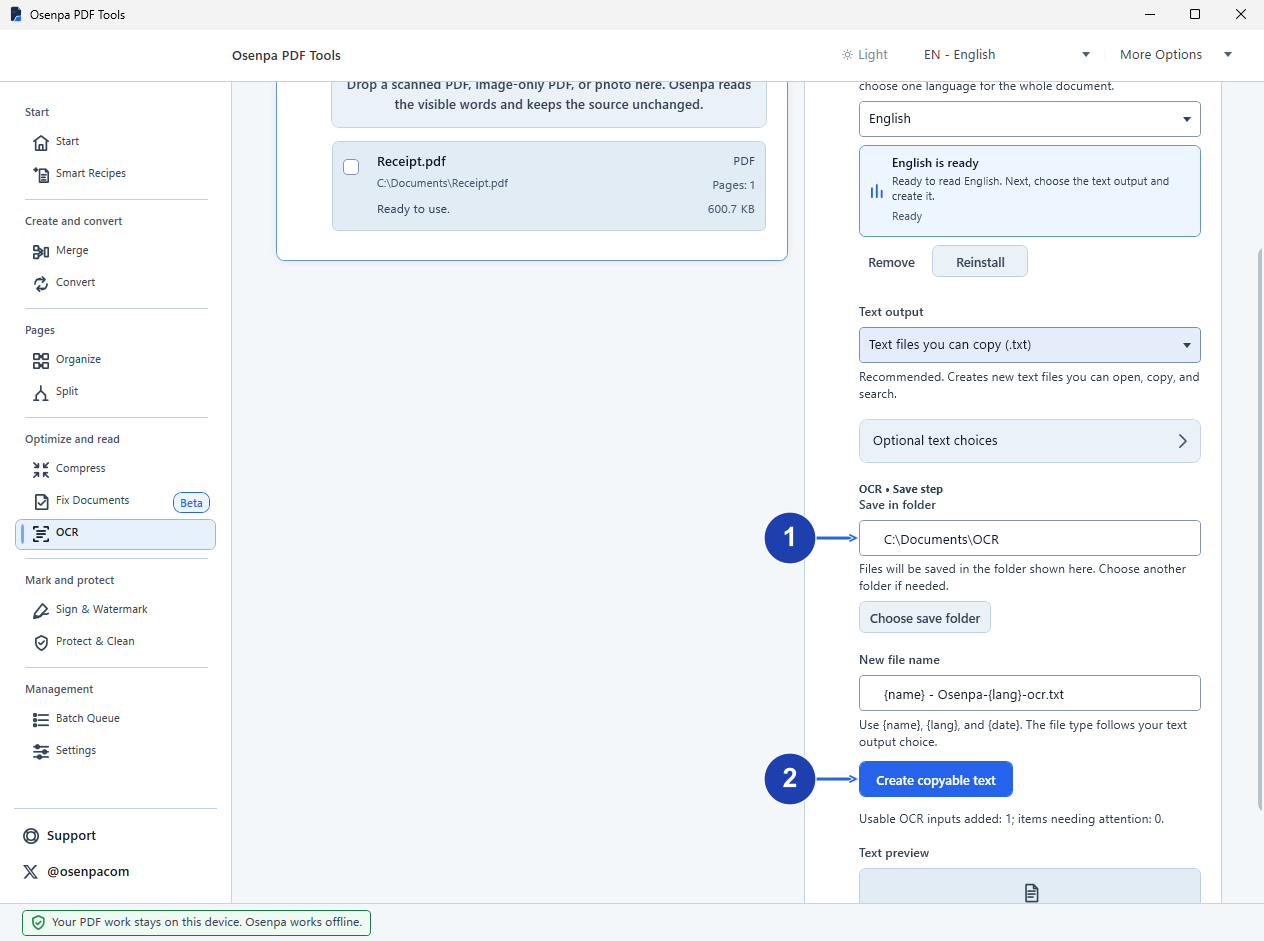
Check the save folder and filename, then choose Create copyable text. Enlarge image. - Choose a separate folder for the text file.
- Create copyable text reads the file and saves the text.
Open and check the TXT
Open the saved file in Notepad or another text editor. Compare names, dates, amounts and the order of paragraphs with the scan. Correct mistakes before copying the text into your document.
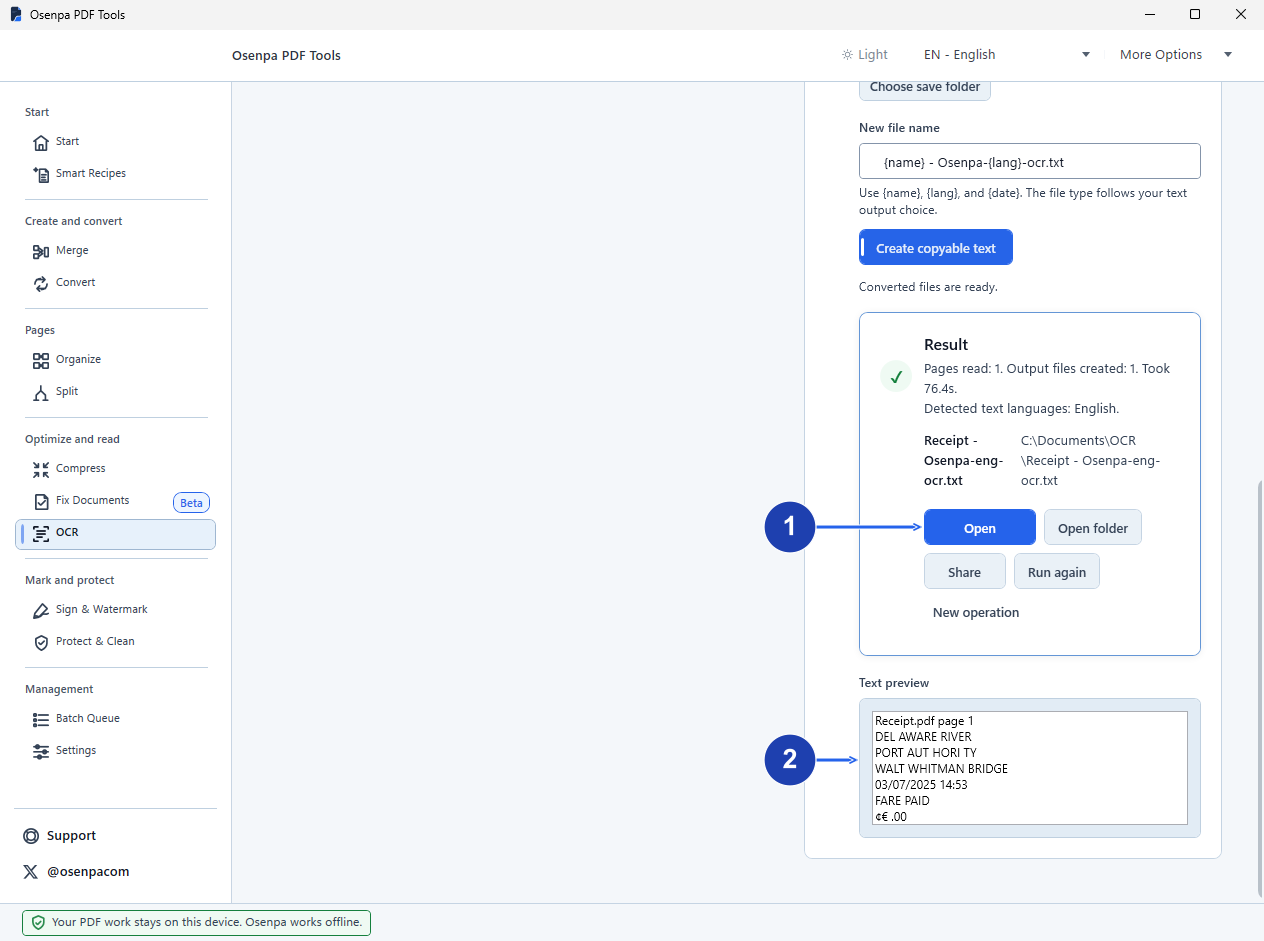
Open the TXT and correct any words or amounts that do not match the scan. Enlarge image. - Open the saved text file for review.
- Compare the recognized words and numbers with the original.
Check your result
- The saved TXT contains the passages you need, including text from each important page.
- Names and numbers match the scan, and columns have a usable reading order.
If you need more help
When to choose TXT or a searchable PDF
TXT is useful when you want the words in an editor, email or notes. It does not keep the page’s pictures, fonts or table layout. Choose Searchable PDF when you need the scanned page appearance with searchable words behind it.
If the TXT has gaps or mistakes
Check the selected language, page direction and image clarity. Tables, handwriting and low-resolution scans can produce missing or incorrect text. A partial result can retain successful pages while reporting failures; compare the output with the original.
If accented characters look wrong
The text files use UTF-8. Reopen the file as UTF-8 in your text editor before changing characters. If the text is still wrong, compare it with the scan for OCR mistakes.
Need the app?
Osenpa PDF Tools. Check requirements and download options.