
On this page
Short answer
Just Converter can put a PDF's existing text into an editable DOCX file. In Document tools, add the PDF and choose DOCX under Output format. This is text-based conversion: it does not rebuild the original page design or recognize words inside scanned pictures.
This guide covers Just Converter. Check requirements and download options before you begin.
Before you start
- Just Converter 1.2.3 on Windows and a PDF whose text you can select and copy.
- An app that can open DOCX files, a separate output folder and the original PDF for comparison.
Start here
Check one short PDF
Try a simple file such as Weekend-plan.pdf with a heading and a few short paragraphs. In your PDF reader, select a sentence and copy it. If you cannot select words, read the scanned-page section below before converting.
Add the file to Document tools
In Just Converter, open Document tools and choose Add documents. Select the PDF, set Output format to DOCX and choose an Output folder. PDF to DOCX mode shows Text-based conversion.
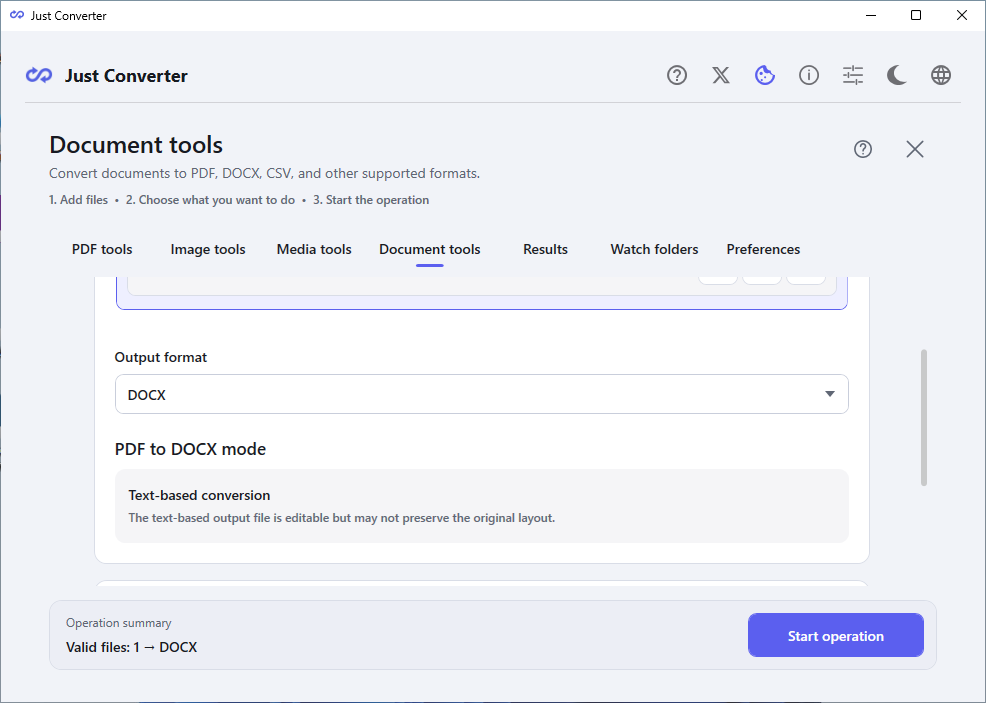
Just Converter 1.2.3 shows the text-based mode below Output format. It creates editable text; the page layout can change. Review and start
Choose Start operation. In Review before starting, check the PDF, destination and warnings, then select Confirm and start. Keep the original PDF so you can compare its content with the result.
Open and read the DOCX
In Results, select the completed item and choose Open output. In the sample note, find the heading and paragraphs. Check their words and order before editing. The output is an editable text document, not a matching copy of the PDF design.
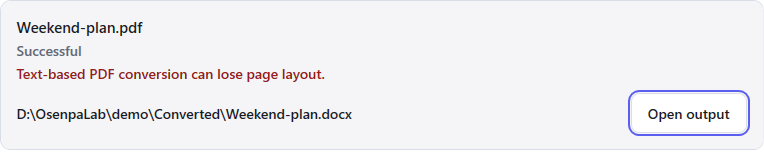
The sample PDF produced a DOCX. A successful result can still include a layout warning, so open the file and check the words.
Check your result
- The sentences are complete and in a useful reading order.
- Names, numbers, punctuation and special characters match the PDF.
- You can edit the words in the DOCX, and you have kept the original PDF.
If the PDF is a scan or a photo
A scanned page may contain a picture of words without any actual text to extract. OCR recognizes the words in that picture and adds text that software can read. Just Converter's text-based DOCX conversion does not perform this step.
Use the Osenpa PDF Tools OCR guide first, then check that you can select and copy the recognized words. OCR can misread letters and numbers, so compare them with the page before using a later DOCX conversion.
What happens to tables, pictures and columns?
This workflow extracts text. It does not recreate the PDF's pictures, table structure, columns or page layout. Text from a complex page can appear in an unexpected order, even when the job completes.
Use it when you want to reuse the words and can tidy the document afterward. If you already have the original Word document, edit that file instead. If you only need to share or rearrange PDF pages, keep the PDF format.
If text is missing or looks wrong
Go back to the same page in the original PDF and try selecting its words. A document can mix selectable text and image-only pages. Those picture pages need OCR before their words can be extracted.
If the text copies incorrectly from the original too, converting it again may not fix the underlying problem. Use a clearer source when available and correct important names or numbers by checking the visible page.
Just Converter
Related guides
- Convert Word Documents to PDF on Windows
- OCR a Scanned PDF Offline on Windows
- Convert PDF Pages to JPG or PNG Offline on Windows
- Convert Files Offline on Windows