
Short answer
Add the scanned PDF or page photos. Choose the document language, or choose All languages when the app says every language pack is ready.
Create a Searchable PDF. Search for words you can see on the page, then compare copied names and numbers with the scan.
This guide covers Osenpa PDF Tools. Check requirements and download options before you begin.
On this page
When to use this method
OCR adds a draft searchable text layer to an image-based PDF. Verify the text, reading order and accessibility against the page image, especially on poor scans and complex layouts.
If the source is a tilted, curved, shadowed or unevenly lit page photo, follow the document photo cleanup guide first. Fix Documents adds searchable text automatically when it creates a PDF, so check that PDF before starting a second OCR pass here.
Technical noteConfirmed behavior and an important limit.
- What we confirmed
- Language packs are downloaded only when requested and verified before use. OCR then runs locally.
- Important limit
- Skew, handwriting, low resolution, unusual fonts, mixed languages and complex columns can produce incorrect or missing text.
What you need before running OCR
- A readable scan or clear page photo
- The language used in the document
- A few names, numbers, or phrases you can use to test the result
OCR means optical character recognition. It looks at the page image and guesses which characters it sees. The result is useful for search and copying, but it is not a certified transcription.
Test one name and one number
Choose a short sentence and a number that you can read clearly in the scan. After OCR, search for the sentence and paste the number into a text editor. If a visible 2026 copies as 202G, check important text against the image before using it. Searchable text does not automatically make a PDF an editable Word document or an accessibility-verified document.
Create and verify a searchable copy
-
Inspect the scan
Check resolution, rotation and contrast, then open OCR and choose Add files to add the copied PDF or page images.
-
Prepare the language packs
Open Settings, then OCR languages. Install the document language, or prepare all 16 verified packs for All languages.
You should see: Ready beside the language you plan to use. Do not start while it says Missing.
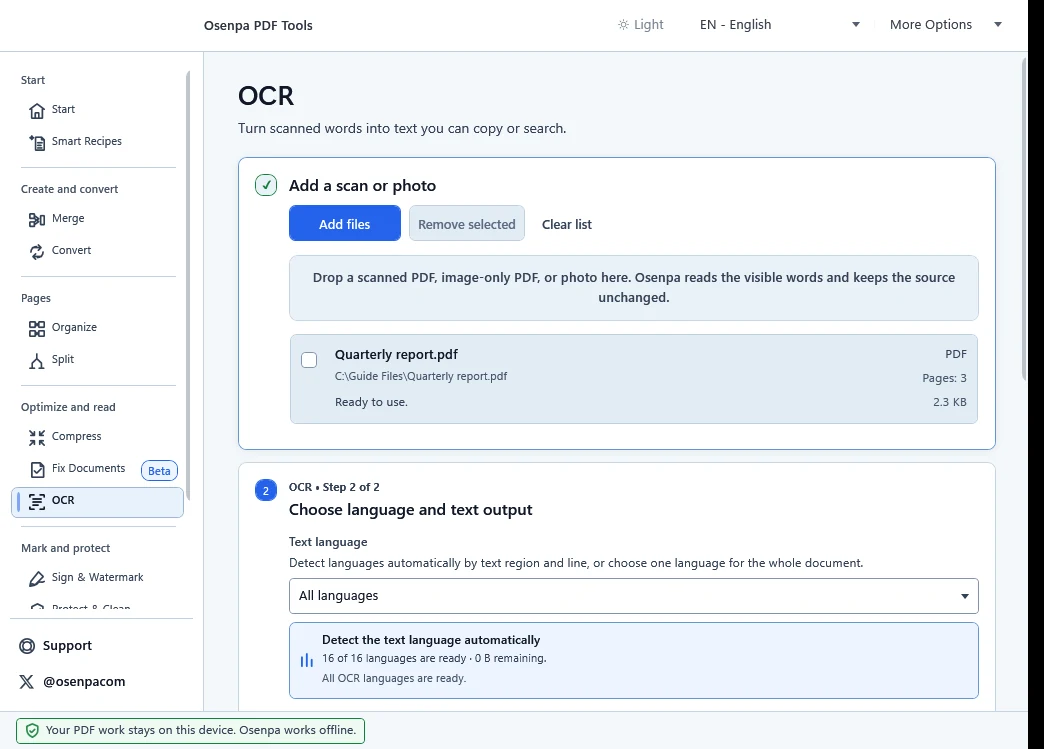
All languages is ready only when the status says that all 16 language packs are available. -
Run OCR to a new file
Return to OCR and select the ready document language, or All languages when all packs are ready. Choose Searchable PDF, set the output folder and naming pattern, then select Create copyable text. Keep the original scan.
You should see: a new PDF and a result summary when processing finishes.
-
Test the text layer
Search known names and phrases, copy a sample and compare critical facts with the page image.
You should see: matching words highlighted while the original page image stays visible.
If search misses words or copied text is wrong
Check that the page is upright and readable. If all 16 verified packs are ready, use All languages for a mixed-language document; otherwise choose the one language that best matches the whole document. Skew, handwriting, low resolution, unusual fonts, tables and columns can still confuse OCR. Correct important names and numbers in your downstream work; do not treat recognized text as a certified transcription.
When the app can recover from a page or text-region error, it keeps recognized text from successful areas and leaves the failed area as an image without searchable text. An unreadable source, a serious processing error or a failure while saving can prevent output altogether. Check the result summary and any reported failures, then open the saved file and test every important page.
Supported input includes PDF, JPG, PNG, BMP, TIFF, and WebP. Searchable PDF is the starting output choice; UTF-8 TXT and an in-app preview are also available.
OCR assumptions
- Treating recognized text as an exact transcription
- Choosing a language that does not match the document
- Skipping tables, equations, names and page-number checks
Searchable PDF checks
- Known phrases can be found.
- Critical names and numbers match the image.
- The page image remains readable and aligned.