
Short answer
Start by finding the files and folders that use the most space. Check what each item belongs to before you move, uninstall, or delete it.
If you use Free Space Now, read its cleanup scope first. It starts as soon as you choose it and cannot be canceled inside the app.
This guide covers Osenpa Disk Analyzer. Check requirements and download options before you begin.
On this page
When to use this method
Use this method when a drive is nearly full and you want to compare deliberate file review with allowlisted cleanup.
Before you start
Save open work. In File Explorer, open This PC, right-click the drive and choose Properties to record its free space. Back up files you cannot replace. Before Free Space Now, open the Recycle Bin and restore anything you may still need. Cleanup begins immediately, cannot be canceled in the app and is global: selecting a result tab does not restrict it to that drive.
The row's Delete action opens a permanent-deletion confirmation. Its final Delete permanently command removes the selected item without the Recycle Bin. Choose Cancel if its ownership or backup is uncertain.
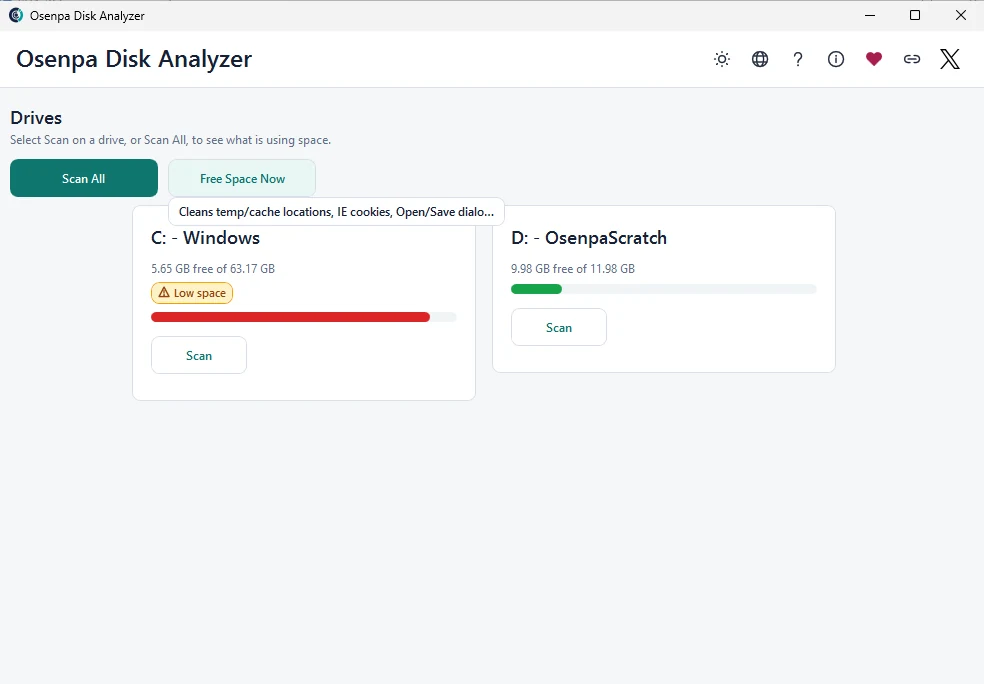
Cleanup scope and manual deletion What Free Space Now can remove and what always needs your decision.
- Cleanup boundary
- Free Space Now is constrained to allowed temporary and cache targets, the Recycle Bin, legacy IE or WinINet cookies, and common Open and Save history. It excludes personal libraries as general cleanup targets. Manual permanent deletion is a separate, explicit and irreversible action that stops when a safety check fails.
- Important limit
- An old archive in Downloads will not be removed by the cleanup allowlist. Move or recycle it deliberately after confirming ownership instead of expecting automatic cleanup.
Separate a recoverable action from reclaimed space
Moving a file to another folder on the same drive does not free capacity. Moving it to the Recycle Bin usually keeps a recovery option but still uses space. Emptying the bin removes that recovery option. Review its contents before any cleanup that includes it, and use the owning app's move or uninstall action for managed files.
Reclaim space with evidence
-
Find the largest candidates
Choose Scan on the nearly full drive, keep it connected and wait for the results to appear. Review a few of the largest files or folders and check their sizes and paths. The Large / old filter uses at least 1 GiB and at least 90 days as review thresholds.
-
Find what owns each item
Open the folder and check the dates. Use the creating app's cleanup or uninstall path when one exists. You should know what the item does before changing it.
-
Read the scope before starting
Read the Free Space Now description before choosing it. It can clear allowed temporary and cache locations, the Recycle Bin, legacy IE or WinINet cookies, and common Open and Save history. Confirm that you restored anything needed from the bin and accept the loss of those cookies and history entries. If you want to keep any part of that scope, leave the button alone and use a narrower Windows or application cleanup option.
-
Read the receipt and check the result
After cleanup, read the removed-item counts, deleted-byte total and skip reasons. Compare Windows' free-space reading before and after, then scan again. The receipt's deleted-byte total is not a direct measurement of physical free-space change. Confirm that needed apps and files still work.
Cleanup risks
- Assuming a cleanup allowlist covers every safe-to-remove file
- Removing application data outside its own cleanup path
- Permanently deleting the only copy of an archive
Checkpoint: cleanup checks
- Record free space before cleanup.
- Read and accept the fixed Free Space Now scope before starting it.
- Use the owning application's cleanup route when available.
- Rescan and confirm the expected gain before making any manual deletion permanent.