
Short answer
A path reference only remembers where the original file or folder is. It stops working if the source is moved, renamed, or deleted.
A snapshot saves a local copy of an eligible file under the size limit you choose. It uses extra disk space but can still work after the original is gone, until retention removes the snapshot. Check the file card to confirm which type was saved.
This guide covers Osenpa Clipboard Manager. Check requirements and download options before you begin.
On this page
When to use this method
Use this workflow to remember or locally copy files selected for the clipboard. It is not backup, synchronization or version control. Keep an independent backup for irreplaceable files.
Path reference or snapshot: what changes?
-
A path reference remembers the original location
The history card remembers the path placed on the clipboard. Re-copying uses that location again. If the item moves or is deleted, history still shows the path but cannot recreate it.
-
A snapshot keeps an eligible local copy
When snapshots are enabled and the selection is safe and small enough, the app stores a local snapshot beside the history record. Snapshot storage is separate from the original location and contributes to the app's disk usage.
-
Some selections remain path-only
A selection over the configured boundary, a missing source, an unsafe link, an unsupported selection or a disabled snapshot setting can leave a valid path record without a local copy. The file card reports snapshot status instead of silently promising recovery.
File paths and snapshotsPath capture, snapshot limits and a safe paste test.
- Snapshot size choices
- Snapshot storage can be Off or limited to 10, 25, 70 or 150 MiB per copied selection. The default is 70 MiB.
- How it works
- File clipboard records retain paths, while eligible selections can add a local compressed snapshot. Copying a snapshot card places extracted files on the Windows clipboard so you can paste them normally. Snapshot creation and extraction reject unsafe link or traversal cases.
- Important limit
- A copied folder containing a directory link can remain useful as path history without producing a snapshot. Do not interpret path capture as proof that a local file copy was saved.
Choose between a path and a local copy
-
Copy a harmless representative file
Create a small disposable text file in a test folder. Give it a clear name and put a unique sentence inside. Copy the file in File Explorer. Open Osenpa Clipboard with Alt+V. You should see a new file card with the test file's name.
-
Inspect the entry state
Open the file card or Item details. Read the item count, total size, source path, capture time, current availability and snapshot status. You should see either Snapshot or Path reference. Do not infer state from the thumbnail alone.

Check that the file card says Snapshot before you test recovery. -
Check the snapshot boundary
In Settings, open File clipboard. For this snapshot test, choose a limit large enough for the sample: 10, 25, 70 or 150 MiB. Off saves paths only. If the first card was path-only, create and copy a newly named disposable sample after changing the setting. Confirm its card now says Snapshot before moving its original. Changing the limit does not add bytes to an old card.
-
Copy the snapshot card
Rename or move only the disposable original so its old path no longer resolves. Return to its snapshot card and choose Copy back to clipboard. The app prepares the stored files for a normal Windows paste; it does not choose a restore folder for you.
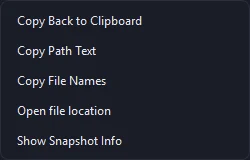
Use Copy back to clipboard, then paste into a separate empty test folder. -
Paste into an empty test folder
Open a different empty folder in File Explorer. Press Ctrl+V. You should see a new copy of the test file in that folder. Never test recovery by overwriting the only working copy.
-
Compare the source and pasted copy
Compare the pasted name, count and size with your notes. Open the pasted text file and confirm its unique sentence. For important binary files, use an independent hash or the file's own verification method as well.
Reuse, share and organize copied files safely
-
Check availability before re-copying
The file card can copy paths or names, open the original location and check availability. A snapshot does not silently rewrite a broken source path. Copy the snapshot card, then paste it where you want the recovered copy.
-
Know the Windows Share boundary
Osenpa Clipboard Manager can send one existing file through Windows Share when Windows supports the file and a compatible Share app is installed. A folder or several selected files are not sent as one Share item.
-
Use Clipboard Stack with care
File items can enter Clipboard Stack and Stack Profiles. Enable snapshot embedding when an exported profile must include eligible file bytes. If it contains only paths, opening it later can reveal missing files, so resolve the warning before a real paste sequence.
File-history risks
- Assuming every copied directory is snapshotted
- Relying on a path after the source was moved
- Using clipboard snapshots as the only backup
- Pasting over an existing working file
Checkpoint: prove recovery
- Identify path-only versus snapshot state.
- Confirm the configured size limit.
- Copy the snapshot card back to the Windows clipboard.
- Paste into a separate test folder.
- Compare the pasted file with the source.
- Review Storage settings after the test and remove the disposable snapshot when it is no longer needed.
Keep snapshot storage under control
Storage shows how much space the database, images, file snapshots, and text use. The optional quota is off by default and can be set from 100 to 102,400 MiB.
Cleanup previews what it can remove and protects pins, Favorites, and Locked Notes. Keep a real backup outside the clipboard workspace. Optimize can checkpoint the database log and compact unused space, but it cannot restore a deleted source file.