
Short answer
Clipboard Stack keeps text, links, images or files in a paste order you choose. Use Prepare Next for manual pasting.
This guide covers Osenpa Clipboard Manager. Check requirements and download options before you begin.
On this page
When to use this method
Use Clipboard Stack for several known values in a fixed order, such as a form or standard reply. Pins and Favorites keep individual items easy to find; Smart Collections find matches; Stack controls paste order.
Try a three-item Stack
-
Create three harmless items
Copy
Sample name,sample@example.testandhttps://example.com/projectone at a time. Press Alt+V. You should see three separate cards in History. -
Add the items to Clipboard Stack
Right-click each card and choose Add to Stack. Open the Clipboard Stack button at the top; it shows Stack and an item count. You should see all three items marked Pending.
-
Put them in the right order
Drag Sample name to the top, the email second and the link third. The first row should be marked Next.
-
Prepare and paste one item
Select Prepare Next. Open a disposable document and press Ctrl+V. You should see Sample name. Back in Clipboard Stack, the email should now be marked Next.
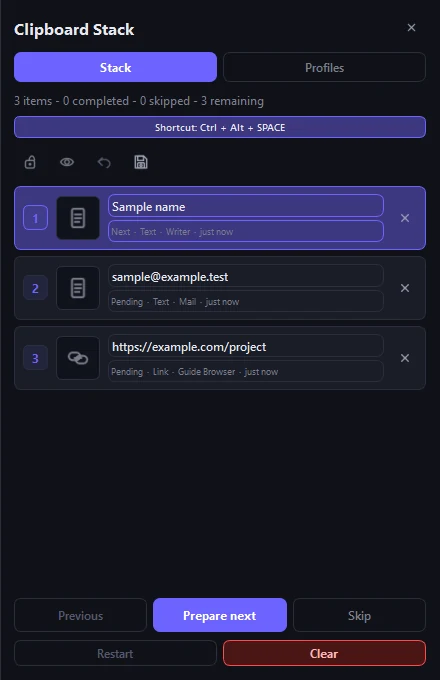
Prepare Next puts the current value on the clipboard and advances the queue. Paste that value before preparing another. -
Finish the test
Repeat Prepare Next and Ctrl+V for the other two items. You should see the three values in the same order as the Stack.
Clipboard Stack behaviorQueue persistence, profile behavior and safe navigation.
- What persists
- Saved profiles retain supported item snapshots. Include file snapshots only when you want the profile to keep a local copy of those files, rather than just their paths.
- Important limit
- Loading a profile in append mode can place its first value after leftover queue items. Check the count and current position before filling a real form.
Stack action referenceOpen this when you need Prepare Next, direct paste, navigation or lock behavior.
Know what each Stack action does
-
Prepare Next
Prepare Next puts the current item on the Windows clipboard and advances the queue as soon as preparation succeeds. It does not send Ctrl+V. Move to the destination and paste before selecting Prepare Next again.
-
Direct-paste hotkey
When enabled, the global Stack hotkey prepares the current item and sends Ctrl+V to the foreground application. The default shortcut is Ctrl+Alt+Space, but it can be changed. If preparation or simulated Ctrl+V delivery fails, the queue keeps the item current. A reported delivery does not confirm that the receiving app inserted the content; check the destination.
-
Previous, Skip, Restart and Undo
Previous reactivates the most recently completed or skipped item. Skip advances without pasting or deleting. Restart returns all items to the beginning. Undo reverses the last supported Previous, Skip, remove or Restart command.
-
Lock and hide completed items
Locking protects the queue structure from accidental changes. It does not disable preparation, pasting or navigation. Hiding completed items changes the drawer view, not the stored status of those items.
Build and save a reusable StackUse these profile and navigation steps after the three-item test works.
Prepare and run an ordered stack
-
Collect the exact sequence
After the three-item test, add reusable material from Favorites or a Smart Collection. Select mode and dropping a card on the Stack badge are additional ways to add items. Locked Notes cannot enter Clipboard Stack.
-
Arrange the paste order
Drag each entry into the order expected by the destination. Open the preview and confirm that text, links and images are the intended values. For files, check whether the item is a path reference or has a local snapshot, and confirm that the source is still available.
-
Save a named profile
Use a specific name and optional description or color. A profile can remember a paste delay from 0 to 5,000 ms, whether the queue should lock when loaded and, if selected, file snapshots. The profile remains on this PC until you delete it.
-
Choose how it loads
Choose Replace to discard the current queue, Append to place the profile after it, or Ask when loaded if the right choice changes by task. Read the final count and first item after loading. Missing file references are reported instead of being silently treated as valid.
-
Rehearse navigation
In a disposable document, use Prepare Next followed by Ctrl+V. Then test the configured direct-paste hotkey, Previous, Skip, Restart and Undo. Watch the Pending, Next, Completed or Skipped state so you understand exactly which item will be used.
Current Stack or saved profile?Open this to see what returns automatically and what becomes a named reusable copy.
Current Stack and Stack Profile are different
The current Clipboard Stack is a working session and is restored when the app opens again. It is not cleared merely because the app exits. A Stack Profile is a named reusable copy that you can import, export or load later. Check the Next marker after reopening: a restored Stack does not necessarily start at the first item.
Sequence mistakes
- Saving an unreviewed queue
- Appending when replacement was intended
- Expecting Locked Notes to be allowed in a Stack Profile
- Assuming a restored session is at its first item
Checkpoint: rehearse the queue
- Preview every queued entry.
- Confirm replace or append behavior.
- Paste the full sequence into a disposable document.
- Reset and verify the first item before using the Stack for real work.
- Close and reopen the app once, then confirm the saved Stack reappears with the expected next item.
What to do when a paste does not advance
Keep the destination in the foreground and try a regular Ctrl+V first. Some elevated, protected, or nonstandard input areas can block a simulated paste. The queue stays on the item when preparation or input delivery reports failure. If delivery succeeds but the destination ignores it, check the queue and use Previous before trying that value again.
Use Prepare Next and paste manually if the destination accepts normal clipboard input. If a file is missing, restore it or replace its reference before continuing.