
Short answer
The clipboard holds the last thing you copied. Osenpa Clipboard can keep supported items in a longer local history.
Open it with Alt+V and search for one memorable word. Add a filter only if the list is still too broad, then open Item details to check the content, source, and time before reuse.
This guide covers Osenpa Clipboard Manager. Check requirements and download options before you begin.
On this page
When to use this method
Use this guide when you remember something about a copied item but cannot find it in a long list. Search cannot recover anything filtered out, deleted, never captured or removed by cleanup.
Try one sentence first
Start Osenpa Clipboard so it can capture the sample. Type Blue kite project in a disposable document, select it and press Ctrl+C. Use this invented sentence while learning the search controls.
What the search can find
Search checks saved text and item details. You can find an image by its type, source or date, but this does not read words inside the picture.
Find and paste the sample
-
Open history with Alt+V
Press Alt+V to open the Clipboard tab. Clear the search box and set the type and date controls to show all items. The sample should appear in the retained History list. If the shortcut does nothing, open the app from the Start menu or tray and check its Hotkey setting.
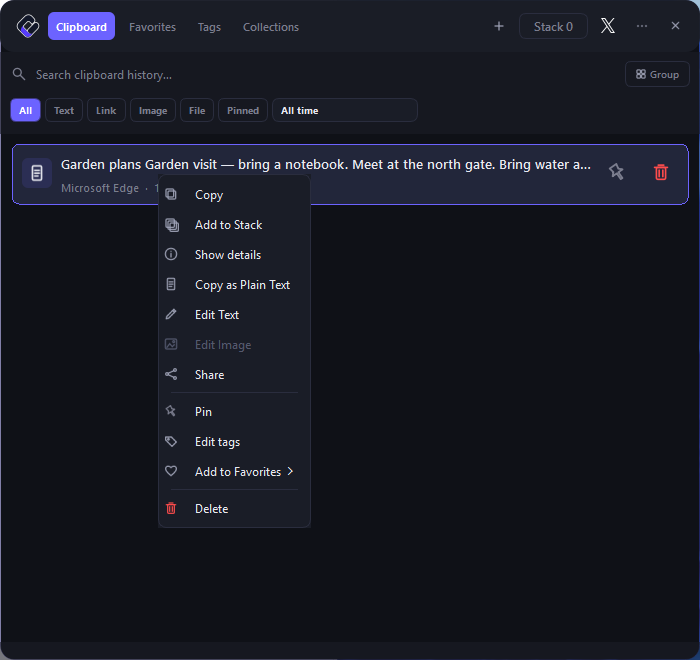
This example card says Garden plans; yours will show the Blue kite sentence you copied.
- Search: the field below the tabs finds words in saved text.
- Filters: All and All time keep the first search broad.
- Show details: right-click the card and choose this item to inspect the full text, source and time.
-
Start with words or a quoted phrase
Type
kite. Then try"Blue kite project"to keep the words together. Both searches should find the sentence you copied. For your own search, begin with the most distinctive word you remember. -
Use field filters
If many items match, choose a type or date first. For example,
type:text "Blue kite project"keeps text results with that phrase. Adding-draftexcludes results containing draft. These filters change the view, not the stored items. -
Confirm the retrieved item
Select the card and press Space, or right-click it and choose Show details. Check the complete sentence, source application and capture time. Click the intended card to put it on the clipboard, then press Ctrl+V in your practice document.
If you want to reuse that text without its original styling, see Paste Without Formatting on Windows. Check the words and line breaks after pasting.
More search filters and display options
Understand each search field
You can combine regular words with the fields below. Start broad, read the result count, then add the smallest useful restriction.
-
app:andtype:Use
app:for the source application andtype:for a content kind such as text, link, image or file. A minus can exclude an application or type, for example-app:browseror-type:image. -
domain:andtag:Use
domain:when you remember the website in a saved link. This checks the saved link text, so inspect the actual website address before opening a result. Usetag:for a label you added in the app. History and Favorites keep their tag connections separately. If similarly named items appear in both places, check which item you opened. -
size:and date controlsUse
size:>1MBto find larger items orsize:<500KBto find smaller ones. Use the date control for Today, Yesterday, Last 7 days, Last 30 days, This month or All time. The search box also recognizes the bare wordstodayandyesterday. There is nodate:field prefix. -
Group and change density
Group results by source application or date when scanning a long list. Comfortable, Balanced and Compact density change how much each card shows, not what the search includes.
Advanced storage and privacy limitsWhy an older item may no longer be searchable.
Regular history supports text, safe web links, images, copied file or folder selections and color codes. Compatible safe HTML or RTF can be stored beside plain text. Unknown private clipboard formats are not stored.
Auto-delete starts at 24 hours. It can be disabled or set from 1 to 360 hours. The regular unpinned history cap starts at 1,000 and can be set from 100 to 100,000. Pins and Favorites are protected from routine cleanup, so the total stored count can be higher.
Regular history is local but not encrypted. Locked Notes is a separate encrypted area and does not appear in normal history search. Pause or a privacy filter can prevent an item from entering history in the first place.
Too many results?
Choose one memorable phrase, then add just one useful type, date or source filter. If the wanted item disappears, remove the last filter and check again.
Check the text you pasted
- The sample sentence appears in both searches.
- Item details shows the expected source and capture time.
- The pasted sentence matches the stored item.
- Remove the temporary clip after the test.
If the item does not appear
Clear the search and the type and date filters. Then look in History, Favorites, and the relevant Smart Collection. Check whether monitoring was paused, a privacy rule matched, retention removed the item, or a non-file item was larger than 15 MiB.
The app uses its full-text index when available and falls back to a simpler local search when needed. If the list looks incomplete after a database problem, use the health and recovery tools before adding new items.