
On this page
Before you start
- Osenpa PDF Tools 1.0.7 or later and a photo or scanned PDF showing both complete pages.
- Keep the original. Both pages should be readable, with their outer edges and spine visible.
Follow these steps
Add the book spread
Open Fix Documents (BETA) and choose Add photos or PDF. Select the photo or scan. Install the correction component if the app asks, then wait for the preview.
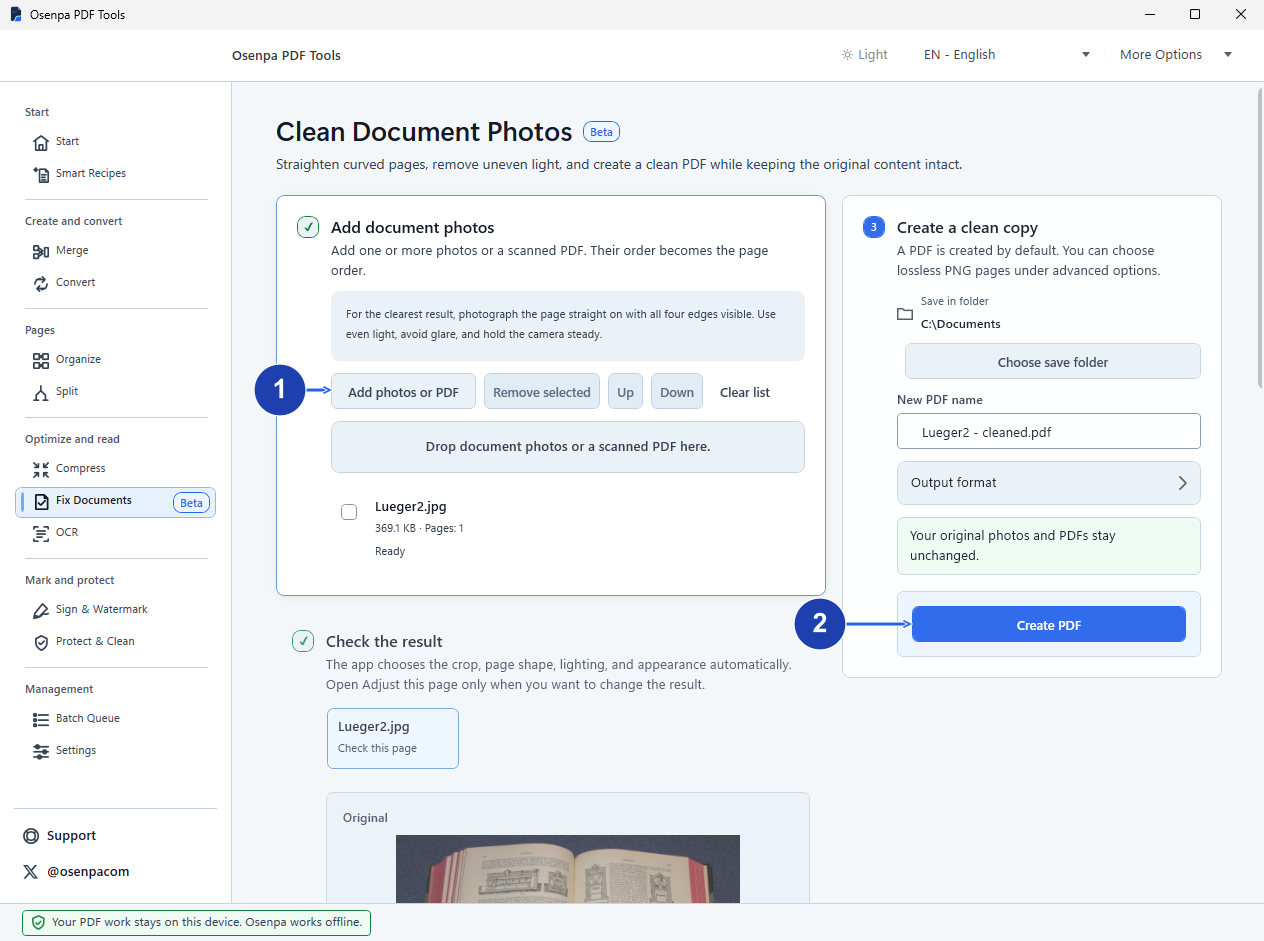
The book photo is loaded and ready to preview in Fix Documents. Enlarge image. - Add the book photo in Fix Documents.
- Create PDF saves a separate copy after you check the pages.
Check the detected pages
Compare Original with Cleaned result. Check that both pages are upright and that each keeps its text, diagrams and page number. Read any warning about the page edges or reading direction before saving.
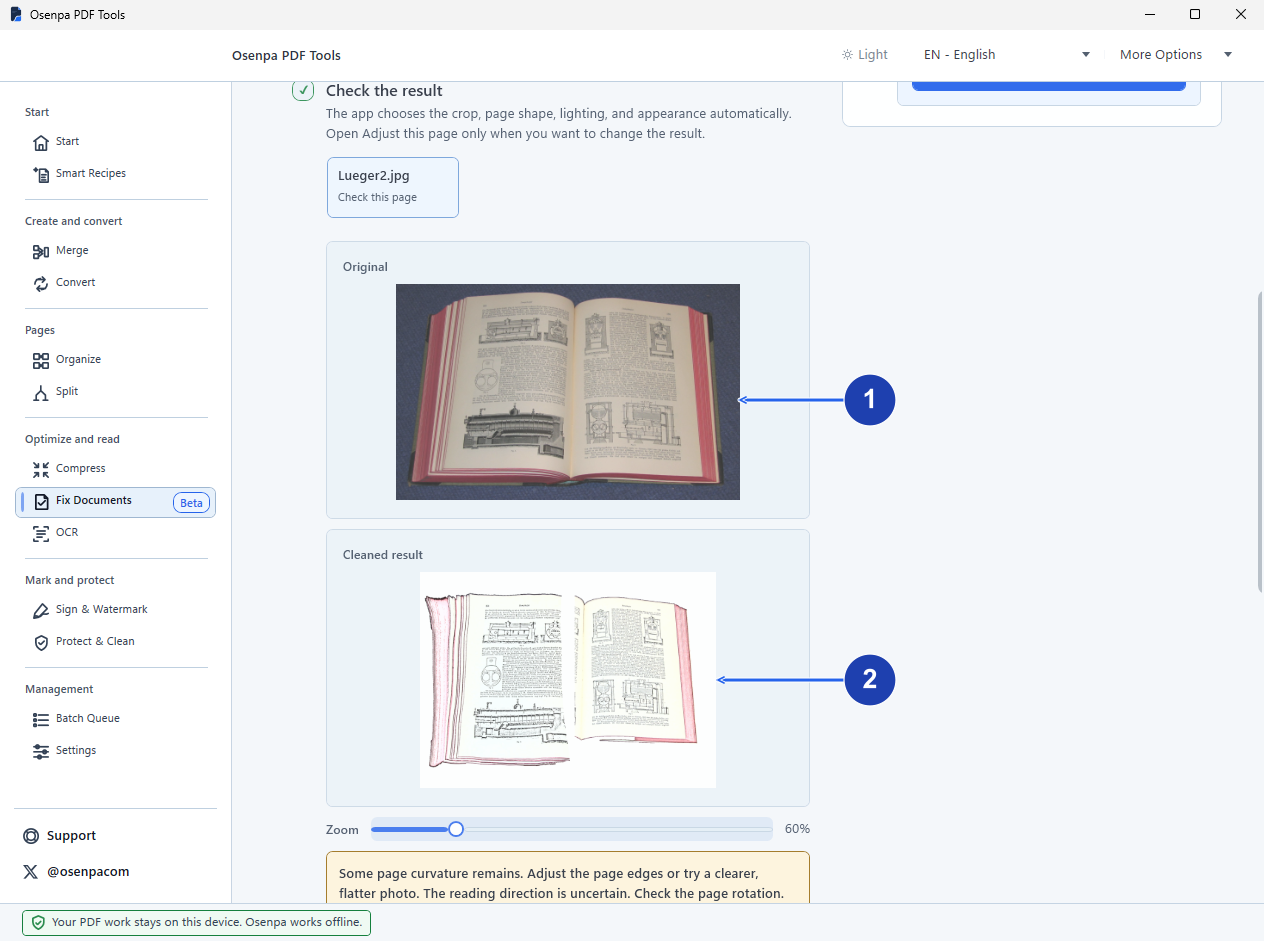
This preview still flags curved pages and uncertain reading direction. Check the edges and rotation. Enlarge image. - Compare both page edges with the original photo.
- Check the cleaned preview for missing content or distortion.
Adjust the split when offered
Open Adjust this page if the detected layout needs changing. For a detected spread, Split facing pages switches between one page and two; leave it unchanged when the automatic split is correct. Wait for the updated preview after a change. The button appears only when the app detects a split or a possible facing-page problem.
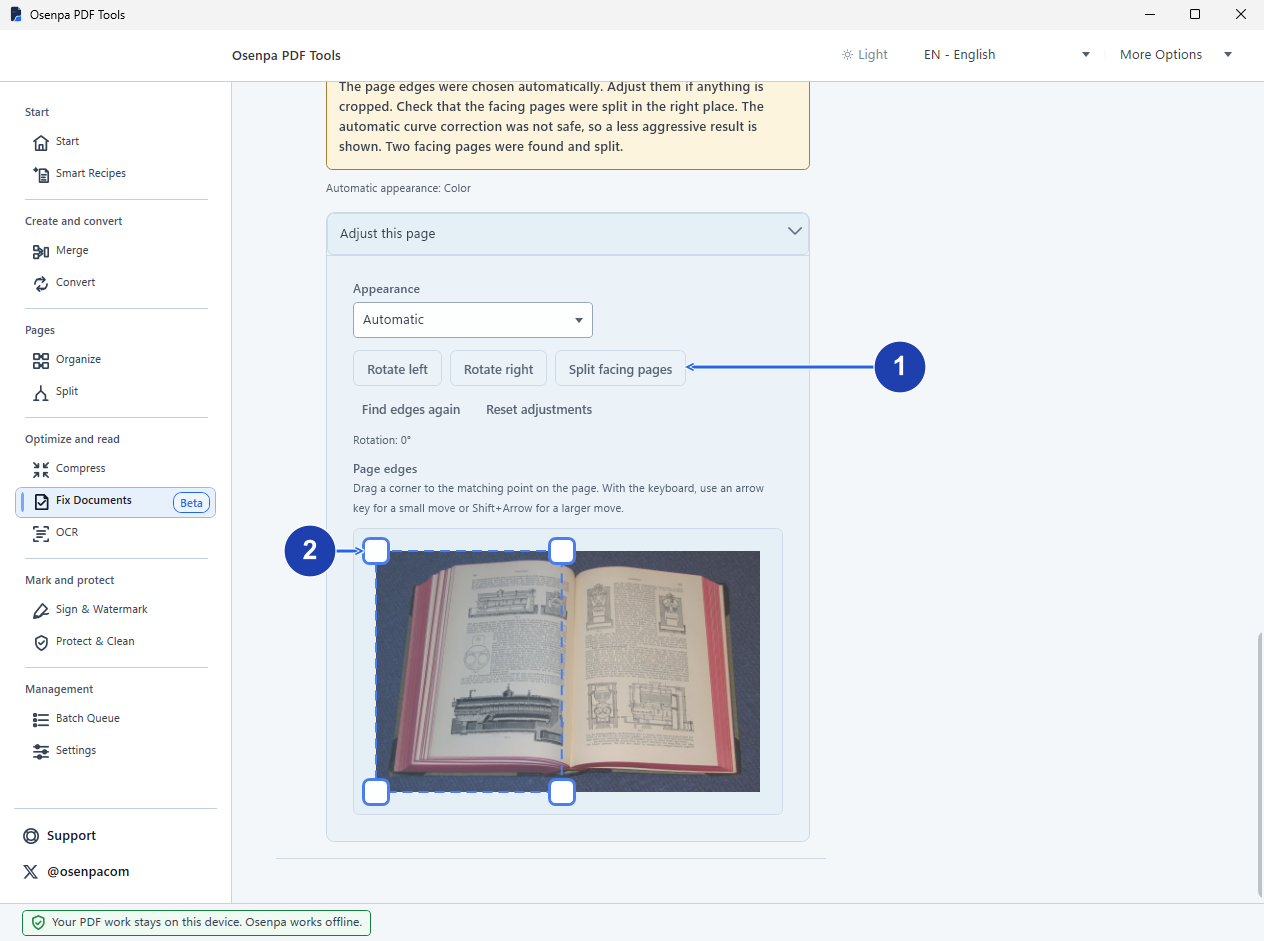
The app has already detected and split this spread. Change the split only if the preview needs it. Enlarge image. - Check the existing split before changing Split facing pages.
- Check the corners for the selected page.
Prepare the PDF copy
Choose an output folder and a new filename. PDF output also recognizes text, so install the document’s language in Settings → OCR languages if needed. This example book is in German. Language downloads need internet access.
Create and check the PDF
Choose Create PDF. Open the saved file and check that the two pages are separate, in reading order and complete. Search a visible word on each page and compare important numbers with the original.
Check your result
- Each complete page has its own output page, without a missing edge or repeated strip from its neighbor.
- The order is correct and important text remains readable.
If you need more help
If Split facing pages is not available
This feature depends on detecting a book spread. It is not an arbitrary cut-any-page-in-half tool. Try a clearer photo showing both complete pages, or photograph each page separately and combine the pictures into a PDF.
If the spine, glare or blur hides words
Take another photograph with more even light and the text visible near the spine. Correction cannot recover words missing from the captured image.
If you need separate images instead
Open Output format and choose Lossless PNG pages. This saves corrected page images without the automatic PDF text-recognition step. Check each image’s edges and order.
Need the app?
Osenpa PDF Tools. Check requirements and download options.