
Short answer
Audio Trigger compares a short reference sound with sound currently arriving from computer audio or a microphone. Use a clean, distinctive reference, choose the correct listening device and test silence, similar sounds and the expected sound before connecting any important action.
This guide covers Osenpa Auto Clicker. Check requirements and download options before you begin.
On this page
Audio Trigger is labeled BETA
Microphones, sound drivers, volume, compression and background noise can change a match. The tool recognizes similarity to a sample, not the meaning of an alarm, phrase or event. Keep important work supervised.
Before the listening test
Prepare a local player that can replay your exact test chime and a working Windows output device. Keep other sounds quiet for the baseline test, save any existing workflow and keep F12 available before listening.
Build your first sound trigger
-
1. Prepare a simple chime
Choose a short, harmless test chime, such as a plain one-second beep. It should have a clear start and end and contain no speech, music or private audio.
-
2. Add the reference
Open Audio Trigger. Select Choose file, then Choose sound file and open the chime as the reference. You should see its duration, audio format and a shortened SHA-256 value.
-
3. Listen to computer sound
Choose Computer sound. Open Show advanced settings and keep the listening device at System default. Input level updates while the trigger is running; selecting a device alone does not start listening.
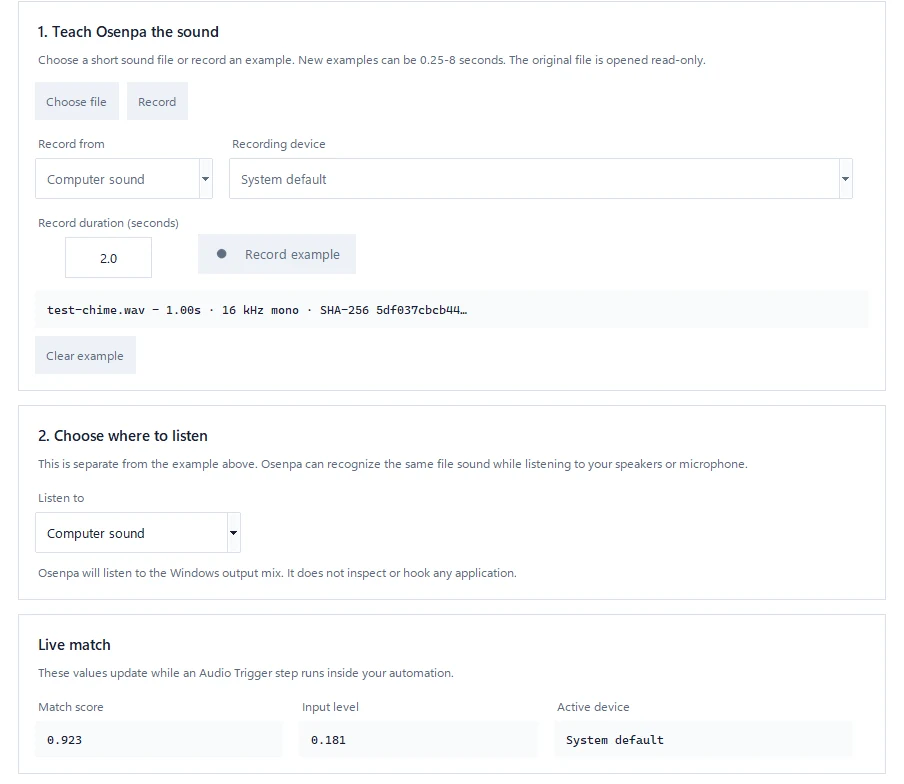
During a running test, Input level shows whether the selected device is supplying audio. -
4. Add safe actions
Under advanced settings, choose Wait until timeout and set Timeout (seconds) long enough to play the chime. Set THEN to Wait (delay) for one second and ELSE to Stop automation. Keep Trigger mode at Once for this first test.
-
5. Test the expected chime
Choose Run in Audio Trigger, then play the exact chime. Watch Input level and Match score while it runs. A match should run the THEN delay. Keep the actions harmless while checking the non-match cases next.
-
6. Test silence and a different tone
Run the test in silence. Then play a clearly different tone. Both tests should end in ELSE. Keep F12 ready as the permanent Emergency Stop. Only after the match and non-match tests pass, select Add to Steps to save the configured trigger for a complete workflow.
Advanced reference and matching controlsFormats, devices, tuning and wait behavior.
You can record a reference inside the app or load WAV, MP3, M4A or FLAC. References can be 0.25 to 8 seconds and up to 32 MiB. Trim silence and unrelated audio from both ends.
Computer sound hears what the PC is playing. Microphone hears the selected input device and can also capture the room. System default follows the current Windows device. A fixed device fails safely if it disappears instead of silently switching devices.
Sensitivity is the numeric match threshold: a higher value requires a closer match. Release threshold helps reset after a sound, Noise gate ignores quiet input, Stability can require a consistent match, and Cooldown prevents repeated firing. Change one setting at a time and test both the reference and a similar sound. Scan once checks once. Wait until timeout has a finite ELSE result; Monitor continuously until stopped has no finite timeout.
Checkpoint: prove the trigger is selective
Pause before attaching an input action. Play the reference several times, then test silence and a similar sound. Continue only if the reference triggers and the other tests do not.
Local audio behaviorWhat is heard, stored and sent.
- Reference processing and live matching run locally.
- The audio trigger does not upload the reference or live audio for matching.
- A microphone can capture voices and room sounds. Use a plain test chime or another harmless recording. Do not use private audio.
- Fixed-device failure is reported instead of silently listening through a different device.
- Input Variation does not change audio scores, sensitivity, stability or cooldown. It can occasionally add a short pause after a completed action; your keys, text and click positions stay the same.
If there is no input or an unrelated sound matches
Stop with F12 before changing devices or reference settings. If Input level stays flat during a running test, check Computer sound, the active Windows output device and the selected listening device. A missing fixed device needs a fresh selection; it does not silently switch.
For a false match, use a shorter clean reference and change one matching setting at a time. Repeat the exact chime, silence and a similar sound after each change. A device or capture error needs correction before another test; it is not a successful silence result.
Common false-match causes
- A reference with long silence or background speech
- A microphone hearing notifications or voices in the room
- Volume or device changes after tuning
- A threshold low enough to accept similar sounds
Audio Trigger checks
- The expected sound matches several times.
- Silence and similar sounds do not match.
- Removing a fixed device fails safely.
- Cooldown prevents one sound from firing repeatedly.
- F12 stops a harmless test immediately.